
Cleanup
![]() VectorFirstAid Panel
VectorFirstAid Panel
![]() Smart Remove Brush Tool
Smart Remove Brush Tool
 QuickOps Panel

Illustrator Location:
Illustrator Main Menu > Window > Astute Graphics > VectorFirstAid
Each convenience operation has various parameters, which are specified in the preferences dialog (see VectorFirstAid: Preferences). By holding down the Option/Alt key while clicking a convenience operation button, a small dialog will come up allowing those parameters to be changed before the operation is made. These new parameters apply to that single use of the operation only.
3. Super Smart Remove Points Button
Reduces the number of anchor points in the selected paths while attempting to maintain their shapes. There are two parameters.
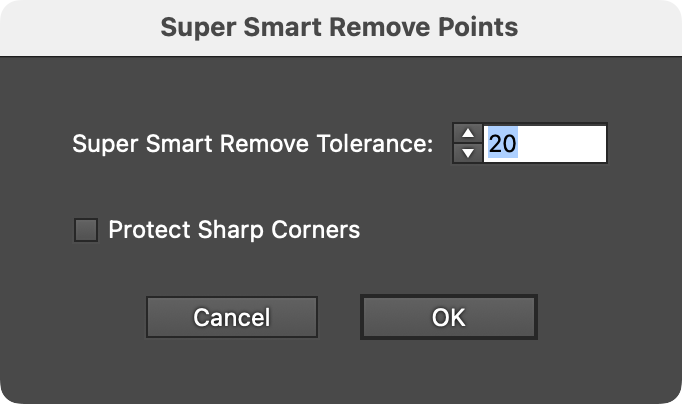
VectorFirstAid Super Smart Remove Points Parameters
a. Super Smart Remove Tolerance: Ranges from 1 to 100. The higher the tolerance, the more anchor points are removed, but the more the geometry of the path may change.
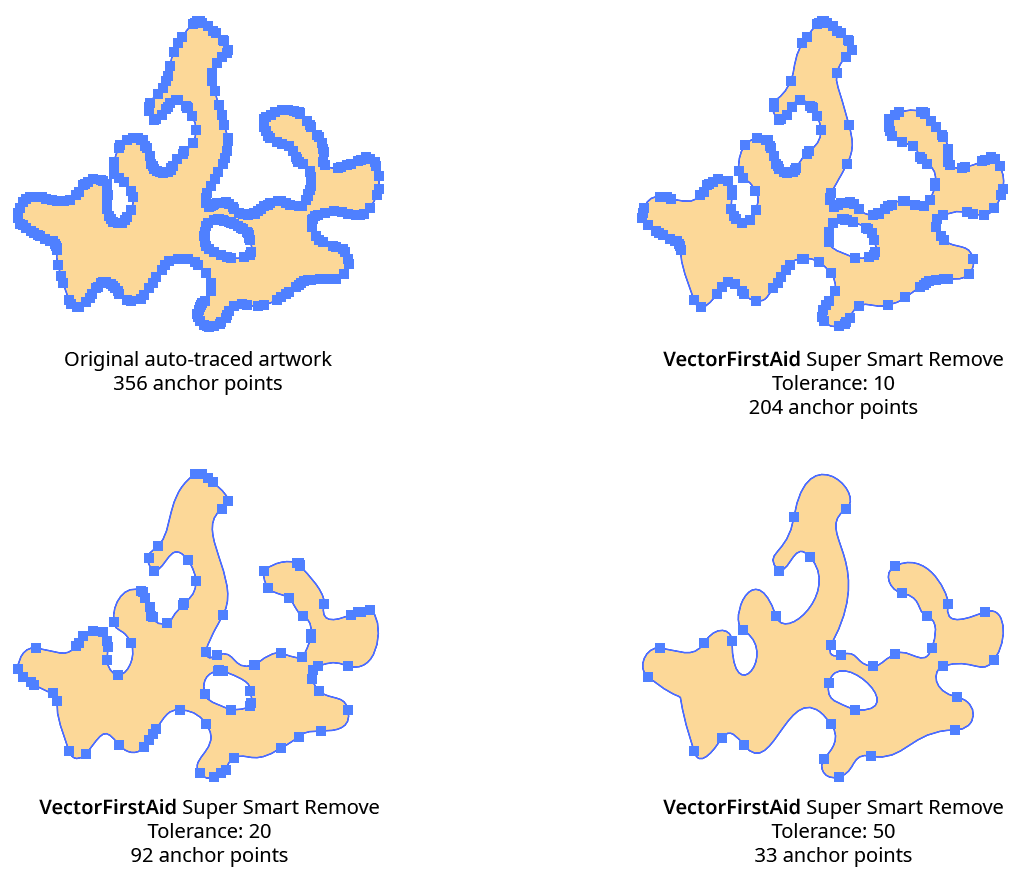
VectorFirstAid Super Smart Remove Example
b. Protect Sharp Corners: Determines whether corner type anchor points where the path has a sharp change in direction will be considered for removal. Enabling this setting lets you use a high tolerance to remove many anchor points without disturbing sharp corners, where the geometry of the path is usually more critical:
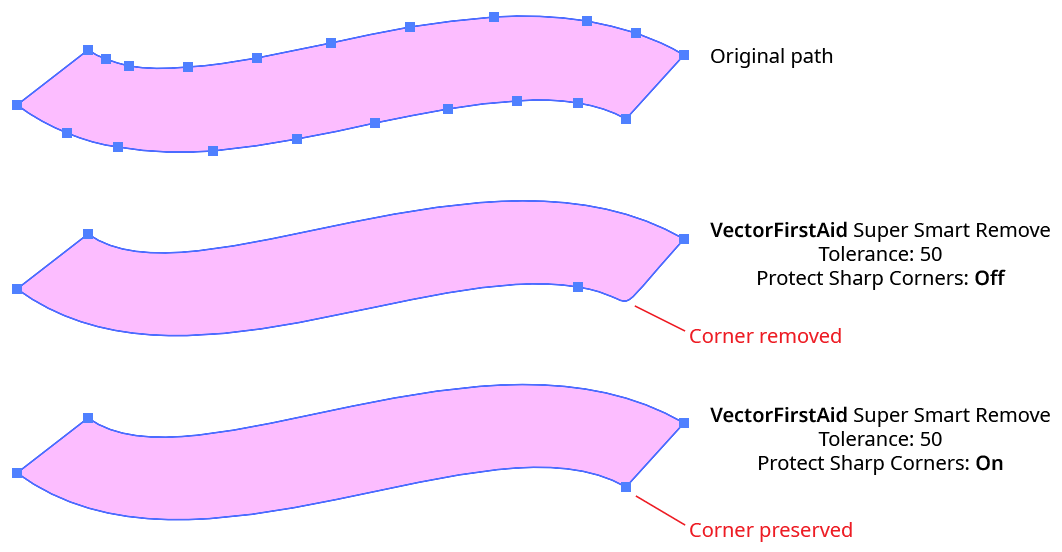
VectorFirstAid Super Smart Removal Protect Sharp Corners
4. Rejoin Paths Button
Rejoins paths which have been split apart into multiple segments back into a single path (or, if discontiguous, into multiple paths).
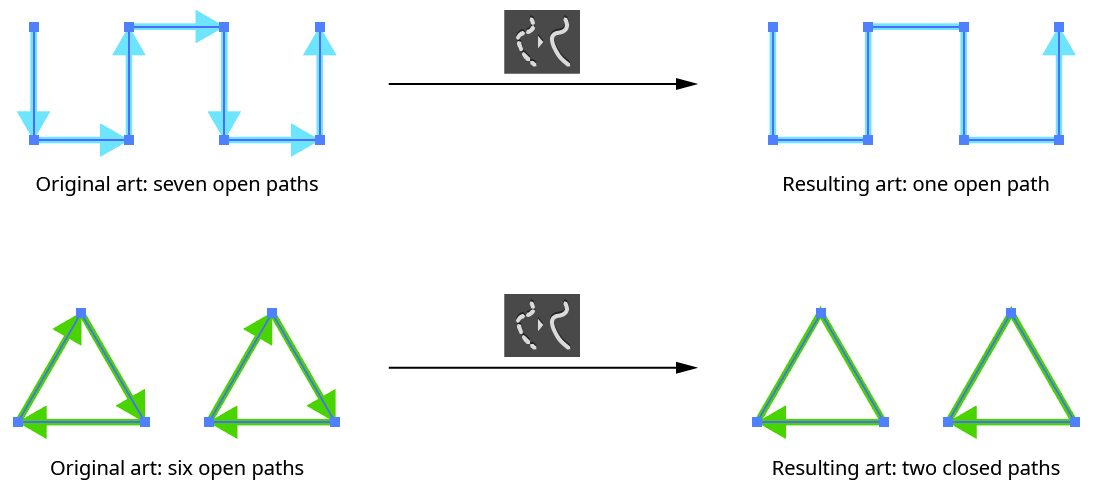
VectorFirstAid Rejoin Paths Example
The Rejoin Paths operation takes several parameters:
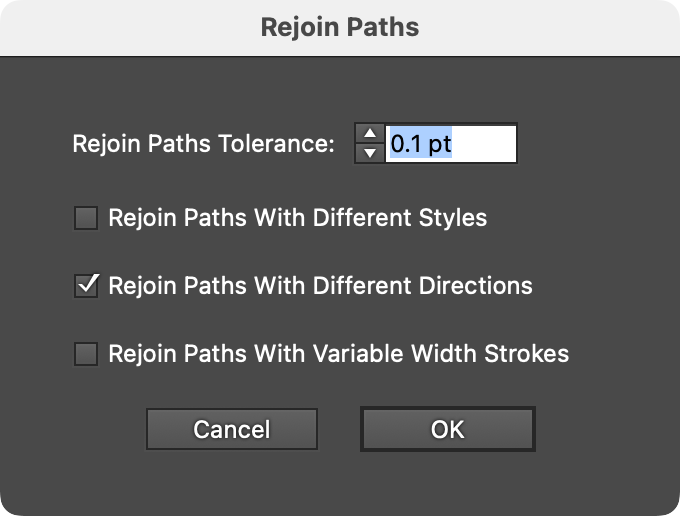
VectorFirstAid Rejoin Paths Parameters
a. Tolerance: The maximum distance that the endpoints of each segment can be from each other and still be joined, ranging from 0 to 6 pt. The default is 0.1 pt.
b. Rejoin Paths With Different Styles: Whether paths with different styles are allowed to be rejoined. When enabled, the style of the final path is taken from the section which is highest in the stacking order.

VectorFirstAid Rejoin Paths with Different Styles
c. Rejoin Paths With Different Directions: Whether paths that touch head-to-head or tail-to-tail are allowed to be rejoined. When enabled, the direction of the final path is taken from the section which is highest in the stacking order.
d. Rejoin Paths With Variable Width Strokes: Whether paths stroked with a variable width stroke are allowed to be rejoined. When enabled, the variable width profile for the final path is taken from the section which is highest in the stacking order.
If multiple sections are eligible to be joined, VectorFirstAid uses the one that results in a path with the smallest change in angle:
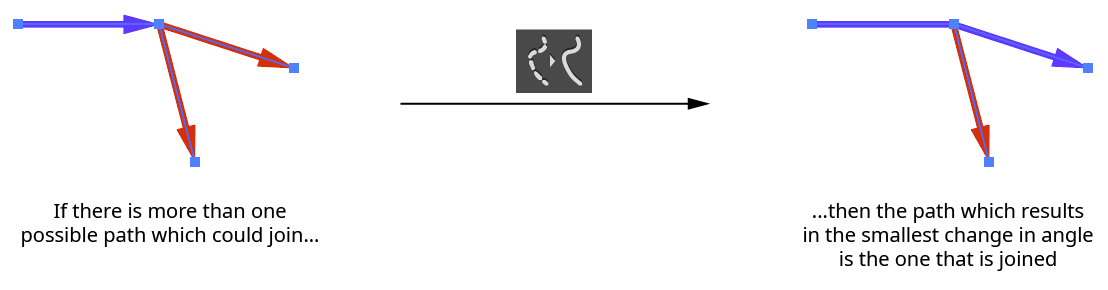
VectorFirstAid Rejoin Paths Angle Selection
5. Combine Point Text Objects Button
Combines the selected point text objects into as few point text object as possible while maintaining the position of all characters. Text can be combined both horizontally and vertically, but must be at the same angle.
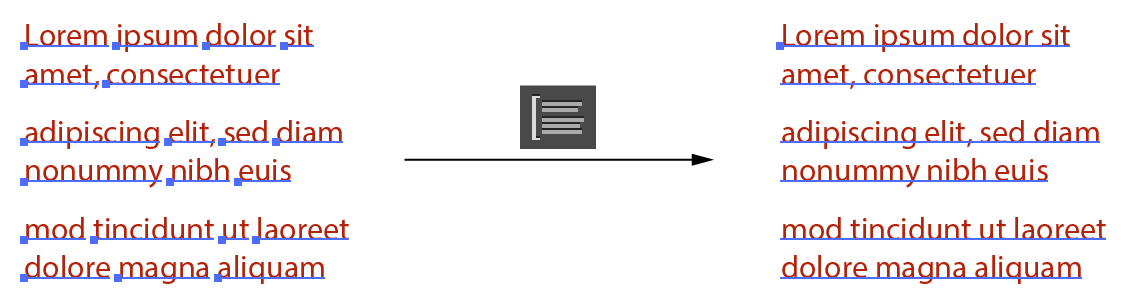
VectorFirstAid Combine Point Text Example
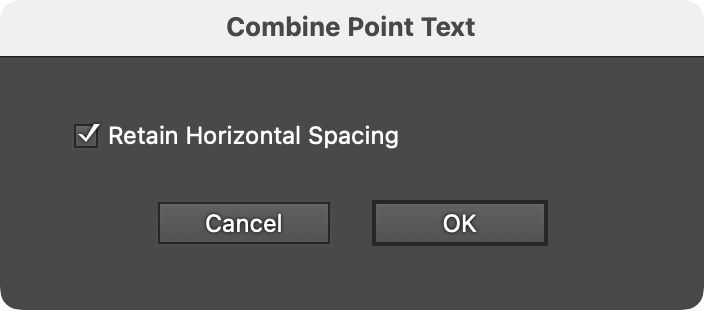
VectorFirstAid Combine Point Type Parameters
A single parameter, Retain Horizontal Spacing, controls how horizontal gaps between characters and words are handled. When enabled (the default), kerning is modified and/or space characters are added to precisely duplicate the original spacing of the text. When disabled, the spacing is normalized when possible, to give the text the look it would have if it were not tracked or kerned. Gaps wider than a single space character will still be retained as a single space. This setting can be useful when opening certain PDF files where the text has been broken into individual characters with corrupted spacing:
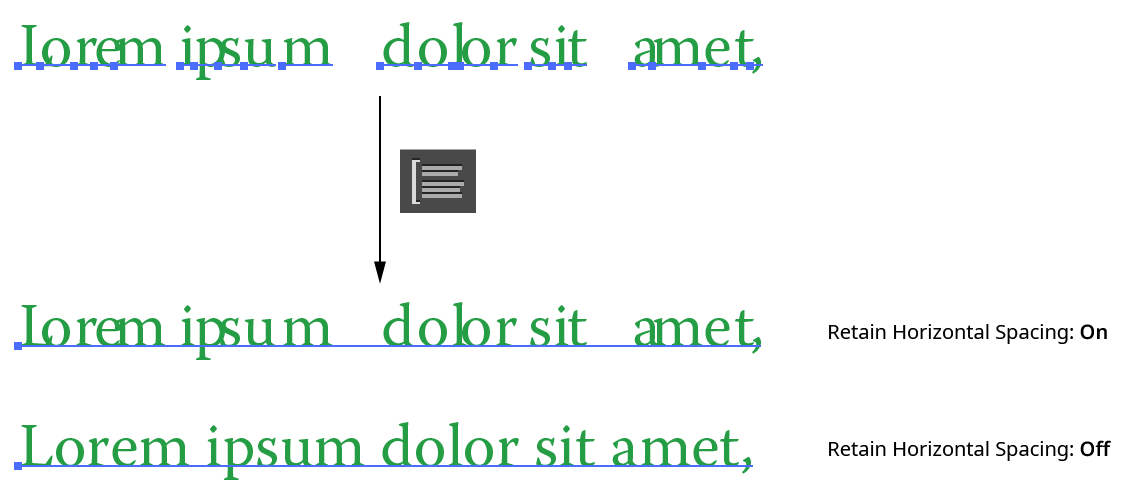
VectorFirstAid Combine Point Text - Retain Horizontal Spacing
6. Replace All Missing Fonts Button
Replaces all missing fonts in the document with a specified font. Whether replacing a single missing font, or because the exact font is not critical because it will be changed later, this is much faster than going through the Find/Replace Font dialog.
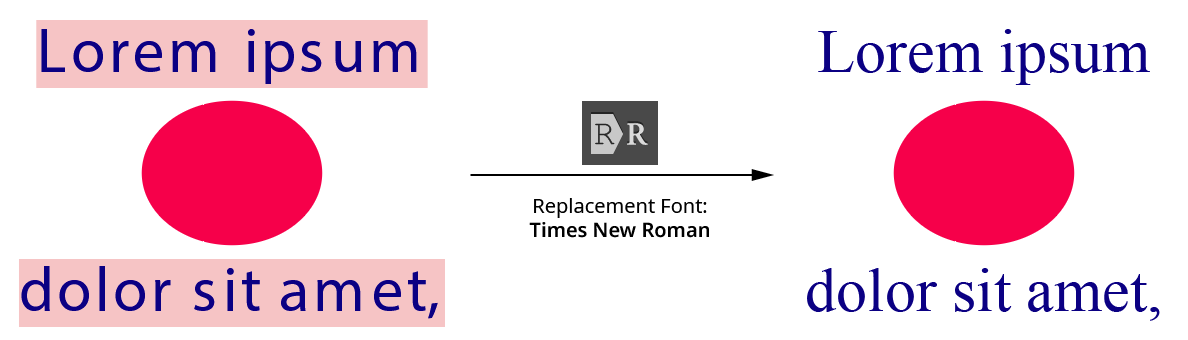
VectorFirstAid Replace All Missing Fonts
The one parameter is the replacement font.
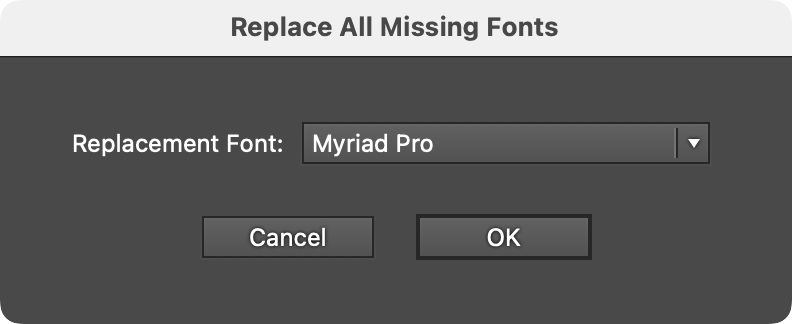
VectorFirstAid Replace Missing Fonts Parameters
7. Unoutline Text Button
Converts the selected type that has been outlined (converted to paths) back into editable text, if possible. VectorFirstAid refers to this process as “Unoutlining.” The first time this operation is used after installing the plugin, VectorFirstAid will open a new, temporary document and scan the currently installed fonts to build an internal database of their glyphs. This may take 5 to 20 minutes or even longer, depending on how many fonts are installed and their types. In particular, the SF Pro font family contains very high numbers of glyphs and will slow down the operation. However, the data is saved out to files, so this process only needs to be done once.

VectorFirstAid Unoutline Text Example
The Unoutline Text operation can handle most linear transformations of the outlines, including scaling (except that which reverses path direction), rotation, and shearing.
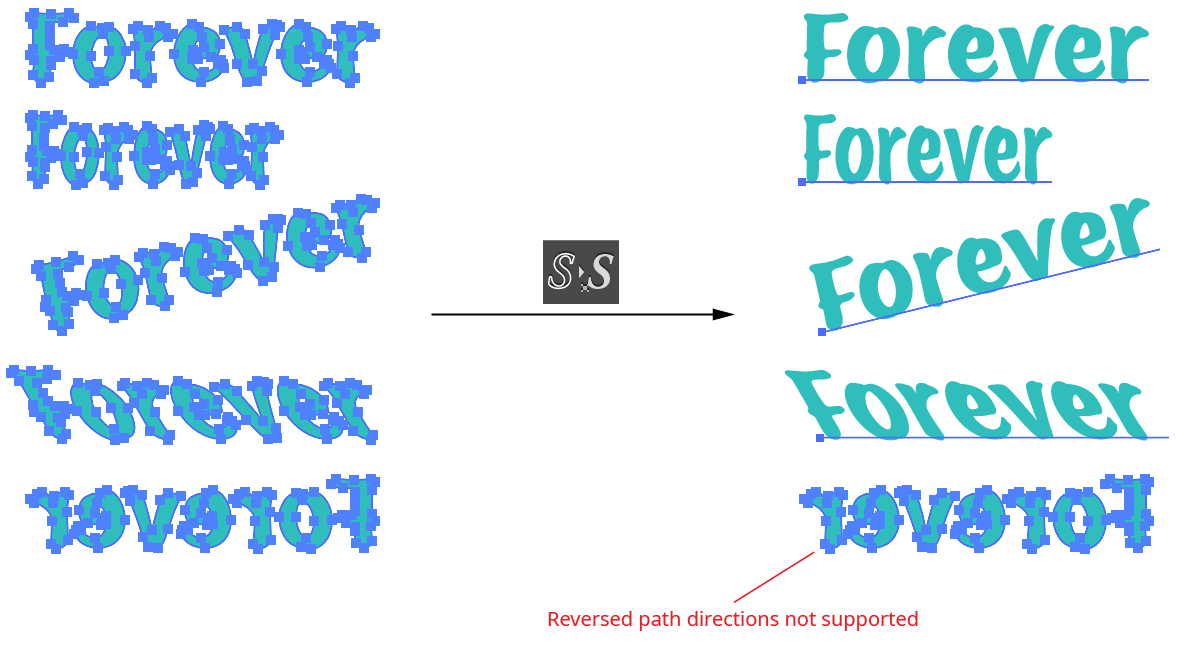
VectorFirstAid Unoutline Text Example 2
If type cannot be unoutlined, it may be due to several reasons. First, the correct font may not be present on the system. Second, the path outlines may have been altered in some way, making them different from the original outlines. For example, the starting point of the paths may have changed, or individual points may have been deleted or moved slightly. Finally, the Unoutline Text operation is not supported for fonts which contain more than 7,500 glyphs, with the exception of the SF Pro family. However, support for the SF Pro family is limited to the first 14,000 glyphs for each font.
The Unoutline Text operation takes several parameters:
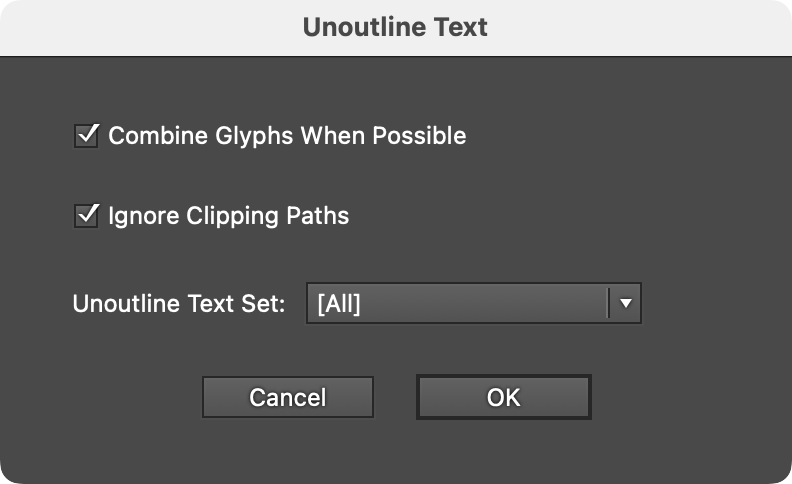
VectorFirstAid Unoutline Text Parameters
a. Combine Glyphs When Possible: Enabled by default, this option combines the individual glyphs which have been recognized into as few point text objects as possible. Otherwise, each glyph is left as a separate point text object.
b. Ignore Clipping Paths: Ignores paths which are set as clipping paths for the purposes of conversion.
c. Unoutline Text Set: Specifies a pre-configured set of fonts to use when recognizing the outlined paths. Checking these outlines against every possible font can take some time, and might result in the conversion to a different font than expected (due to the fact that some simple glyphs, such as lower case l’s, are identical across many sans serif fonts when linear transformations are allowed). For this reason, if the font of the outlined text is already known, VectorFirstAid can use this information to ignore other fonts and recognize the text more quickly and reliably. Unoutline Text Sets are configured through the Preferences dialog (see VectorFirstAid: Preferences). A quicker method is to simply some select live text along with the outlined text before using Unoutline Text. In this case, VectorFirstAid will only consider the fonts present in the selected live text, ignoring any specified Unoutline Text Set.
If new fonts are installed after VectorFirstAid has created its font database, the database will be updated after the button is clicked. A progress dialog will be shown.
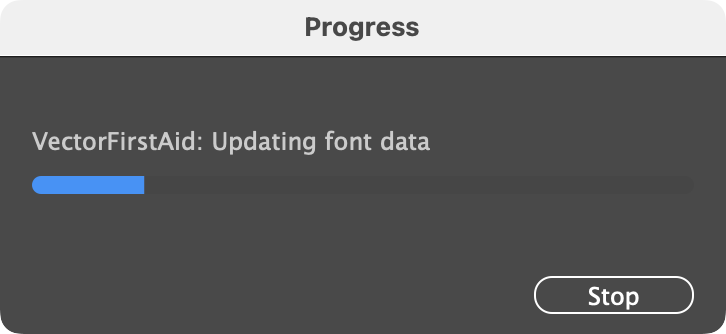
VectorFirstAid Font Database Update
If artwork other than outlined text is selected when performing an Unoutline Text operation, it generally causes no harm, because most artwork paths are unlikely to match the shape of a glyph. However, this is not true for basic shapes such as rectangles and circles, which are used in hundreds of fonts for glyphs such as hyphens, dashes, bullets, and so on. Since text, when outlined, always results in compound paths, VectorFirstAid will display a warning if a non-compound simple shape exists in the selection:
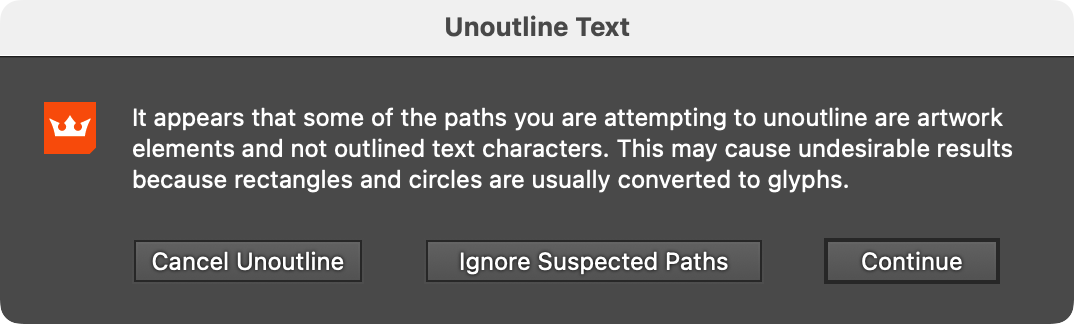
VectorFirstAid Unoutline Warning
Illustrator Location:
Illustrator Main Menu > Window > Astute Graphics > VectorFirstAid
14. Show Button
Available when a single issue affecting art objects is selected in the results list. Clicking the button will highlight the first problem object using a rectangle of partially-transparent magenta color; by default, the document will be auto-scrolled to place that object at the center. If there are multiple such objects, each additional click of the button will show the next object (the button will display Show Next).
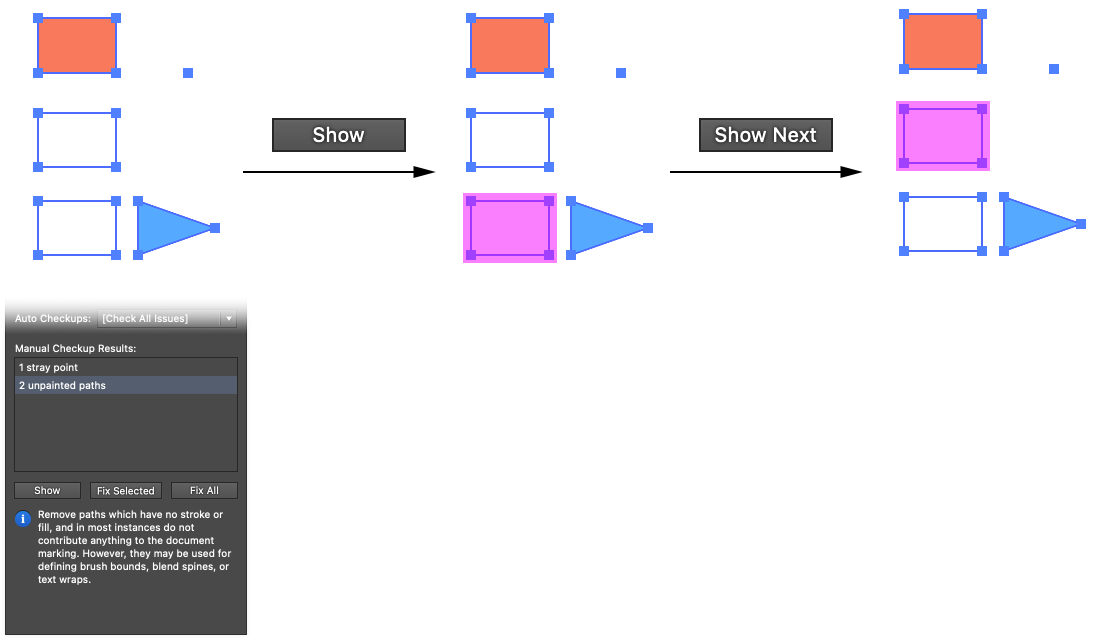
VectorFirstAid Show Button Example
If the issue involves individual anchor points or handles of a path, the highlighting will consist of a small circle over the anchor point or handle in question:
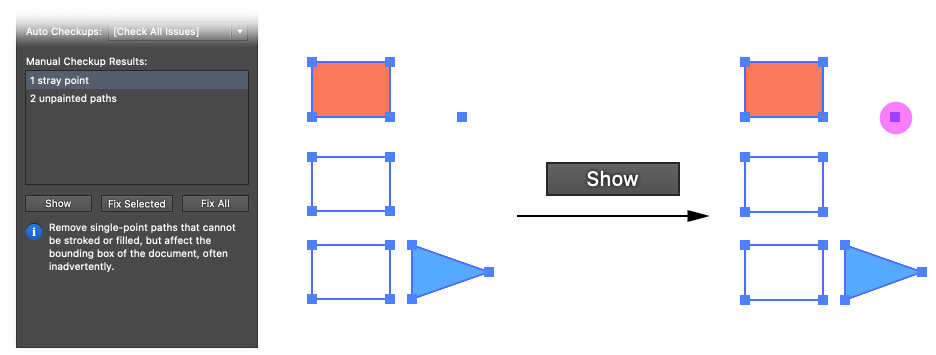
VectorFirstAid Show Button Example 2
If the Shift key is held down when clicking the Show button, all of the issues will be highlighted at once. If the Option/Alt key is held down when clicking the Show button, the previous object will be shown rather than the next object.
Sometimes fixing one issue may affect the remaining issues. For example, if there is a stray point that is also off-artboard, then fixing stray points would cause the number of off-artboard objects to change. In this case if the Show or Show All buttons are used after one or more issues have been fixed, and these fixes affected the remaining issues, then attempting to show one of the remaining issues may display an annotated warning message: “Some of the issues cannot be displayed, because they are no longer valid. Please re-run the checkup.”
15. Fix Selected Button
Available when one or more of the issues in the results list are selected. Clicking the buttons fixes those issues. For example, stray points are deleted, unnecessary groups are removed, and so on. The fixed issue is then removed from the list.
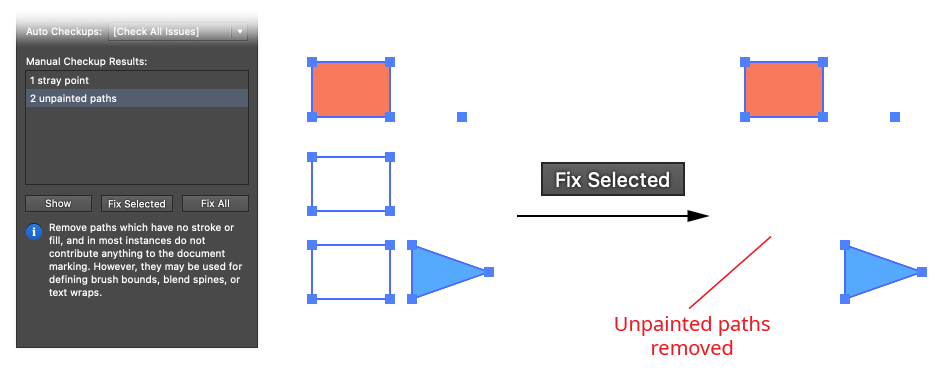
VectorFirstAid Fix Selected Example
16. Fix All Button
Fixes all issues in the results list, regardless of its current selection.
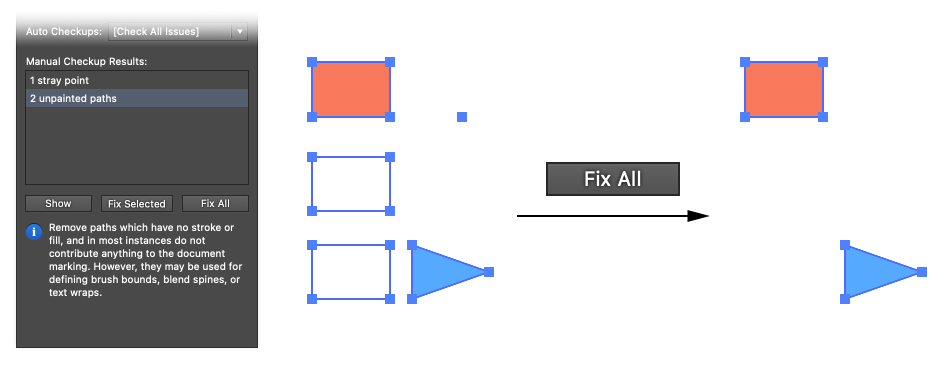
VectorFirstAid Fix All Example

Illustrator Location:
After selecting the Smart Remove Brush tool, first adjust its size (either through the preferences dialog or by using the keys assigned to “Increase Tool Diameter” and “Decrease Tool Diameter” in Illustrator’s Keyboard Shortcuts dialog, just as with other brush tools). The circle surrounding the crosshair cursor reflects the current size of the brush.
To use the tool on a path, simply brush over the areas of the selected path(s) where you want to remove anchor points. Each path’s new virtual shape is continually displayed in red, allowing you to see how much it has changed with the removal of the points.
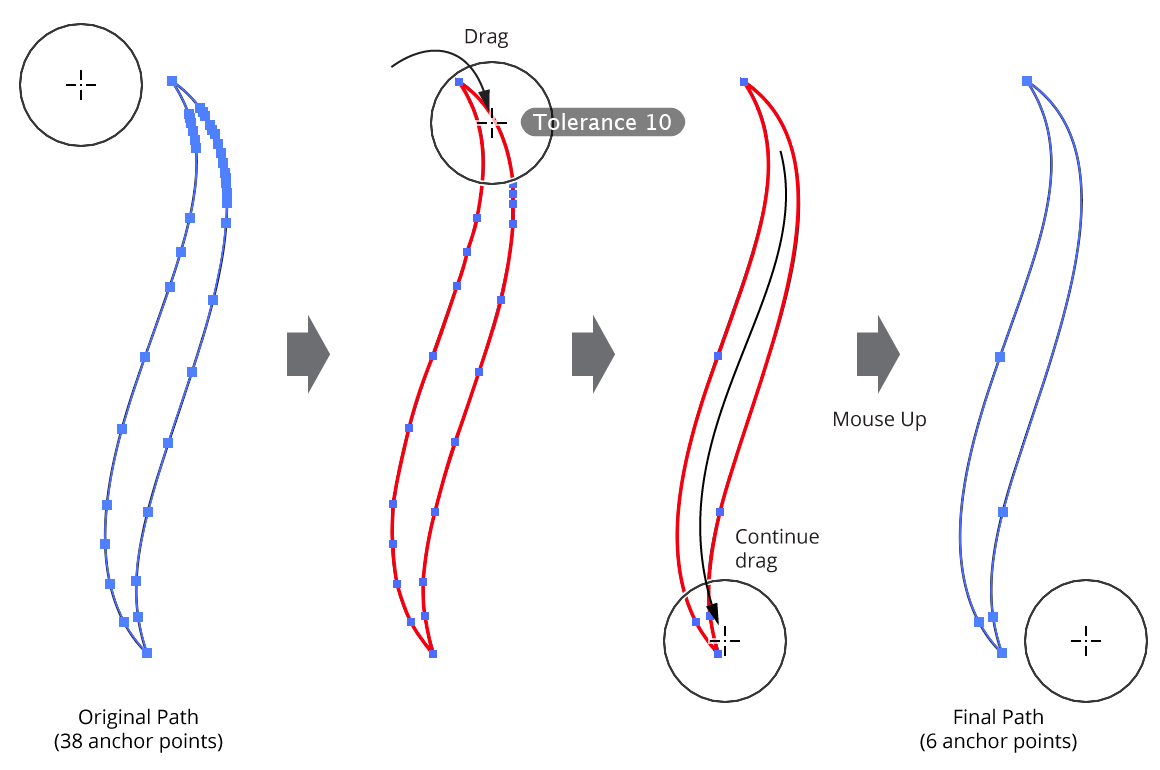
Smart Remove Brush Tool Overview
For each anchor point that falls within the brush circle, the tool decides based on its current parameters whether it will be removed or not (in all cases, when a point is removed, the path’s geometry is kept as close to the original as possible). First, if an anchor point is selected, and the Shift key is being held down, the point is considered protected and is never removed. Second, if the Command/Ctrl key is being held down, the point is always removed in a “non-smart” manner (i.e., surrounding handles are not adjusted).
Then, if the Ignore Tolerance preference is enabled, the point is always removed. Otherwise, the amount of distortion that would result if the point were removed is calculated and compared to the current tolerance value. If the amount is below the tolerance value, the point is removed.
It is best to start with a low tolerance value and slowly increase it if the path still has too many anchor points. The default tolerance of value of 10 generally works well with most paths, but higher values can aggressively remove more anchor points when exact path geometry is not critical.
While dragging the Smart Remove Brush tool, several keys may be pressed to change parameters on the fly or change functionality. As with all Astute tool keypresses, these will be indicated on the Astute Buddy panel.
Shift: Protects selected points (keeps them from being removed). This is useful for preserving specific anchor points without having to carefully dodge around them with the brush:
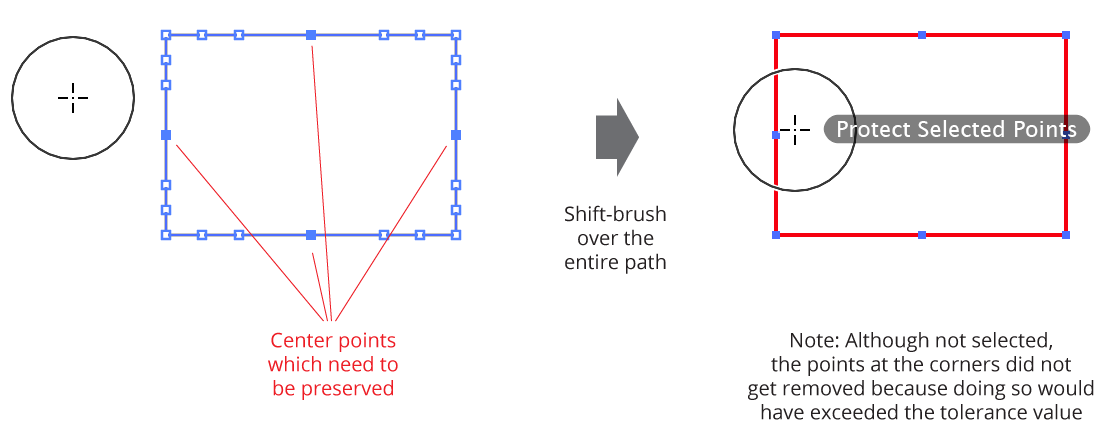
Smart Remove preserving specific anchor points
Option/Alt: Temporarily inverts the Ignore Tolerance preference. That is, if Ignore Tolerance is disabled (tolerance is being used), and the
Option/Altkey is pressed, the tool will temporarily ignore the tolerance value, removing any anchor points which fall within the brush circle regardless of how it causes the path geometry to change. This can be useful, in conjunction with theSkey (see below), for “forcing” a point to be removed.Command/Ctrl: Forces the tool to remove points in a “non-smart” way (i.e., it simply removes the points without adjusting handles in an attempt to retain path geometry).
Space: Hides the annotations.
Up Arrow/Down Arrow: Changes the tolerance value, from 1 to 100. Anchor points which have already been brushed over and are no longer in the brush circle will not be re-evaluated when the tolerance value is changed on the fly, allowing you to brush different areas of a path with different tolerances.
Left Arrow/Right Arrow: Changes diameter of the brush, from 1 pixel to 2500 pixels. The “Increase/Decrease Tool Diameter” keys can also be used.
S: Temporarily changes the brush size to a small value (19 pixels). This is useful when used in conjunction with
Option/Alt(see above) for forcing the smart removal of specific points regardless of the current tolerance value.
Illustrator Location:
Illustrator Main Menu > Window > Astute Graphics > QuickOps
The Delete Unused Panel Items operation deletes, depending on its settings, unused items in the current document that are contained in one or more of the following native panels: Brushes, Graphic Styles, Swatches, and Symbols. When all four types of items are enabled, the operation is equivalent to using the default Action with the same name that ships with Illustrator (however, it runs more quickly than an Action).
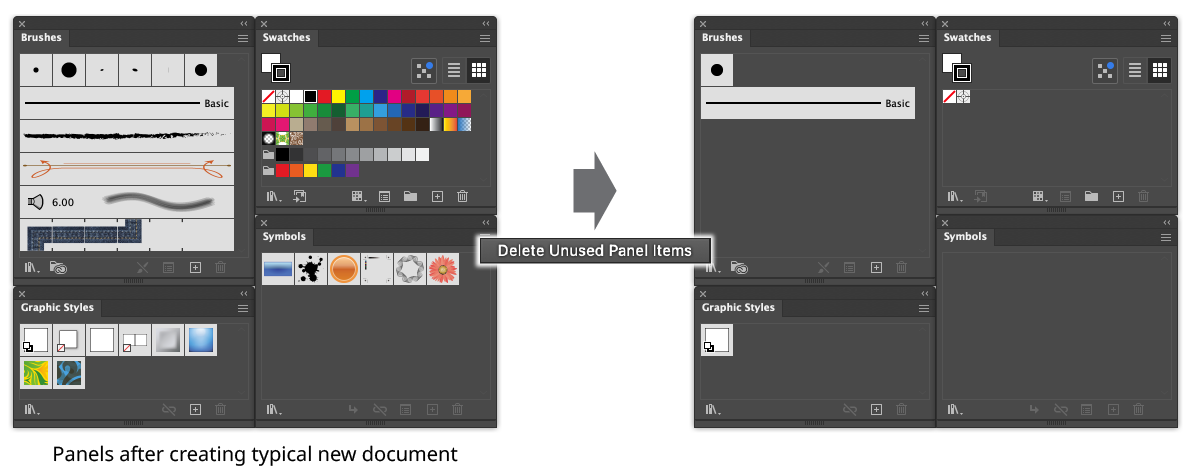
QuickOps Delete Unused Panel Items Example
Holding down Shift when clicking the button can operate on an alternate set of panels, if the settings are so configured. For example, the Swatches panel could be protected, while the Brushes, Graphic Styles, and Symbols panels are still affected.
To configure the settings, click the small icon to the right of the button, which will bring up the settings dialog:
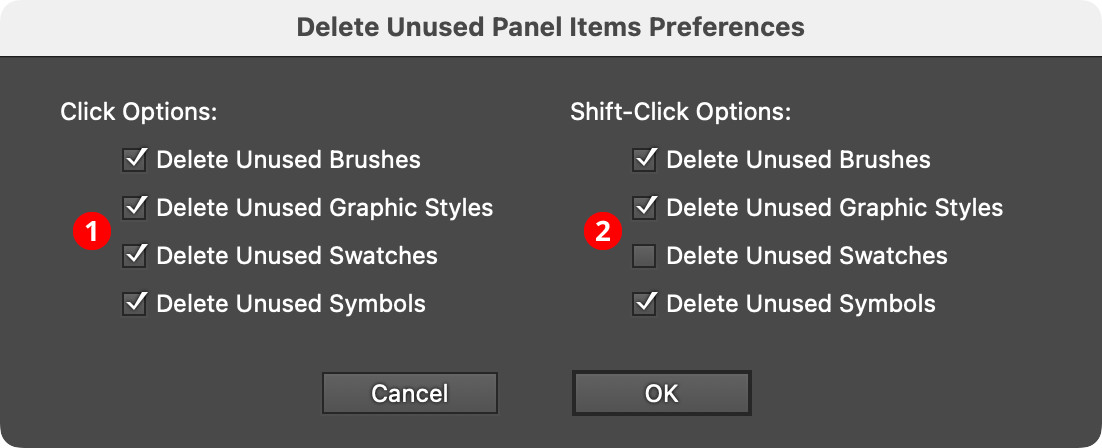
QuickOps Delete Unused Panel Items Preferences
1. Click Options
Specifies which unused items are deleted when the button is clicked with no modifier keys pressed.
2. Shift-Click Options
Specifies which unused items are deleted when the button is clicked with the Shift key pressed.