
Alignment
 VectorFirstAid Panel
 QuickOps Panel
Illustrator Location:
Illustrator Main Menu > Window > Astute Graphics > VectorFirstAid
8. Text Operations Buttons
This section is visible by default but may be hidden using the panel flyout menu item Hide Text Operation Buttons.
a. Align Left/Align Center/Align Right Buttons: Each changes the alignment of the selected point text objects while attempting to keep the text in the same position. When applied to single-line point text objects this is always possible; when applied to multi-line point text objects, it generally can only be done for the longest line.

VectorFirstAid Align Point Text Example
b. Break Into Lines/Break Into Words/Break Into Glyphs Buttons: Each breaks the selected text objects into multiple point text objects consisting of either the lines, words, or glyphs from the original text. The text is kept in the same position.
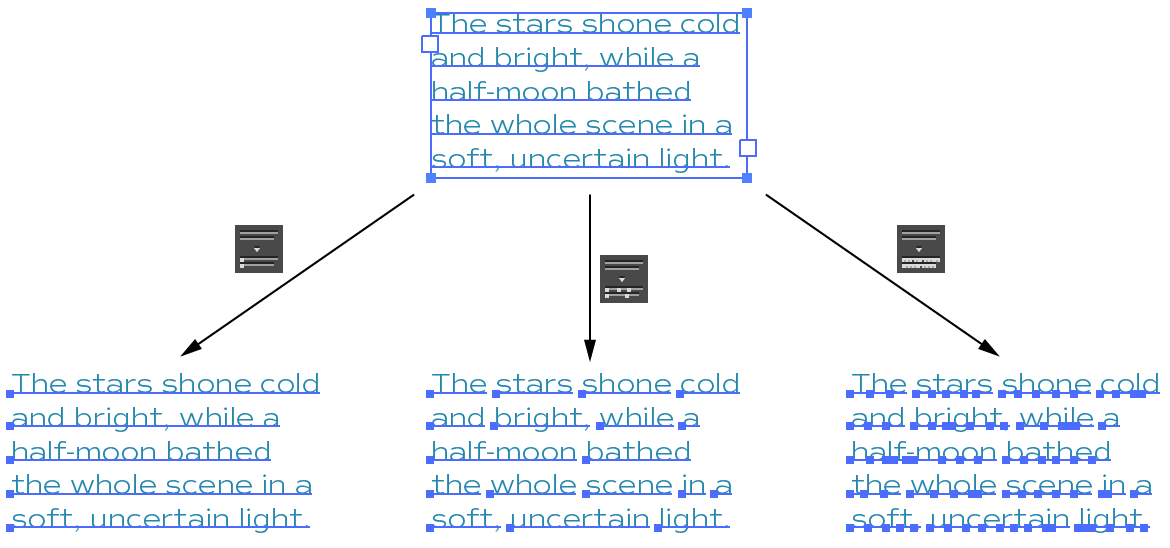
VectorFirstAid Break Text Example
If the Shift key is held down when clicking the Break Into Lines button, the text is broken into paragraphs rather than into lines:
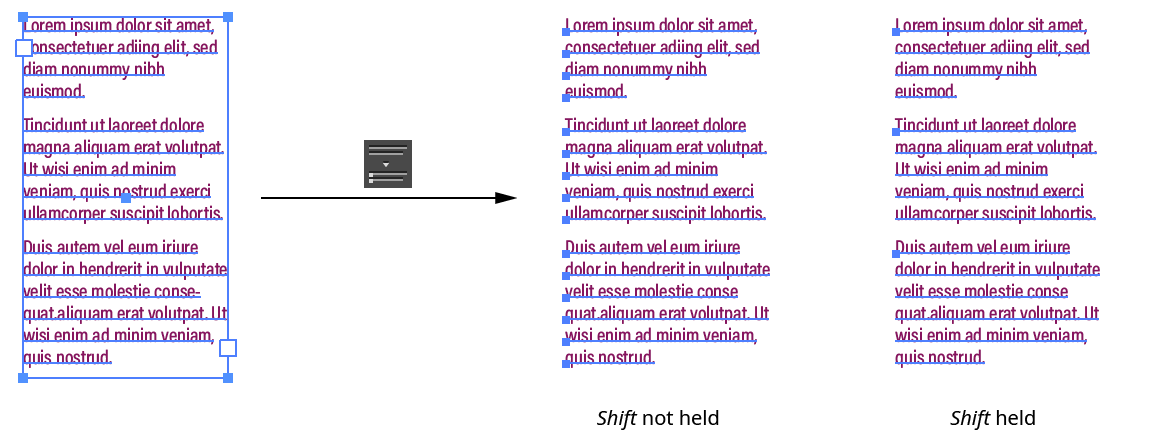
VectorFirstAid Break Text Example 2
c. Remove Text Transforms Button: Removes any rotation and shear transforms from the selected text objects. If the Option/Alt key is held down when clicking the button, horizontal scaling is also removed. As this will remove any horizontal scaling that was manually added to individual characters in the text, a third method is offered. If Shift+Option/Alt is held down when clicking the button, horizontal scaling is “normalized.” That is, the scale value that is used on the majority of the text characters is set to be 100%, and other values are changed in proportion, thereby preserving multiple scaling values in the text.
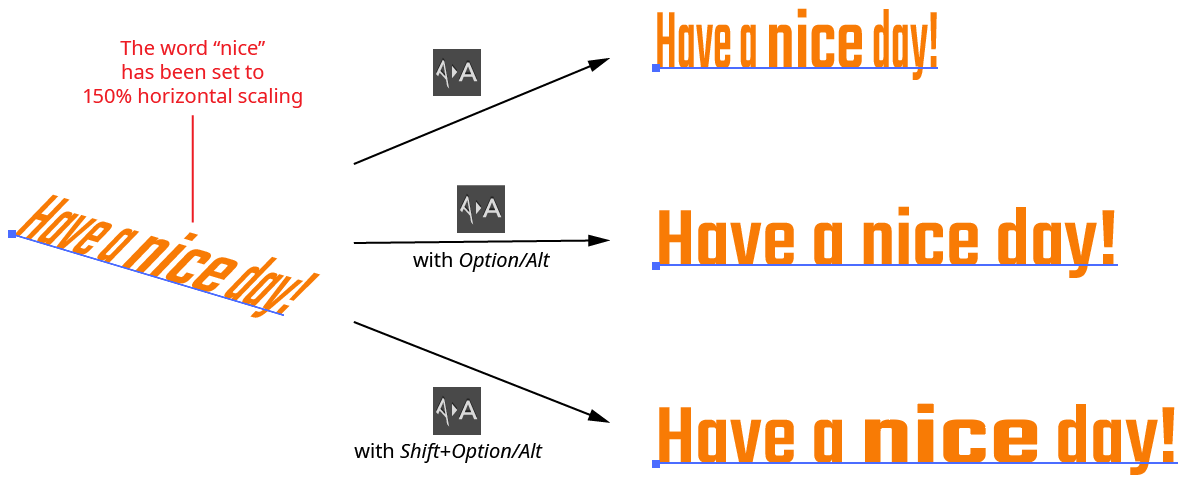
VectorFirstAid Remove Text Transforms
Illustrator Location:
Illustrator Main Menu > Window > Astute Graphics > QuickOps
The Align Pattern operation makes it possible to directly set the origin point of the patterns in one or more objects. With artwork containing at least one pattern selected, clicking the button will switch the current tool to a special temporary one (if the pattern(s) to be aligned are in the strokes of an object, Shift-click the button). The tool’s cursor can be snapped to anchor points, center points, etc. by using Smart Guides.
Selecting another tool or pressing Esc while moving the cursor will cancel the operation. Otherwise, when the cursor is in the desired position, click the mouse button and the pattern(s) will be shifted so their origin point is at the clicked point. The tool will then automatically switch back to the previously-selected tool.
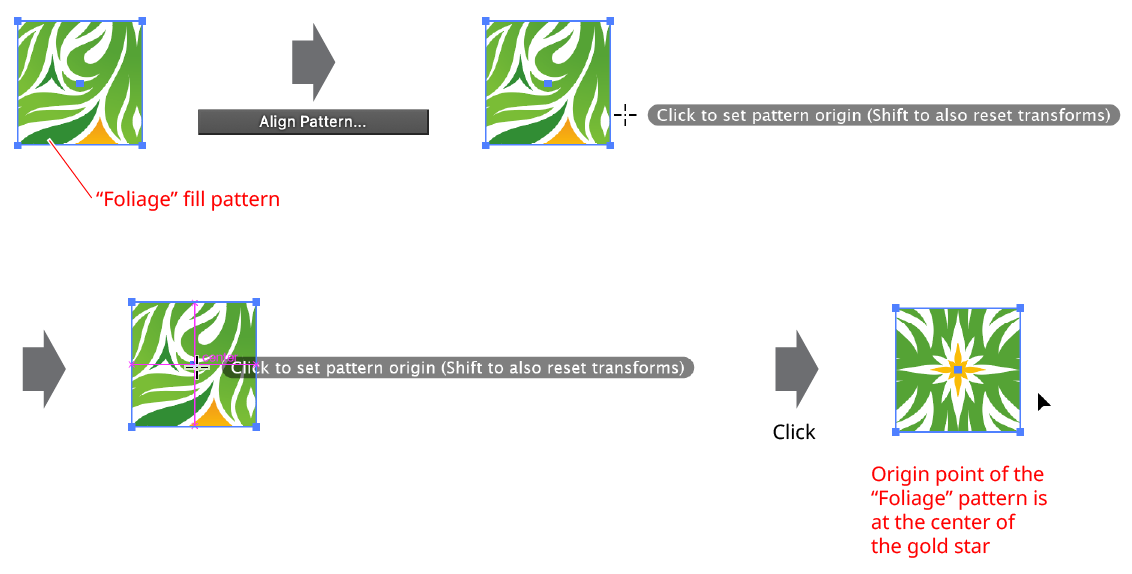
QuickOps Align Pattern Example
Aligning the pattern normally retains any transformation matrix that the pattern has (rotation, scaling, shearing). To align the pattern and also reset this matrix (removing the transforms), Shift-click with the tool.
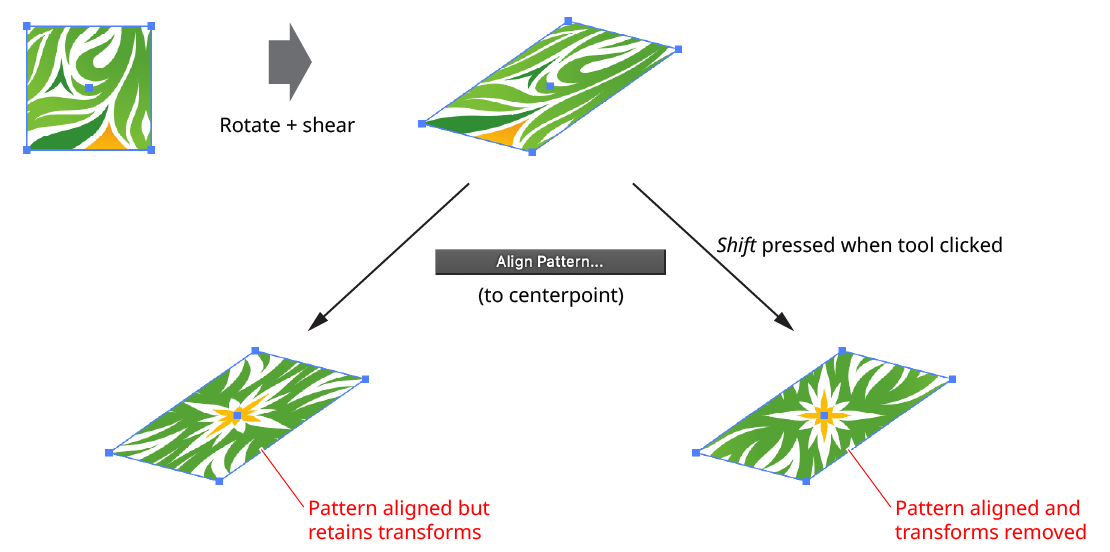
QuickOps Align Pattern Remove Transforms
Illustrator Location:
Illustrator Main Menu > Window > Astute Graphics > QuickOps
The Scale Justify operation creates a single, justified column of text (sometimes known as “slab text”) from one or more selected text objects. Justification is done by scaling up each line of text to match the width of the longest line. Any text rotation is removed, and the top-to-bottom order of the text is retained.

QuickOps Scale Justify Overview
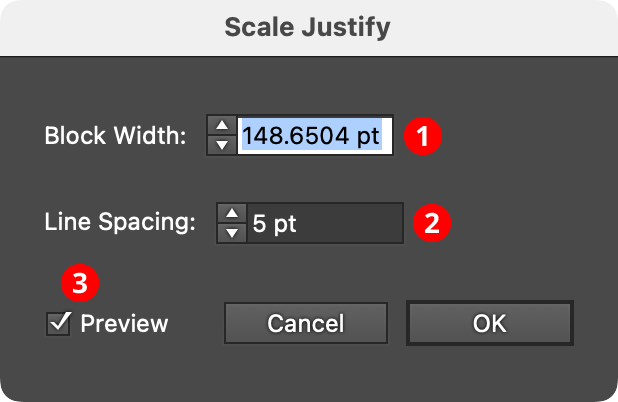
With at least one text object selected (except text-on-a-path objects, which are not handled), clicking the button brings up the settings dialog:
QuickOps Scale Justify Settings
1. Block Width
Specifies the width of the justified block of text. When the dialog is first brought up, the width will initially be set to that of the longest line of selected text, but it can be adjusted up or down as desired (from 1 pt to 4000 pt).
2. Line Spacing
Specifies the space between the lines of text, from –1000 pt to 1000 pt. When set to zero, the lines will just touch (remembering that glyphs with ascenders, descenders, serifs, or curves may make it appear as if there is still some space between the lines). Negative values can be used to create overlapping lines of type:
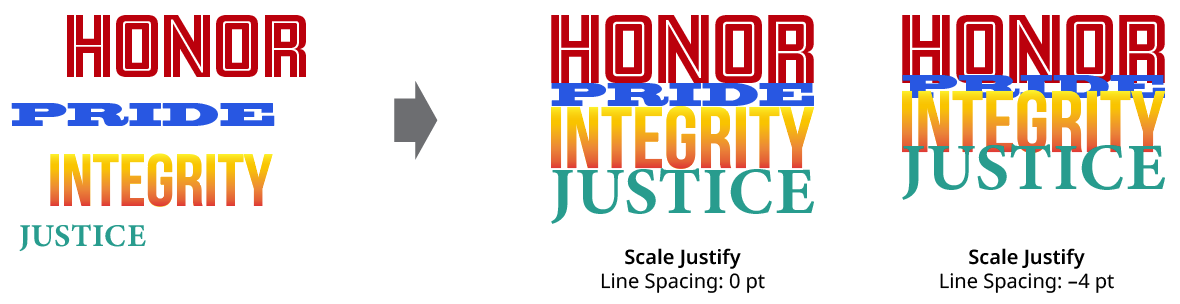
QuickOps Scale Justify Line Spacing
3. Preview
When Preview is enabled, the scale-justified text will be previewed on the artboard, and will update whenever the settings are changed. Turning Preview off will show the text in its original position.