
Scripts
Illustrator Scripts
Scriptable Plugins
AI Primer
![]() Illustrator Scripts
Illustrator Scripts
![]() Scriptable Plugins
Scriptable Plugins

Illustrator Location:
Illustrator Main Menu > File > Scripts > ...
Illustrator Scripts are automation files that run inside Adobe Illustrator. They can speed up repetitive tasks, apply complex actions, prepare artwork, clean up documents, or add useful workflow shortcuts that are not available as standard Illustrator commands.
Astute Manager includes a Scripts section to help you discover and install useful Illustrator scripts from Astute Graphics and selected contributors.
Illustrator Location:
Illustrator Scripts are small automation files, usually written in JavaScript/JSX, that are run by Adobe Illustrator.
A script might:
Rename or organize artwork
Create or modify objects
Update text content
Prepare files for export
Apply repeatable production steps
Automate layout or artwork cleanup tasks
Scripts are separate from Astute Graphics plugins. They do not add new tools or panels to Illustrator, but they can automate Illustrator features and, where supported, may call scriptable Astute Graphics plugin functions.

Scripts available to download from Astute Manager
Each script bundle listing includes:
A brief overview of the Script Contributor
The total number and size of script bundle
Clicking on the Information button will display the name and description of each script in the sidebar
Download button
Any important usage notes
Once you have selected your preferred install location, click the orange Download button to install the script.
Illustrator Location:
Illustrator Scripts can be installed either in Illustrator’s default Scripts folder or in another location of your choice.
Scripts installed in the default location will appear directly in Illustrator’s File > Scripts menu, where they can be run at any time until removed.
Scripts installed in another location will not appear directly in the File > Scripts menu. To run them, choose File > Scripts > Other Script… and browse to the script file each time you wish to use it.
Choosing the default Illustrator Scripts folder
Choose the default Illustrator Scripts folder if you want the script to appear in Illustrator’s File > Scripts menu. This is the best option for scripts you expect to use regularly. You will need to restart Illustrator before newly installed scripts appear in the menu.
Press the Set Install Location button on the Scripts page of Astute Manager.
The Resource Pack Settings dialog will appear and pre-populate the Scripts default folder location.
Press Save to confirm.
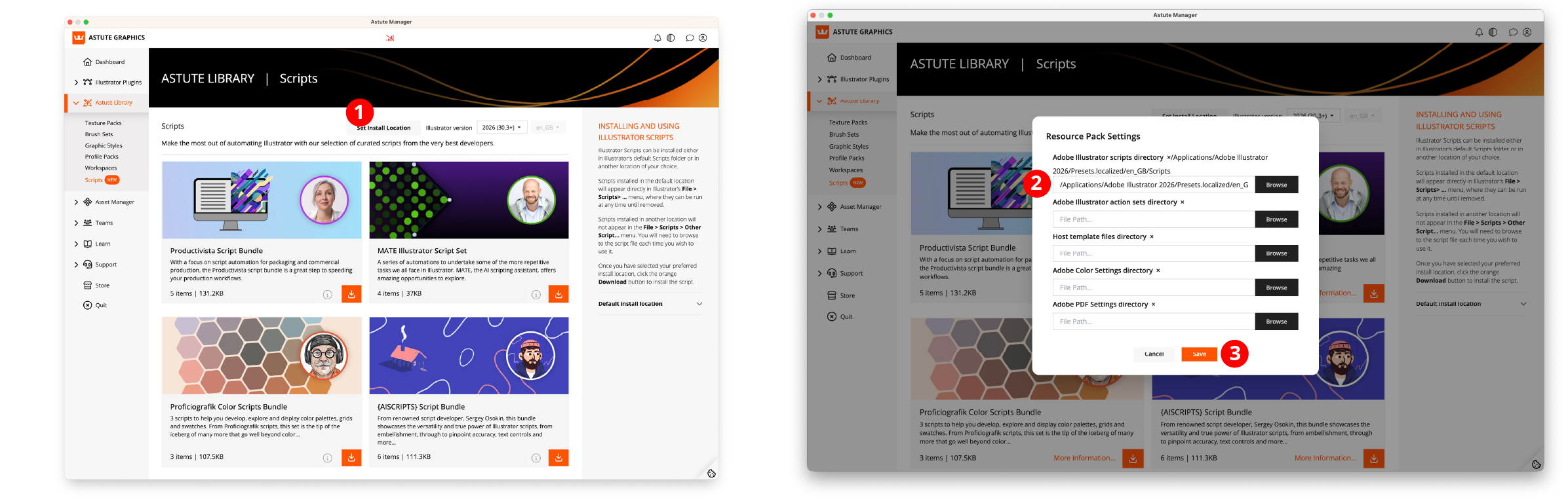
Installing Curated Scripts in Adobe Illustrator
Choosing a custom location
Choose a custom location if you prefer to keep scripts in your own folder, such as a project folder, shared team folder, or personal script library.
Scripts installed outside Illustrator’s default Scripts folder can still be run, but they must be selected manually using File > Scripts > Other Script…. This is useful for occasional scripts, testing scripts, or scripts that you do not want permanently listed in Illustrator’s Scripts menu.
Press the Set Install Location button on the Scripts page of Astute Manager (as illustrated above in the screenshots).
Use the Browse button to select a different folder location on your local machine.
Press Save to confirm this folder location.
Illustrator Location:
The Astute Library > Scripts page gives you instant access to a curated set of scripts. If you create scripts using AI (ChatGPT, Claude, Gemini, etc.), MATE or by hand, you can also use the Astute Manager to manage these for your personal use, or across teams.
The Asset Manager > Illustrator > User Settings and Team Settings (available to those who have an Astute Manager Pro teams account) have both been extended to include Scripts assets. These scripts use the same user-defined local folder location as defined when using the Astute Library > Scripts page.
Tip: having created a .JSX Illustrator Script, you can instantly install it for your own personal use by dragging it onto the Asset Manager > Illustrator > User Settings > Scripts tile.
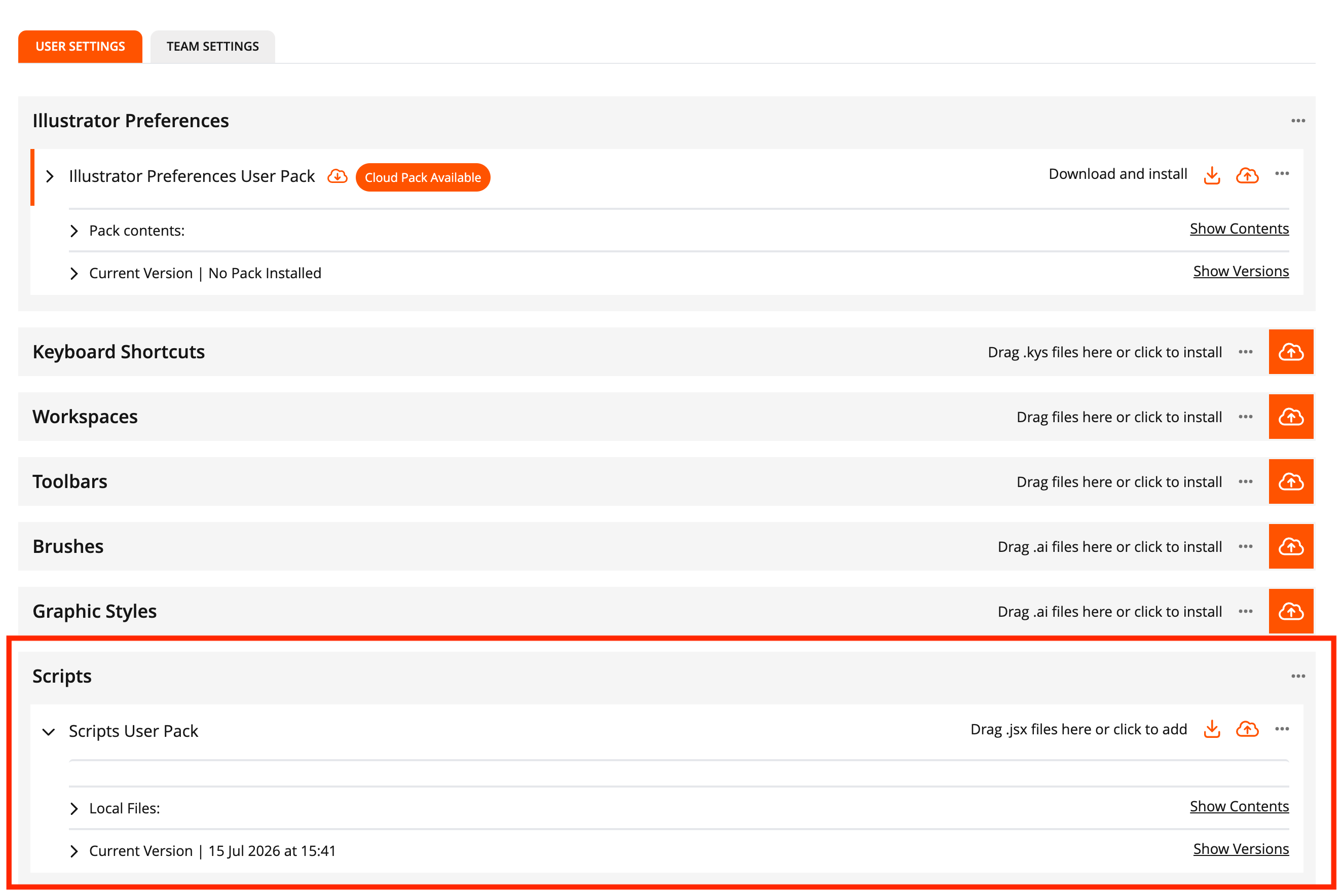
User Scripts can be saved in Astute Manager Pro
Illustrator Location:
Scripts can make changes to the active Illustrator document. Before running a script, check the description so you understand what it is designed to do.
For important production files, we recommend saving your work before running any script. In many cases, changes made by a script can be reverted using Illustrator’s Undo command, but this may depend on the script, the document, and the operation performed.
Scripts are provided to support and improve Illustrator workflows, but results may vary depending on your Illustrator version, operating system, document structure, installed plugins, and artwork complexity.
Illustrator Location:
Illustrator Main Menu > File > Scripts > ...
Astute Graphics has added scripting support across a selection of its plugins allowing Adobe Illustrator scripts to directly access plugin functionality. It is possible to access and benefit from script-based automation through the use of AI to generate scripts, or manually with knowledge of Javascript.
Why make plugins scriptable?
AI has changed everything for scripting in Illustrator. Previously, knowledge of Javascript and Illustrator’s scripting model was required. Now anybody can create very powerful workflows with the use of commonly available AI services. However, there are many complex problems that need to be repeatedly solved in universal scripting. For example, dealing with path intersections is not only a question of scripting, but also ensuring complex Bezier math is implemented correctly.
This is where Astute Graphics’ plugins can assist your automation. We have selected commonly required functions, heavily tested in our plugins for many years, and made them available as part of a broader scripting workflow. We are bringing much greater levels of quality assurance to your workflow.
Illustrator Location:
VectorFirstAid
Geometry cleanup
Super Smart Remove Points
Remove Unneeded Points
Remove Redundant Points
Remove Unnecessary Handles
Remove Duplicate Art
Path repair
Rejoin Paths
Close Barely-Open Paths
Align Close Points
Axis-Align Paths
Document cleanup
Remove Unnecessary Clip Groups
Remove Unnecessary Compound Paths
Text operations
Combine Point Text
Replace All Missing Fonts
Change Selected Point Text Alignment
Break Selected Text Apart (paragraphs, lines, words or glyphs)
Remove Selected Text Transforms
VectorScribe
Live Effects
AG Corners
AG Shear
Path Operations
Path Intersections
SubScribe
QuickOps
Extend to Intersection
Colour
Color Stamp
Reduce Colors
Stylism
Live Effects
AG Offset
AG Block Shadow
Illustrator Location:
AG Plugin Scripting Primer
The core reference guide describing the available scriptable functions, parameters, naming conventions, best practices and compatibility requirements. It is intended for modern Large Language Model (LLM) that is already capable of generating Adobe Illustrator JSX scripts, and human developers. Providing the Primer as context to an AI assistant is currently essential if you wish to generate Illustrator scripts which also make use of installed and licensed Astute Graphics plugins.
Plugin test scripts
The Astute Manager > Astute Library > Scripts page now offers an example test JSX scripts covering every currently scriptable feature. These provide working examples of parameter dialogs, validation, error handling and plugin communication, and can also serve as templates for your own scripts.
Simply quit Adobe Illustrator and install this script pack using Astute Manager. Once you restart Illustrator, you can access the scripts via Illustrator > File > Scripts > …
See Managing Scripts for more information on how to install and access scripts using the Astute Manager.
Illustrator Location:
Getting started with scriptable plugins
Ensure you have the latest plugin updates installed.
Open or create an Illustrator file to run tests on.
Start by running the supplied test scripts to become familiar with the available functions and parameters.
Remember that the scripts are automated versions of what’s available through the plugin’s user interface. If in doubt, refer to the functions in AG Docs.
Finally, try creating your own scripts, or ask your preferred AI coding assistant (such as ChatGPT, Claude, Gemini or another modern LLM with Illustrator scripting capability) to generate new scripts using the AI Primer as its reference.
Illustrator Location:
Getting started with access to paid-for ChatGPT account
Being logged-in to ChatGPT/OpenAI, open ChatGPT - Illustrator + Astute Graphics plugin scripting
Use the GPT as directed. There is no need to manually upload the AI Primer as this is built-in.
Illustrator Location:
Getting stated with Claude AI
Import to the Claude-illustrator-astute-graphics.skill file into your Claude account to create a new “Skill”.
When you next request an Illustrator script generation using that Claude account, it will make use of the Astute Graphics’ plugin functionality, where relevant.
Illustrator Location:
Illustrator Main Menu > File > Scripts > ...
The following AI primer can be used to assist on building Illustrator scripts that make use of Astute Graphics plugins.
ASTUTE GRAPHICS PLUGIN SCRIPTING PRIMER FOR ADOBE ILLUSTRATOR
VectorFirstAid, VectorScribe, SubScribe, and Stylism Scriptable Functions
Full AI Primer Version 0.8, 2026-07-21
Format: Plain text primer for AI models, automation authors, and JSX script generation
================================================================================
1. PURPOSE AND SCOPE
================================================================================
This primer is designed to prime AI models to generate reliable Adobe Illustrator
JSX scripts that call supported Astute Graphics plugin functionality through
Illustrator scripting.
It currently covers four Astute Graphics plugins:
1. VectorFirstAid
- Cleanup, repair, text handling, duplicate art removal, and geometry repair.
- VectorFirstAid v4.3.7 or later is required.
2. VectorScribe
- Specifically the AG Corners and AG Shear live effects, plus Object >
Path > Path Intersections.
- VectorScribe v6.2.3 or later is required.
3. SubScribe
- Specifically Color Stamp, Reduce Colors, and the Extend to Intersection
QuickOp.
- SubScribe v5.2.0 or later is required.
4. Stylism
- Specifically the AG Offset and AG Block Shadow live effects.
- Stylism v4.2.4 or later is required.
This document is not a general Illustrator scripting manual. It is an AI-facing
bridge between normal Illustrator scripting and Astute Graphics plugin commands.
Use normal Illustrator scripting for document traversal, selection filtering,
prompting, grouping, object inspection, and workflow setup. Use Astute Graphics
plugin calls only for the actual plugin functions documented here.
This primer intentionally uses only fully descriptive, human-readable Astute
Graphics command selectors and parameter names. Some short aliases may exist in
internal functionality documentation, but AI models must not use or present them.
Do not include short-form aliases in generated scripts, examples, documentation,
comments, or explanations.
================================================================================
2. HIGH-PRIORITY AI MODEL RULES
================================================================================
1. Use only the plugin names, command selectors, parameters, and parameter values
documented in this primer.
2. Do not invent Astute Graphics plugin commands, parameters, return values, or
parameter values.
3. Do not use abbreviated command selectors or abbreviated parameter names.
Use fully descriptive names only.
4. Treat Illustrator selection state as important. Most VectorFirstAid commands
act on the current selection. AG Corners, AG Shear, AG Offset, and AG Block
Shadow can act on the selection or on art tagged through the live-effect
artwork note method described later. VectorScribe Path Intersections and
SubScribe Color Stamp, Reduce Colors, and Extend to Intersection can act on
the selection or on art tagged through the AG_ART_TARGET artwork note method
described later.
5. Always check that an Illustrator document is open before making plugin calls.
6. Always wrap Astute Graphics plugin calls in error handling. Illustrator Error
1200 is a reliable signal in this context that the plugin command may not be
available, normally because the required plugin is not installed, not updated,
or does not yet include scriptability.
7. Do not silently run destructive or broad cleanup operations on an entire
document unless the user clearly requested it. Prompt the user or work on the
current selection where appropriate.
8. When a parameter value is uncertain, choose conservative defaults and explain
the trade-off. For tolerances, smaller values usually mean safer cleanup and
larger values mean more aggressive changes.
9. For live effects, remember that the appearance remains live unless expanded by
ordinary Illustrator operations. Multiple instances may exist at different
positions in the Appearance stack. Do not claim that a live effect permanently
changes the base path unless expansion is explicitly performed.
10. When applying an Astute Graphics command to specific artwork, manage
selection, tags, and object notes carefully. Restore original user state when
practical.
================================================================================
3. ASTUTE GRAPHICS SCRIPTING ARCHITECTURE
================================================================================
Astute Graphics plugin commands are invoked from Illustrator JSX using:
app.sendScriptMessage(pluginName, commandSelector, parameterString);
pluginName is a string identifying the Astute Graphics plugin. This primer uses:
"VectorFirstAid"
"VectorScribe"
"SubScribe"
"Stylism"
commandSelector is a string identifying the plugin operation. This primer uses
only full descriptive command selectors.
parameterString is a query-string-like set of name=value pairs joined with
ampersands:
"parameterone=value¶metertwo=value"
Examples:
"tolerance=0.5pt"
"retainhorizontalspacing=true"
"outsideradius=4.0mm&outsidetype=chamfered"
"colorcount=6&applytogradients=true"
"distance=3mm&bothsides=true"
Many values are booleans, numbers, strings, or distances. Distance strings may
include Illustrator-style units such as pt, mm, px, or other units supported by
Illustrator/plugin parsing.
Use URL encoding when building the parameter string dynamically, especially for
font names, distance values with unusual characters, or string values containing
spaces.
Recommended parameter builder:
function buildAGParameterString(parameters) {
var parts = [];
for (var key in parameters) {
if (parameters.hasOwnProperty(key)) {
if (parameters[key] !== undefined && parameters[key] !== null) {
parts.push(
encodeURIComponent(key) + "=" +
encodeURIComponent(String(parameters[key]))
);
}
}
}
return parts.join("&");
}
Booleans should be passed as the strings produced from true and false:
true
false
Examples:
buildAGParameterString({ retainhorizontalspacing: true });
// retainhorizontalspacing=true
buildAGParameterString({ outsideradius: "4.0mm", outsidetype: "chamfered" });
// outsideradius=4.0mm&outsidetype=chamfered
================================================================================
4. STANDARD ERROR HANDLING FOR ASTUTE GRAPHICS PLUGIN CALLS
================================================================================
A standard wrapper should be used for all Astute Graphics plugin commands.
In previous testing, when an Astute Graphics plugin command was unavailable,
Illustrator returned Error 1200. Error 1200 is not unique to this situation, but
for these plugin calls it can be treated as a strong indication that the required
Astute Graphics plugin is missing, outdated, disabled, or does not yet include the
scriptable command.
Recommended universal wrapper:
function buildAGParameterString(parameters) {
var parts = [];
for (var key in parameters) {
if (parameters.hasOwnProperty(key)) {
if (parameters[key] !== undefined && parameters[key] !== null) {
parts.push(
encodeURIComponent(key) + "=" +
encodeURIComponent(String(parameters[key]))
);
}
}
}
return parts.join("&");
}
function callAstuteGraphicsPlugin(pluginName, commandSelector, parameters) {
var parameterString = "";
if (typeof parameters === "string") {
parameterString = parameters;
} else if (parameters) {
parameterString = buildAGParameterString(parameters);
}
try {
return app.sendScriptMessage(pluginName, commandSelector, parameterString);
} catch (error) {
var message = String(error);
var isLikelyMissingAGCommand = false;
if (error && error.number === 1200) {
isLikelyMissingAGCommand = true;
}
if (message.indexOf("Error 1200") !== -1) {
isLikelyMissingAGCommand = true;
}
if (isLikelyMissingAGCommand) {
alert(
"The Astute Graphics plugin command could not be run.
" +
"Required plugin: " + pluginName + "
" +
"Command: " + commandSelector + "
" +
"Please ensure that the required Astute Graphics plugin is " +
"installed and updated to the latest version through Astute Manager."
);
} else {
alert(
"An error occurred while running an Astute Graphics plugin command.
" +
"Required plugin: " + pluginName + "
" +
"Command: " + commandSelector + "
" +
message
);
}
throw error;
}
}
This wrapper both alerts the user and rethrows the error. Rethrowing is useful so
higher-level scripts can stop rather than continue after a failed cleanup or live
effect operation.
================================================================================
5. BASIC ILLUSTRATOR SCRIPTING CONTEXT FOR AI MODELS
================================================================================
Astute Graphics plugin calls are only one part of a script. A reliable AI script
should still handle Illustrator document state carefully.
Core Illustrator concepts:
- Document
The active Illustrator file. Use app.activeDocument only after checking that
app.documents.length > 0.
- Selection
Many plugin commands operate on selected art. Scripts may need to select a
subset of objects before making the plugin call.
- PageItem
A general Illustrator artwork object. Many art objects inherit from PageItem.
- PathItem
A vector path. Many VectorFirstAid geometry commands are relevant to selected
PathItems.
- CompoundPathItem
A compound path object. Cleanup commands may simplify unnecessary compound
paths, but compound paths can also be visually meaningful.
- GroupItem
A group of artwork. Imported PDFs and expanded artwork often contain deeply
nested groups and clipping groups.
- TextFrame
Illustrator text object. VectorFirstAid text commands are primarily concerned
with point text behavior.
- Point text vs area text
Point text is text created by clicking with the Type tool. Area text is text
constrained inside a text box. Several VectorFirstAid functions refer to point
text specifically. Do not assume area text is processed unless confirmed by
testing or documentation.
Recommended document check:
function requireOpenDocument() {
if (app.documents.length === 0) {
alert("Please open an Illustrator document before running this script.");
return null;
}
return app.activeDocument;
}
Recommended selection check:
function requireSelection(document) {
if (!document || !document.selection || document.selection.length === 0) {
alert("Please select artwork before running this script.");
return false;
}
return true;
}
Selection preservation pattern:
function copySelection(document) {
var saved = [];
if (!document || !document.selection) {
return saved;
}
for (var i = 0; i < document.selection.length; i++) {
saved.push(document.selection[i]);
}
return saved;
}
function restoreSelection(document, savedSelection) {
document.selection = null;
for (var i = 0; i < savedSelection.length; i++) {
try {
savedSelection[i].selected = true;
} catch (ignored) {
// The object may have been deleted or changed by the operation.
}
}
}
When generating scripts, AI models should not assume that plugin calls return a
structured data object. Treat the artwork change as the primary result unless
specific documentation says otherwise.
================================================================================
6. AI SCRIPT GENERATION BEST PRACTICES
================================================================================
When using Astute Graphics plugin commands, generated scripts should generally:
1. Check that a document is open.
2. Check whether the operation requires selected artwork.
3. Ask the user for confirmation before broad cleanup or destructive workflows.
4. Use conservative tolerances by default.
5. Preserve and restore selection where practical.
6. Use full descriptive selectors and parameter names.
7. Avoid short aliases in code and comments.
8. Use the universal Astute Graphics error wrapper.
9. Keep Illustrator DOM filtering separate from plugin operation.
10. Where possible, process a duplicate or selected subset rather than the whole
document.
Do not generate code that pretends to inspect or modify internal Astute Graphics
plugin state unless such a mechanism is documented. For example, do not invent
functions to read the settings of a VectorFirstAid command or to list installed
Astute Graphics plugins.
================================================================================
7. VECTORFIRSTAID OVERVIEW
================================================================================
VectorFirstAid provides cleanup, repair, text handling, artwork simplification,
and geometry correction operations for Illustrator documents.
Plugin name:
VectorFirstAid
VectorFirstAid is useful in scripts that need to:
- Clean imported PDFs, EPS, SVG, CAD-derived, stock, or traced artwork.
- Repair broken or barely-open paths.
- Simplify over-complex paths.
- Remove duplicate or redundant art.
- Normalize point text alignment and transforms.
- Break text apart into paragraphs, lines, words, or glyphs.
- Prepare vector files for print, packaging, animation, SVG export, laser/cutter
output, or production handoff.
Most VectorFirstAid commands should be treated as selection-based operations.
If the user asks to run one on an entire document, the script can select all
artwork first, but it should make that behavior explicit.
Common conservative cleanup sequence for imported vector artwork:
1. Remove Duplicate Art
2. Remove Unnecessary Clip Groups
3. Remove Unnecessary Compound Paths
4. Close Barely-Open Paths
5. Rejoin Paths
6. Align Close Points
7. Remove Redundant Points
8. Remove Unnecessary Handles
9. Remove Unneeded Points or Super Smart Remove Points, if simplification is
desired
Not every workflow should use every step. A technical illustration may need very
conservative point cleanup. A traced sketch may benefit from stronger point
removal. A print file with intentional clipping masks should not have clip groups
removed without confirmation.
================================================================================
8. VECTORFIRSTAID COMMAND REFERENCE
================================================================================
1. SUPER SMART REMOVE POINTS
----------------------------
Purpose:
Simplifies selected paths by removing unnecessary anchor points while attempting to preserve the visual appearance of the artwork. It is intended for cleaning over-complex vector geometry, especially artwork that has been traced, imported, expanded, offset, or edited many times.
Plugin name:
VectorFirstAid
Command selector:
supersmartpointremove
When to use:
- When artwork contains too many anchor points for efficient editing or animation.
- When traced or expanded artwork needs to be simplified while preserving recognizable shape.
- Before preparing icons, logos, or illustrations for production, export, or handoff.
- Before using other operations where excessive point count may reduce quality or performance.
When to avoid or use caution:
- Do not use aggressively on precision-critical technical artwork unless the user has approved visible simplification.
- Do not assume it is equivalent to Remove Redundant Points or Remove Unneeded Points; this command is broader and smarter, and may alter path structure more noticeably.
Documented parameters:
tolerance
Type/values: numeric
Guidance: Controls how aggressively points may be removed. Lower values are more conservative. Higher values can remove more points but increase the risk of changing the shape.
protectsharpcorners
Type/values: boolean
Guidance: When true, sharp corners are protected during simplification. Use true for logos, icons, lettering, packaging dielines, and technical artwork where corners must remain crisp.
Example using full descriptive names only:
callAstuteGraphicsPlugin("VectorFirstAid", "supersmartpointremove", {
tolerance: 15,
protectsharpcorners: true
});
AI guidance:
A common AI default is protectsharpcorners=true unless the user explicitly wants maximum simplification. Start with a modest tolerance and ask the user before applying high tolerances to important artwork.
2. REJOIN PATHS
---------------
Purpose:
Rejoins open path endpoints that are close enough to be treated as connected. It is useful for repairing artwork that appears visually connected but is technically made of separate open segments.
Plugin name:
VectorFirstAid
Command selector:
rejoinpaths
When to use:
- After importing DXF, PDF, EPS, SVG, CAD, or traced artwork with broken segments.
- Before filling shapes that fail because their outlines are not closed.
- Before applying production operations that expect continuous paths.
- When cleaning cut paths, outlines, technical drawings, or print artwork.
When to avoid or use caution:
- Do not use a large tolerance on dense artwork without user approval; nearby endpoints may be joined incorrectly.
- Be cautious when different stroke styles or path directions matter to the artwork.
Documented parameters:
tolerance
Type/values: distance
Guidance: Maximum endpoint distance considered eligible for rejoining. Use units such as pt, mm, or px.
differentstyles
Type/values: boolean
Guidance: When true, paths with different styles may be rejoined. Use false when preserving appearance is more important than joining everything.
differentdirections
Type/values: boolean
Guidance: When true, paths with different directions may be rejoined. Use false when path direction may matter.
variablewidthstrokes
Type/values: boolean
Guidance: When true, paths with variable width strokes may be rejoined. Use cautiously because variable width stroke appearance can be sensitive to path structure.
Example using full descriptive names only:
callAstuteGraphicsPlugin("VectorFirstAid", "rejoinpaths", {
tolerance: "0.4mm",
differentstyles: false,
differentdirections: false,
variablewidthstrokes: true
});
AI guidance:
For conservative cleanup, use a small tolerance and keep differentstyles=false. A common sequence is Close Barely-Open Paths, then Rejoin Paths, then Align Close Points if needed.
3. COMBINE POINT TEXT
---------------------
Purpose:
Combines separate point text objects into larger point text objects. It is useful where text was broken into separate lines, words, or characters during PDF import, outlining preparation, OCR cleanup, or manual editing.
Plugin name:
VectorFirstAid
Command selector:
combinepointtext
When to use:
- When imported PDF text has become many separate point text objects.
- When the user wants editable point text recombined into fewer objects.
- Before changing alignment or applying text formatting consistently.
- When preparing imported labels, annotations, maps, charts, or packaging text for editing.
When to avoid or use caution:
- Do not use when separate text objects must remain individually editable or separately positioned.
- Do not assume it processes area text unless testing confirms it; the function is specified for point text.
Documented parameters:
retainhorizontalspacing
Type/values: boolean
Guidance: When true, horizontal spacing is retained where possible when text objects are combined. Use true when the layout spacing matters, such as labels, imported tables, or multi-word text.
Example using full descriptive names only:
callAstuteGraphicsPlugin("VectorFirstAid", "combinepointtext", {
retainhorizontalspacing: true
});
AI guidance:
For AI-generated scripts, it is often best to prompt the user whether to retain horizontal spacing and whether to limit operation to text of the same fill color. The same-fill-color filtering is an Illustrator scripting selection preparation step, not a plugin parameter.
4. REPLACE ALL MISSING FONTS
----------------------------
Purpose:
Replaces all missing fonts in the document with a specified available font. It is useful for repairing documents that open with missing font warnings and must be made editable or processable.
Plugin name:
VectorFirstAid
Command selector:
replaceallmissingfonts
When to use:
- When a document contains missing fonts and the user has specified a replacement font.
- Before batch processing imported customer artwork where missing fonts prevent reliable editing.
- When standardizing text to a production-approved fallback font.
When to avoid or use caution:
- Do not choose a replacement font without user confirmation unless the workflow has a clearly defined fallback.
- Do not assume that replacing fonts preserves layout exactly; text reflow and metrics may change.
Documented parameters:
replacementfont
Type/values: string
Guidance: Name of the replacement font. Font names containing spaces must be URL-encoded by the parameter builder.
Example using full descriptive names only:
callAstuteGraphicsPlugin("VectorFirstAid", "replaceallmissingfonts", {
replacementfont: "Acumin Pro Semibold"
});
AI guidance:
An AI script should usually validate the replacement font by checking app.textFonts where possible before calling the plugin command.
5. CHANGE SELECTED POINT TEXT ALIGNMENT
---------------------------------------
Purpose:
Changes selected point text alignment while attempting to keep the text in the same visual position. It is especially useful because ordinary Illustrator scripting alignment changes can shift point text unexpectedly.
Plugin name:
VectorFirstAid
Command selector:
changepointtextalignment
When to use:
- When selected point text should be changed to left, center, or right alignment without moving visually.
- When normalizing labels or typography imported from PDF.
- When preparing point text for consistent editing or layout.
When to avoid or use caution:
- Do not expect perfect visual preservation for all multi-line point text. The manual notes that multi-line text can generally only be preserved for the longest line.
- Do not pass values outside left, center, or right.
Documented parameters:
alignment
Type/values: left/center/right
Guidance: Desired point text alignment. Valid values are left, center, and right.
Example using full descriptive names only:
callAstuteGraphicsPlugin("VectorFirstAid", "changepointtextalignment", {
alignment: "center"
});
AI guidance:
Use this instead of native textFrame.paragraphs alignment changes when the goal is to maintain the text object position.
6. BREAK SELECTED TEXT APART
----------------------------
Purpose:
Breaks selected text into multiple point text objects consisting of paragraphs, lines, words, or glyphs while keeping text in the same position. This is useful for animation preparation, lettering edits, variable formatting, and rebuilding text structures.
Plugin name:
VectorFirstAid
Command selector:
breaktextapart
When to use:
- When text must be animated word-by-word or glyph-by-glyph.
- When imported text needs to be separated into editable components.
- When preparing labels, typography, or layout elements for individual repositioning.
- When a user asks to split text into lines, words, or individual characters.
When to avoid or use caution:
- Do not use when preserving a single editable text object is important.
- Breaking into glyphs can create many objects and should be treated as a more destructive operation.
Documented parameters:
breaktype
Type/values: paragraphs/lines/words/glyphs
Guidance: Controls the separation level. Valid values are paragraphs, lines, words, and glyphs.
Example using full descriptive names only:
callAstuteGraphicsPlugin("VectorFirstAid", "breaktextapart", {
breaktype: "glyphs"
});
AI guidance:
The manual describes UI buttons for lines, words, and glyphs, with Shift on the lines button breaking into paragraphs. The script parameter directly exposes paragraphs, lines, words, and glyphs.
7. REMOVE SELECTED TEXT TRANSFORMS
----------------------------------
Purpose:
Removes rotation and shear transforms from selected text objects. It can also remove or normalize horizontal scaling depending on parameters. Useful for making text easier to edit and standardize after transformation-heavy design work or import.
Plugin name:
VectorFirstAid
Command selector:
removetexttransforms
When to use:
- When selected text is rotated, sheared, or transformed and the user wants it normalized.
- When imported text has awkward transforms that make editing difficult.
- When horizontal scaling should be removed or normalized for typographic cleanup.
When to avoid or use caution:
- Do not remove horizontal scaling if it is intentionally used as part of the design unless the user requested it.
- Do not set both horizontal scaling options casually; choose the behavior deliberately.
Documented parameters:
removehorizontalscaling
Type/values: boolean
Guidance: When true, horizontal scaling is removed along with rotation and shear.
normalizehorizontalscaling
Type/values: boolean
Guidance: When true, horizontal scaling is normalized so the majority scaling value becomes 100%, while other values are changed proportionally.
Example using full descriptive names only:
callAstuteGraphicsPlugin("VectorFirstAid", "removetexttransforms", {
removehorizontalscaling: true,
normalizehorizontalscaling: false
});
AI guidance:
Normalization is safer where multiple scaling values exist within text and the goal is to preserve proportional differences.
8. REMOVE UNNEEDED POINTS
-------------------------
Purpose:
Removes points that are considered unnecessary according to the command tolerance. This is a cleanup operation focused on reducing redundant path structure while keeping useful geometry.
Plugin name:
VectorFirstAid
Command selector:
removeunneededpoints
When to use:
- When artwork has stray or unnecessary points after expansion, offsetting, blending, or import.
- When path cleanup is needed but the user does not necessarily want aggressive simplification.
- When preparing artwork for faster editing or cleaner output.
When to avoid or use caution:
- Do not confuse with Remove Redundant Points, which targets redundant coincident or duplicate-type point conditions more narrowly.
- Use caution with blend art depending on the ignoreblendart setting.
Documented parameters:
ignoreblendart
Type/values: boolean
Guidance: The specification names this parameter as Remove Unneeded Points in Blend Art. Based on the parameter name, treat true as ignoring blend art and false as allowing blend art to be processed. Do not overstate behavior beyond testing.
tolerance
Type/values: numeric
Guidance: Tolerance used when determining which points are unneeded.
Example using full descriptive names only:
callAstuteGraphicsPlugin("VectorFirstAid", "removeunneededpoints", {
ignoreblendart: true,
tolerance: 0.002
});
AI guidance:
Use conservative tolerance values for production artwork.
9. REMOVE REDUNDANT POINTS
--------------------------
Purpose:
Removes redundant points using a distance tolerance. This is useful where path data includes overlapping or unnecessary duplicate-like points that do not meaningfully contribute to the shape.
Plugin name:
VectorFirstAid
Command selector:
removeredundantpoints
When to use:
- When path data has redundant points from imports, expansions, or repeated operations.
- Before further path editing where redundant points may cause unpredictable results.
- As a conservative cleanup step before broader simplification.
When to avoid or use caution:
- Do not assume it performs full visual simplification; use Super Smart Remove Points when the goal is broader point reduction.
- Avoid large tolerances unless the user accepts possible shape changes.
Documented parameters:
tolerance
Type/values: distance
Guidance: Distance tolerance for determining which points are redundant. Use small values such as fractions of a point for conservative cleanup.
Example using full descriptive names only:
callAstuteGraphicsPlugin("VectorFirstAid", "removeredundantpoints", {
tolerance: "0.005pt"
});
AI guidance:
This is usually safer early in a cleanup sequence than aggressive simplification.
10. REMOVE UNNECESSARY CLIP GROUPS
----------------------------------
Purpose:
Removes clipping groups that are unnecessary. This is useful for cleaning imported or expanded artwork where redundant clipping structures make the document difficult to edit.
Plugin name:
VectorFirstAid
Command selector:
removeunnecessaryclipgroups
When to use:
- When PDF, SVG, EPS, or stock artwork contains many clipping groups that do not contribute useful masking.
- When simplifying artwork hierarchy before editing or export.
- When reducing layer complexity for production handoff.
When to avoid or use caution:
- Do not use blindly when clipping masks may be important to the design.
- Preview or duplicate artwork first for customer-supplied production files.
Documented parameters:
usetextoutlines
Type/values: boolean
Guidance: Controls whether bounds of text objects are calculated using text outlines. Use true when accurate text bounds are important; use false for a less aggressive or potentially faster approach.
Example using full descriptive names only:
callAstuteGraphicsPlugin("VectorFirstAid", "removeunnecessaryclipgroups", {
usetextoutlines: false
});
AI guidance:
Good candidate for imported PDF cleanup, but scripts should warn the user that artwork structure may change.
11. REMOVE UNNECESSARY COMPOUND PATHS
-------------------------------------
Purpose:
Removes compound path structures that are unnecessary. This helps simplify object hierarchy and make artwork easier to edit.
Plugin name:
VectorFirstAid
Command selector:
removeunnecessarycompoundpaths
When to use:
- When imported or expanded artwork contains compound paths that serve no useful purpose.
- When preparing artwork for editing, export, or handoff.
- When reducing object complexity before further cleanup.
When to avoid or use caution:
- Do not assume all compound paths are unnecessary. Compound paths often represent holes or complex fills. This command is specifically for unnecessary compound paths, but user approval is still sensible for production artwork.
Documented parameters:
No parameters are documented for this command.
Example using full descriptive names only:
callAstuteGraphicsPlugin("VectorFirstAid", "removeunnecessarycompoundpaths", {});
AI guidance:
No documented parameters.
12. CLOSE BARELY-OPEN PATHS
---------------------------
Purpose:
Closes open paths where endpoints are close enough to be treated as intended to meet. This helps repair shapes that should be closed but contain tiny endpoint gaps.
Plugin name:
VectorFirstAid
Command selector:
closebarelyopenpaths
When to use:
- When fills fail because paths are almost closed but not technically closed.
- When imported or traced shapes contain tiny gaps.
- Before applying operations that require closed paths.
- Before AG Corners when path endpoints or extra anchors interfere with corner behavior.
When to avoid or use caution:
- Do not use high tolerance values on line art where open endpoints may be intentional.
- Do not use on all artwork without considering strokes, arrows, or open decorative paths.
Documented parameters:
tolerance
Type/values: distance
Guidance: Maximum endpoint gap distance that may be closed.
Example using full descriptive names only:
callAstuteGraphicsPlugin("VectorFirstAid", "closebarelyopenpaths", {
tolerance: "0.5pt"
});
AI guidance:
A small tolerance is usually safest. For mixed artwork, select only shapes that should be closed.
13. AXIS-ALIGN PATHS
--------------------
Purpose:
Aligns paths that are close to horizontal or vertical axes according to angle and point tolerances. Useful for cleaning imprecise geometry and making technical or UI artwork more exact.
Plugin name:
VectorFirstAid
Command selector:
axisalignpaths
When to use:
- When paths should be perfectly horizontal or vertical but are slightly off-axis.
- When cleaning icons, UI elements, charts, diagrams, floor plans, packaging lines, or technical illustration.
- Before alignment-sensitive production, laser/cutter preparation, or animation handoff.
When to avoid or use caution:
- Do not use on organic artwork where slight angle variation is intentional.
- Do not use broad tolerances on artwork containing deliberate diagonals.
Documented parameters:
angletolerance
Type/values: degrees
Guidance: Maximum angular deviation that may still be treated as axis-aligned.
pointtolerance
Type/values: distance
Guidance: Distance tolerance for point adjustment during axis alignment.
Example using full descriptive names only:
callAstuteGraphicsPlugin("VectorFirstAid", "axisalignpaths", {
angletolerance: 0.5,
pointtolerance: "0.01pt"
});
AI guidance:
Use small angle tolerances, such as 0.5 degrees, for conservative cleanup.
14. ALIGN CLOSE POINTS
----------------------
Purpose:
Aligns points that are close to one another within a specified tolerance. Useful for repairing artwork where points should line up but are slightly misaligned.
Plugin name:
VectorFirstAid
Command selector:
alignclosepoints
When to use:
- When points intended to share a coordinate are slightly offset.
- When cleaning technical artwork, icons, diagrams, maps, or packaging geometry.
- After rejoining or closing paths to tidy point positions.
When to avoid or use caution:
- Do not use high tolerance values on detailed artwork where nearby points should remain distinct.
- Do not assume it is a general alignment command for objects; it is for close points.
Documented parameters:
tolerance
Type/values: distance
Guidance: Maximum distance within which points may be considered close enough to align.
Example using full descriptive names only:
callAstuteGraphicsPlugin("VectorFirstAid", "alignclosepoints", {
tolerance: "0.25px"
});
AI guidance:
For precision work, use the smallest tolerance that fixes the visible issue.
15. REMOVE UNNECESSARY HANDLES
------------------------------
Purpose:
Removes unnecessary bezier handles based on angular tolerance. Useful for cleaning paths where handles do not contribute meaningfully to curve shape or where straight segments have unwanted handles.
Plugin name:
VectorFirstAid
Command selector:
removeunnecessaryhandles
When to use:
- When straight or nearly straight segments contain unwanted handles.
- When path handles make editing harder without improving appearance.
- When preparing artwork for production, CAD-like cleanup, or animation.
When to avoid or use caution:
- Do not use aggressively on expressive lettering or illustration where subtle handle changes matter.
- Do not confuse with point removal; this focuses on handles.
Documented parameters:
angletolerance
Type/values: degrees
Guidance: Angular tolerance used to decide whether handles are unnecessary.
Example using full descriptive names only:
callAstuteGraphicsPlugin("VectorFirstAid", "removeunnecessaryhandles", {
angletolerance: 0.15
});
AI guidance:
A low angular tolerance is usually best for preserving curves.
16. REMOVE DUPLICATE ART
------------------------
Purpose:
Removes duplicate artwork. This is useful after repeated copying, import, expansion, or PDF processing where identical art may sit directly on top of itself.
Plugin name:
VectorFirstAid
Command selector:
removeduplicateart
When to use:
- When selecting artwork reveals multiple identical objects stacked together.
- When file size is unexpectedly large because of duplicate objects.
- When output appears darker or heavier because identical art overlaps.
- Before production export to reduce unnecessary objects.
When to avoid or use caution:
- Do not use without user approval where intentional duplicates may create overprint, opacity, blending, or printing effects.
- Be careful when only path geometry is considered, since visually distinct objects could share geometry.
Documented parameters:
considerpathgeometryonly
Type/values: boolean
Guidance: When true, duplicate detection considers path geometry only. When false, style and appearance may be considered as part of duplicate detection.
Example using full descriptive names only:
callAstuteGraphicsPlugin("VectorFirstAid", "removeduplicateart", {
considerpathgeometryonly: false
});
AI guidance:
Use considerpathgeometryonly=false when preserving styled duplicates matters.
================================================================================
9. VECTORFIRSTAID WORKFLOW RECIPES
================================================================================
The following recipes are guidance for AI models. They are not additional plugin
commands. They combine ordinary Illustrator scripting, selection preparation, and
the documented VectorFirstAid commands.
9.1 Imported PDF cleanup, conservative
Use when the user has imported a PDF and wants the artwork easier to edit without
visibly changing the design.
Recommended sequence on selected art:
1. Remove Duplicate Art with considerpathgeometryonly=false.
2. Remove Unnecessary Clip Groups with usetextoutlines=false, only if the user
agrees that clipping structures may be simplified.
3. Remove Unnecessary Compound Paths.
4. Remove Redundant Points with a very small tolerance.
5. Remove Unnecessary Handles with a low angle tolerance.
Avoid aggressive point removal unless requested.
9.2 Path repair for shapes that should be closed
Use when objects appear closed but fills fail or shapes contain tiny gaps.
Recommended sequence on selected candidate paths:
1. Close Barely-Open Paths with a small distance tolerance.
2. Rejoin Paths with a small distance tolerance.
3. Align Close Points with a small distance tolerance.
4. Remove Redundant Points.
9.3 Technical artwork axis cleanup
Use when artwork should have precise horizontal and vertical geometry.
Recommended sequence:
1. Axis-Align Paths with a small angle tolerance.
2. Align Close Points with a small distance tolerance.
3. Remove Unnecessary Handles.
4. Remove Redundant Points.
Do not use this on organic illustration without confirmation.
9.4 Text cleanup from imported artwork
Use when text is fragmented, misaligned, transformed, or uses missing fonts.
Possible sequence:
1. Replace All Missing Fonts, if the user specifies a replacement font.
2. Combine Point Text, if separate point text objects should become fewer text
objects.
3. Change Selected Point Text Alignment, if alignment should be normalized.
4. Remove Selected Text Transforms, if rotation, shear, or horizontal scaling
should be cleaned.
5. Break Selected Text Apart, only if the user wants text split into paragraphs,
lines, words, or glyphs.
9.5 Animation preparation
Use when Illustrator artwork is being prepared for After Effects or another
animation workflow.
Possible sequence:
1. Remove Duplicate Art.
2. Remove Redundant Points.
3. Remove Unnecessary Handles.
4. Super Smart Remove Points with protectsharpcorners=true and a conservative
tolerance.
5. Break Selected Text Apart into words or glyphs if text should animate by unit.
9.6 Logo or icon optimization
Use when the artwork must stay visually precise but become cleaner.
Possible sequence:
1. Remove Duplicate Art.
2. Remove Redundant Points with a tiny tolerance.
3. Remove Unnecessary Handles with a low angle tolerance.
4. Axis-Align Paths only if horizontal/vertical precision is required.
5. Super Smart Remove Points only after user approval, with protectsharpcorners=true.
================================================================================
10. VECTORSCRIBE LIVE EFFECTS OVERVIEW
================================================================================
VectorScribe v6.2.2 and later exposes two Astute Graphics live effects through
Illustrator scripting:
1. AG Corners
Applies configurable corner treatments, with separate outside and inside
settings and optional index filtering.
2. AG Shear
Shears artwork, including live text, non-destructively around a documented
transformation origin.
Plugin name:
VectorScribe
Add command selectors:
addagcornersliveeffect
addagshearliveeffect
Remove command selectors:
removeagcornersliveeffect
removeagshearliveeffect
Both are live effects applied through Illustrator's Appearance system. The
underlying artwork remains editable unless the appearance is expanded or otherwise
flattened using normal Illustrator operations.
AI models must understand the difference between live effects and path editing:
- Applying a live effect changes the rendered appearance of the artwork.
- The underlying path or text may remain unchanged while the effect is active.
- Multiple instances of the same effect may exist in different positions in the
Appearance stack.
- Later expansion may convert the live appearance into ordinary artwork.
- Scripts must not claim that either effect permanently rewrites the base artwork
unless the script also expands the appearance afterward.
The add commands can operate on the current selection or on specifically tagged
artwork. The remove commands can likewise remove the relevant effect from the
current selection or tagged artwork.
Common optional add parameters documented for these live effects are:
art
effectposition
replaceexisting
The removal commands support:
art
effectposition
The detailed behavior of these parameters is described in Sections 15 and 16.
================================================================================
11. AG CORNERS FUNCTIONAL CONCEPTS
================================================================================
11.1 Outside corners
The AG Corners manual defines outside corners only for closed, non-intersecting
paths. An outside corner is a corner whose concave side is on the interior of the
path.
The outside corner settings are:
- outside radius
- outside type
- outside method
If a corner cannot accommodate the specified radius, AG Corners makes its radius
as large as possible. Corners cannot extend past the next anchor point along the
path in either direction. If unexpectedly blocked corners occur, additional
unwanted anchor points may be present. The manual notes that placing a Smart
Remove Points live effect before AG Corners can help in some cases where
additional anchor points have been introduced by effects such as AG Offset. In
scripting with the currently documented commands, a related VectorFirstAid
cleanup operation may also be considered before applying AG Corners, but do not
claim it is the same live effect unless documented separately.
11.2 Inside corners
The AG Corners manual defines inside corners only for closed, non-intersecting
paths. An inside corner is a corner whose concave side is on the exterior of the
path.
Inside corners can either use the same settings as outside corners or have
separate settings.
In the scripting parameters, this is controlled by:
uniformcorners
When uniformcorners is true, inside radius is the same as outside radius. When
inside and outside corners should differ, set uniformcorners=false and provide
inside-specific parameters.
11.3 Corner radius
Radius controls the size of the corner treatment. Use distance strings such as:
4.0mm
12pt
8px
If the radius is too large for a particular corner, AG Corners will limit that
corner to the maximum possible size.
AI guidance:
- For icons and UI art, small px or pt values may be appropriate.
- For print and packaging, mm values may be more natural.
- Larger radius values produce stronger visual styling but are more likely to be
constrained by nearby points.
- When the user asks for subtle rounding, use a small radius.
- When the user asks for pill-like or highly rounded shapes, use a larger radius,
but warn that some corners may be limited by geometry.
11.4 Corner type
Documented values:
regular
negative
chamfered
regular:
A curved corner facing outward. Use for normal rounded corners.
negative:
A curved corner facing inward. Use for scalloped, notched, or inverse corner
styling.
chamfered:
A straight line cutting across the corner. Use for bevelled, technical,
mechanical, faceted, or industrial-looking corners.
11.5 Corner method
Documented values:
trueradius
standard
squircular
trueradius:
Creates corners with one or two circular segments and maintains a constant
radius as closely as possible using Illustrator cubic bezier paths. Good for
precision, technical, packaging, icon, and production work.
standard:
Similar to the native Illustrator Round Corners behavior. On right angles it
is identical to True Radius, but at other angles it can produce non-constant
radii. It may look more natural for certain shapes that appear wrong with
True Radius.
squircular:
Approximates a squircle curve, a blend between a square and a circle. It has
a smoother transition between the curved section and the straight section.
It is most useful on right angles of squares and rectangles. A Squircular
corner with the same nominal radius as a True Radius corner will look smaller
because of its changing curvature.
AI guidance:
- Default to trueradius for precise, predictable, production-oriented rounding.
- Use standard when the user asks for native Illustrator-like round corners or
when the shape visually benefits from that method.
- Use squircular for modern UI, app icon, soft rectangle, Apple-like squircle, or
smoother right-angle rectangle styling.
- Do not use a method value for chamfered corners unless the command accepts it;
methods are meaningful for curved corner types. It is safe to include only the
type and radius for chamfered examples unless inside/outside logic is needed.
11.6 Filter by index
AG Corners can affect only some eligible anchor points by using index filtering.
Each eligible anchor point is assigned an index along the path, starting at zero.
Points that can never hold a corner, such as endpoints of open paths and smooth
points, are not eligible and are not included in the numbering.
Documented filter modes:
first
last
firstorlast
even
odd
pattern
randomly
Use filterbyindex=true to enable index filtering.
first:
Affects only the first n eligible points. Use filterbyindexfirstcount.
last:
Affects only the last n eligible points. Use filterbyindexlastcount.
firstorlast:
Affects the first and last eligible points.
odd:
Affects eligible points with odd indices: 1, 3, 5, 7, and so on.
even:
Affects eligible points with even indices: 0, 2, 4, 6, and so on.
pattern:
Creates a repeating pattern using initial skip, match, and skip values.
randomly:
Uses a random percentage chance and a seed to choose affected eligible points.
The same seed can recreate the same look.
AI guidance:
- Use no index filter when the user wants all eligible corners affected.
- Use even or odd for alternating corners.
- Use first or last for directional/path-order-dependent styling.
- Use pattern for repeating design motifs.
- Use randomly for decorative, generative, or irregular corner effects.
- Warn that index-based results depend on path point order and eligible point
status.
================================================================================
12. VECTORSCRIBE AG CORNERS COMMAND REFERENCE
================================================================================
Command: Add AG Corners Live Effect
Purpose:
Applies the AG Corners live effect to selected artwork or to specifically tagged
artwork. It creates non-destructive corner treatments using the documented
outside, inside, method, type, and index filtering parameters.
Plugin name:
VectorScribe
Command selector:
addagcornersliveeffect
All parameters are optional. If parameters are not present, plugin defaults are
used.
Documented effect-specific parameters:
outsideradius
Type: distance
Description: Radius of outside corners. Example values: 4.0mm, 8pt,
12px.
outsidetype
Type/values: regular, negative, chamfered
Description: Corner type for outside corners.
outsidemethod
Type/values: trueradius, standard, squircular
Description: Method used for curved outside corners.
uniformcorners
Type: boolean
Description: Inside Radius Same as Outside Radius. When true, inside
corners use the same radius treatment as outside corners. When false,
provide inside-specific radius, type, and method values if needed.
insideradius
Type: distance
Description: Radius for inside corners when inside corners are treated
independently.
insidetype
Type/values: regular, negative, chamfered
Description: Corner type for inside corners when treated independently.
insidemethod
Type/values: trueradius, standard, squircular
Description: Method used for curved inside corners when treated
independently.
filterbyindex
Type: boolean
Description: Enables filtering corners by eligible anchor point index.
filterbyindexmode
Type/values: first, last, firstorlast, even, odd, pattern, randomly
Description: Chooses the index filtering method.
filterbyindexfirstcount
Type: numeric
Description: Count used by first mode.
filterbyindexlastcount
Type: numeric
Description: Count used by last mode.
filterbyindexpatterninitialskip
Type: numeric
Description: Number of eligible indices to skip at the start for pattern
mode.
filterbyindexpatternmatch
Type: numeric
Description: Number of eligible indices to affect during the match part
of a pattern.
filterbyindexpatternskip
Type: numeric
Description: Number of eligible indices to skip after the match part of
a pattern.
filterbyindexpatternrandomvalue
Type: numeric
Description: Random chance value for randomly mode. The manual describes
this as a chance from 0% to 100%.
filterbyindexseed
Type: numeric
Description: Random seed for randomly mode. The same seed should recreate
the same generated index selection.
Common optional add parameters:
art
Type/value: tagged
Description: Targets artwork whose note is AG_LIVE_EFFECT_TARGET when
used with art=tagged.
effectposition
Type/values: pre, stroke, fill, post
Description: Specifies the Appearance-stack position at which the effect
is added. If omitted, the effect's default add position is used.
replaceexisting
Type: boolean
Description: When true, removes all existing AG Corners instances from
the targeted artwork before adding the new instance. When omitted or
false, existing AG Corners instances are retained.
Basic example, apply to current selection:
callAstuteGraphicsPlugin("VectorScribe", "addagcornersliveeffect", {
outsideradius: "4.0mm",
outsidetype: "chamfered"
});
Rounded true radius example:
callAstuteGraphicsPlugin("VectorScribe", "addagcornersliveeffect", {
outsideradius: "6pt",
outsidetype: "regular",
outsidemethod: "trueradius",
uniformcorners: true
});
Squircular UI rectangle example:
callAstuteGraphicsPlugin("VectorScribe", "addagcornersliveeffect", {
outsideradius: "12px",
outsidetype: "regular",
outsidemethod: "squircular",
uniformcorners: true
});
Different outside and inside corners example:
callAstuteGraphicsPlugin("VectorScribe", "addagcornersliveeffect", {
outsideradius: "5mm",
outsidetype: "regular",
outsidemethod: "trueradius",
uniformcorners: false,
insideradius: "2mm",
insidetype: "chamfered"
});
Alternating corners example:
callAstuteGraphicsPlugin("VectorScribe", "addagcornersliveeffect", {
outsideradius: "4mm",
outsidetype: "regular",
outsidemethod: "trueradius",
filterbyindex: true,
filterbyindexmode: "even"
});
Patterned corners example:
callAstuteGraphicsPlugin("VectorScribe", "addagcornersliveeffect", {
outsideradius: "3mm",
outsidetype: "regular",
outsidemethod: "trueradius",
filterbyindex: true,
filterbyindexmode: "pattern",
filterbyindexpatterninitialskip: 1,
filterbyindexpatternmatch: 2,
filterbyindexpatternskip: 1
});
Random decorative corners example:
callAstuteGraphicsPlugin("VectorScribe", "addagcornersliveeffect", {
outsideradius: "3mm",
outsidetype: "negative",
outsidemethod: "trueradius",
filterbyindex: true,
filterbyindexmode: "randomly",
filterbyindexpatternrandomvalue: 50,
filterbyindexseed: 12345
});
Add at a specified Appearance-stack position:
callAstuteGraphicsPlugin("VectorScribe", "addagcornersliveeffect", {
outsideradius: "6pt",
outsidetype: "regular",
effectposition: "post"
});
Replace all existing AG Corners instances and add a new one:
callAstuteGraphicsPlugin("VectorScribe", "addagcornersliveeffect", {
outsideradius: "6pt",
outsidetype: "regular",
replaceexisting: true
});
Command: Remove AG Corners Live Effect
Purpose:
Removes AG Corners instances from selected or tagged artwork.
Command selector:
removeagcornersliveeffect
Documented parameters:
effectposition
Type/values: pre, stroke, fill, post, all
Description: Removes the AG Corners instance or instances at the specified
Appearance-stack position. If omitted, the default removal position is
all.
art
Type/value: tagged
Description: Targets artwork whose note is AG_LIVE_EFFECT_TARGET when
used with art=tagged.
Remove all AG Corners instances from the current selection:
callAstuteGraphicsPlugin("VectorScribe", "removeagcornersliveeffect", {
effectposition: "all"
});
Remove AG Corners only from the post position:
callAstuteGraphicsPlugin("VectorScribe", "removeagcornersliveeffect", {
effectposition: "post"
});
================================================================================
13. AG SHEAR FUNCTIONAL CONCEPTS
================================================================================
13.1 Non-destructive shearing
AG Shear adds the ability to shear art objects, including live text,
non-destructively. It avoids the need to construct equivalent shears using
multiple stacked native Transform effects, which can be harder to understand and
edit.
Because AG Shear is a live effect:
- The artwork remains editable.
- Live text can remain live text.
- The effect can be edited or removed later.
- The effect may be placed at a chosen position in the Appearance stack.
- Multiple AG Shear instances may coexist unless replacement is requested.
AG Shear is suitable for:
- Slanted headlines and typographic treatments.
- Packaging labels and display lettering.
- Isometric-style and pseudo-perspective artwork.
- Motion graphics assets that need editable slanting before export.
- Interface or icon artwork that requires consistent directional shear.
- Non-destructive experimentation with horizontal or vertical skew.
13.2 Shear angle
The shearangle parameter is numeric and measured in degrees. The documented range
is:
-85 to 85
For a horizontal axis, positive angles slant the artwork to the right. For a
vertical axis, positive angles slant the artwork downwards. Negative values slant
in the opposite direction.
AI guidance:
- Use modest values such as 5 to 20 degrees for ordinary typographic or packaging
slants.
- Use larger absolute values only when the user requests a dramatic effect.
- Use 0 to produce no visible shear, although adding a zero-angle effect may not
be useful unless the user needs a placeholder effect.
- Never pass values outside -85 to 85.
13.3 Axis
Documented values:
horizontal
vertical
horizontal:
Shears along the horizontal axis. Positive values slant to the right.
vertical:
Shears along the vertical axis. Positive values slant downwards.
Axes at arbitrary angles are not supported. Do not invent numeric or diagonal
axis values.
13.4 Orientation
Orientation defines the transformation point in relation to the artwork's
bounding box. It controls which part of the artwork acts as the fixed reference
while the rest is sheared.
Documented values:
topleft
topcenter
topright
middleleft
center
middleright
bottomleft
bottomcenter
bottomright
AI guidance:
- Use bottomleft, bottomcenter, or bottomright when the lower edge should remain
visually anchored, such as baseline-like typography or objects standing on a
surface.
- Use top positions when the upper edge should remain anchored.
- Use left or right positions when one side must stay aligned.
- Use center for balanced shearing around the middle of the artwork.
- Do not add spaces, hyphens, or underscores to the documented values.
13.5 Prefer point text anchor
The preferpointtextanchor parameter is boolean.
When true, and the targeted artwork is a single point text object, AG Shear places
the transformation point at the text object's anchor point regardless of the
orientation setting. This keeps the text baseline passing through its normal
anchor point.
AI guidance:
- Use true for point text when preserving the relationship between the text
baseline and its anchor point is important.
- Use false or omit it when the user explicitly wants the bounding-box orientation
to control the transformation origin.
- Do not assume it affects area text, multiple text objects, or non-text artwork in
the same way. The documented special behavior applies to a single point text
object.
================================================================================
14. VECTORSCRIBE AG SHEAR COMMAND REFERENCE
================================================================================
Command: Add AG Shear Live Effect
Purpose:
Applies the AG Shear live effect to selected artwork or to specifically tagged
artwork. It creates a non-destructive shear using a documented angle, axis,
orientation, and point-text-anchor preference.
Plugin name:
VectorScribe
Command selector:
addagshearliveeffect
All parameters are optional. If parameters are not present, plugin defaults are
used.
Documented effect-specific parameters:
shearangle
Type: numeric, degrees
Range: -85 to 85
Description: Sets the shear angle. Positive values slant right for a
horizontal axis and downwards for a vertical axis.
axis
Type/values: horizontal, vertical
Description: Chooses the axis along which the artwork is sheared.
orientation
Type/values: topleft, topcenter, topright, middleleft, center,
middleright, bottomleft, bottomcenter, bottomright
Description: Sets the transformation point relative to the artwork's
bounding box.
preferpointtextanchor
Type: boolean
Description: When true and the artwork is a single point text object, the
text object's anchor point is used as the transformation point regardless
of orientation.
Common optional add parameters:
art
Type/value: tagged
Description: Targets artwork whose note is AG_LIVE_EFFECT_TARGET when
used with art=tagged.
effectposition
Type/values: pre, stroke, fill, post
Description: Specifies the Appearance-stack position at which the effect
is added. If omitted, the effect's default add position is used.
replaceexisting
Type: boolean
Description: When true, removes all existing AG Shear instances from the
targeted artwork before adding the new instance. When omitted or false,
existing AG Shear instances are retained.
Basic horizontal shear example:
callAstuteGraphicsPlugin("VectorScribe", "addagshearliveeffect", {
shearangle: 13.5,
axis: "horizontal",
orientation: "bottomright"
});
Vertical shear example:
callAstuteGraphicsPlugin("VectorScribe", "addagshearliveeffect", {
shearangle: 18,
axis: "vertical",
orientation: "topleft"
});
Point text example that preserves the text anchor:
callAstuteGraphicsPlugin("VectorScribe", "addagshearliveeffect", {
shearangle: 12,
axis: "horizontal",
orientation: "bottomleft",
preferpointtextanchor: true
});
Centered shear example:
callAstuteGraphicsPlugin("VectorScribe", "addagshearliveeffect", {
shearangle: -15,
axis: "horizontal",
orientation: "center"
});
Add AG Shear at a specified Appearance-stack position:
callAstuteGraphicsPlugin("VectorScribe", "addagshearliveeffect", {
shearangle: 10,
axis: "horizontal",
orientation: "bottomcenter",
effectposition: "pre"
});
Replace all existing AG Shear instances and add a new one:
callAstuteGraphicsPlugin("VectorScribe", "addagshearliveeffect", {
shearangle: 20,
axis: "horizontal",
orientation: "bottomleft",
replaceexisting: true
});
Command: Remove AG Shear Live Effect
Purpose:
Removes AG Shear instances from selected or tagged artwork.
Command selector:
removeagshearliveeffect
Documented parameters:
effectposition
Type/values: pre, stroke, fill, post, all
Description: Removes the AG Shear instance or instances at the specified
Appearance-stack position. If omitted, the default removal position is
all.
art
Type/value: tagged
Description: Targets artwork whose note is AG_LIVE_EFFECT_TARGET when
used with art=tagged.
Remove all AG Shear instances from the current selection:
callAstuteGraphicsPlugin("VectorScribe", "removeagshearliveeffect", {
effectposition: "all"
});
Remove AG Shear only from the pre position:
callAstuteGraphicsPlugin("VectorScribe", "removeagshearliveeffect", {
effectposition: "pre"
});
================================================================================
15. COMMON VECTORSCRIBE LIVE-EFFECT PARAMETERS
================================================================================
The following parameters are common to the documented AG Corners and AG Shear
live-effect commands.
15.1 art
Purpose:
Targets specifically tagged artwork regardless of selection state.
Documented value:
tagged
Usage:
1. Save the existing note of each target artwork object.
2. Set each target object's note to:
AG_LIVE_EFFECT_TARGET
3. Include art=tagged in the add or remove call.
4. Restore the original notes afterward, preferably in a finally block.
Example parameter:
art: "tagged"
15.2 effectposition
Purpose:
Specifies where in the Illustrator Appearance stack an effect is added or from
where it is removed.
Documented values for adding:
pre
stroke
fill
post
Documented values for removal:
pre
stroke
fill
post
all
When adding an effect, omitting effectposition uses that effect's default add
position. The scripting information states that the default depends on the effect
and is either pre or post.
When removing an effect, omitting effectposition uses the default value all. This
removes every instance of that effect from the targeted artwork.
AI guidance:
- Use an explicit position when the user's workflow depends on Appearance-stack
order.
- Use all only with a remove command.
- Do not assume that pre, stroke, fill, and post are interchangeable. Appearance
order can change the rendered result.
- Do not invent unsupported position names.
15.3 replaceexisting
Purpose:
Controls what happens to existing instances of the same effect when a new instance
is added.
Type:
boolean
Default behavior:
Existing instances are retained when replaceexisting is omitted or false.
When true:
All existing instances of the same effect are removed from all positions before
the new instance is added. This is equivalent to removing that effect with
position all and then adding the new instance.
Example:
replaceexisting: true
To replace an instance only at one specific position while retaining other
instances:
1. Call the relevant remove command with effectposition set to that position.
2. Call the relevant add command with effectposition set to the same position.
3. Do not use replaceexisting for that sequence.
Example, replace only AG Shear at the pre position:
callAstuteGraphicsPlugin("VectorScribe", "removeagshearliveeffect", {
effectposition: "pre"
});
callAstuteGraphicsPlugin("VectorScribe", "addagshearliveeffect", {
shearangle: 12,
axis: "horizontal",
orientation: "bottomleft",
effectposition: "pre"
});
================================================================================
16. TARGETING SPECIFIC ARTWORK USING THE NOTE TAG
================================================================================
The VectorScribe scripting information documents a targeting method for adding or
removing AG Corners and AG Shear on specific artwork. The script changes the note
of each target artwork object to:
AG_LIVE_EFFECT_TARGET
and includes this parameter:
art=tagged
Important: In real scripts, save and restore each artwork object's original note.
Do not leave AG_LIVE_EFFECT_TARGET in the user's artwork after the command has
run.
Recommended general pattern for one object:
function callVectorScribeLiveEffectOnTaggedArt(
art,
commandSelector,
parameters
) {
if (!art) {
throw new Error("No artwork supplied for the VectorScribe live effect.");
}
var originalNote = art.note;
var callParameters = parameters || {};
try {
art.note = "AG_LIVE_EFFECT_TARGET";
callParameters.art = "tagged";
return callAstuteGraphicsPlugin(
"VectorScribe",
commandSelector,
callParameters
);
} finally {
try {
art.note = originalNote;
} catch (ignored) {
// The object may have changed or been removed.
}
}
}
AG Corners example:
callVectorScribeLiveEffectOnTaggedArt(
targetArt,
"addagcornersliveeffect",
{
outsideradius: "4mm",
outsidetype: "regular"
}
);
AG Shear example:
callVectorScribeLiveEffectOnTaggedArt(
targetArt,
"addagshearliveeffect",
{
shearangle: 13.5,
axis: "horizontal",
orientation: "bottomright"
}
);
Remove AG Shear from all positions on tagged artwork:
callVectorScribeLiveEffectOnTaggedArt(
targetArt,
"removeagshearliveeffect",
{
effectposition: "all"
}
);
Recommended pattern for multiple objects:
function callVectorScribeLiveEffectOnTaggedArtItems(
artItems,
commandSelector,
parameters
) {
var originalNotes = [];
var callParameters = parameters || {};
var i;
try {
for (i = 0; i < artItems.length; i++) {
originalNotes.push({ art: artItems[i], note: artItems[i].note });
artItems[i].note = "AG_LIVE_EFFECT_TARGET";
}
callParameters.art = "tagged";
return callAstuteGraphicsPlugin(
"VectorScribe",
commandSelector,
callParameters
);
} finally {
for (i = 0; i < originalNotes.length; i++) {
try {
originalNotes[i].art.note = originalNotes[i].note;
} catch (ignored) {
// The object may have changed or been removed.
}
}
}
}
AI guidance:
- Use the note tag method when a script needs to target specific artwork without
relying entirely on the current user selection.
- The same note tag is used for adding and removing the documented live effects.
- Save and restore notes. Artwork notes may be used by users or other workflows.
- Do not overwrite notes permanently.
- Do not assume the note tag applies to nested child art unless testing confirms
how the plugin resolves tagged artwork.
- Avoid mutating a caller-supplied parameters object when that object may be reused.
A production script may copy the parameter values into a fresh object before
adding art=tagged.
================================================================================
17. AG CORNERS WORKFLOW RECIPES
================================================================================
17.1 Apply normal rounded corners to selected shapes
Use when the user asks for ordinary rounded corners but wants AG Corners quality.
Suggested parameters:
outsideradius: user value, such as "4mm" or "8pt"
outsidetype: "regular"
outsidemethod: "trueradius"
uniformcorners: true
17.2 Apply chamfered corners
Use for mechanical, technical, industrial, or faceted styling.
Suggested parameters:
outsideradius: user value
outsidetype: "chamfered"
uniformcorners: true
17.3 Apply negative corners
Use for scalloped, notched, inverse, decorative, or stamped styling.
Suggested parameters:
outsideradius: user value
outsidetype: "negative"
outsidemethod: "trueradius"
uniformcorners: true
17.4 Apply squircle corners to UI rectangles
Use for app icons, interface components, panels, buttons, and soft modern
rectangles.
Suggested parameters:
outsideradius: user value
outsidetype: "regular"
outsidemethod: "squircular"
uniformcorners: true
Note that squircular corners with the same nominal radius as True Radius corners
will look smaller. Increase the radius if the user wants the same visual weight.
17.5 Different outside and inside treatment
Use for compound-like closed shapes, badges, labels, or forms with holes or
interior corners where outer and inner corners should look different.
Suggested parameters:
uniformcorners: false
outsideradius: larger or user-defined
outsidetype: regular, negative, or chamfered
outsidemethod: trueradius, standard, or squircular where relevant
insideradius: separate value
insidetype: regular, negative, or chamfered
insidemethod: trueradius, standard, or squircular where relevant
17.6 Alternating corners
Use when the user wants every other eligible corner rounded, chamfered, or
negative.
Suggested parameters:
filterbyindex: true
filterbyindexmode: "even"
or:
filterbyindexmode: "odd"
Warn the user that path point order controls which corners are considered even or
odd.
17.7 Patterned corner motif
Use when the user wants repeated corner styling such as two corners on, one off.
Suggested parameters:
filterbyindex: true
filterbyindexmode: "pattern"
filterbyindexpatterninitialskip: 0 or 1
filterbyindexpatternmatch: number of affected eligible corners
filterbyindexpatternskip: number of skipped eligible corners
17.8 Random corner treatment
Use for decorative generative artwork, irregular labels, or playful vector
styles.
Suggested parameters:
filterbyindex: true
filterbyindexmode: "randomly"
filterbyindexpatternrandomvalue: 0 to 100
filterbyindexseed: fixed numeric seed
Use a fixed seed if the user needs repeatable output.
17.9 Prepare artwork before AG Corners
If corners appear blocked or the radius does not apply as expected, possible
causes include nearby extra anchor points or geometry that cannot accommodate the
radius. A conservative preparation sequence may be:
1. Remove Duplicate Art.
2. Remove Redundant Points.
3. Remove Unnecessary Handles.
4. Super Smart Remove Points with protectsharpcorners=true and conservative
tolerance, only if point simplification is acceptable.
5. Apply AG Corners.
Do not over-clean if the user needs the original geometry preserved.
================================================================================
18. AG SHEAR WORKFLOW RECIPES
================================================================================
18.1 Slant point text while preserving its anchor
Use for editable headlines, labels, or display text where the baseline should
continue to pass through the point text anchor.
Suggested parameters:
shearangle: user value, commonly 5 to 20
axis: "horizontal"
orientation: "bottomleft" or another requested position
preferpointtextanchor: true
18.2 Slant artwork to the right from its lower edge
Use for italic-like graphics, speed treatments, packaging panels, or motion
assets that should appear grounded along the bottom.
Suggested parameters:
shearangle: positive user value
axis: "horizontal"
orientation: "bottomleft", "bottomcenter", or "bottomright"
18.3 Slant artwork to the left
Use a negative horizontal shear angle.
Suggested parameters:
shearangle: negative user value
axis: "horizontal"
orientation: chosen fixed point
18.4 Apply a vertical shear
Use for downward or upward slanting effects, pseudo-perspective constructions, or
specialized layout treatments.
Suggested parameters:
shearangle: positive for downward slant, negative for upward slant
axis: "vertical"
orientation: a left, center, or right bounding-box position chosen according
to the edge that should remain anchored
18.5 Shear around the center
Use when the artwork should distort equally around its middle rather than remain
fixed to one edge.
Suggested parameters:
orientation: "center"
Combine with either axis and a conservative angle.
18.6 Add a second AG Shear instance
Use when the user deliberately wants stacked shears. Omit replaceexisting or set
it to false, and choose effectposition deliberately if Appearance-stack order
matters.
18.7 Replace all AG Shear instances
Use when the user wants one clean, known shear configuration and does not want
older AG Shear instances retained.
Suggested parameter:
replaceexisting: true
Warn that this removes every existing AG Shear instance on the targeted artwork
before adding the new one.
18.8 Replace AG Shear at one Appearance position only
Use when other AG Shear instances must remain intact.
Sequence:
1. Remove AG Shear with effectposition set to the desired position.
2. Add AG Shear with effectposition set to the same position.
3. Do not use replaceexisting.
18.9 Remove AG Shear
Use removeagshearliveeffect.
- Use effectposition: "all" to remove every AG Shear instance.
- Use pre, stroke, fill, or post to remove only from that position.
- Use art: "tagged" with AG_LIVE_EFFECT_TARGET notes when targeting specific
artwork independently of selection.
================================================================================
19. VECTORSCRIBE PATH INTERSECTIONS
================================================================================
19.1 Purpose and Illustrator location
Path Intersections is a VectorScribe artwork operation corresponding to:
Object > Path > Path Intersections...
It adds anchor points at, or cuts paths at, eligible locations where selected
paths intersect themselves or one another. This is particularly useful with
stroked but unfilled paths, because it can divide or mark the original path
geometry without first outlining strokes or otherwise stripping the paths of
their appearance.
Path Intersections is an artwork-changing operation, not a live effect. Do not
describe it as remaining editable in the Appearance panel after the command has
run.
Plugin name:
VectorScribe
Selector:
pathintersections
All documented parameters are optional. If a parameter is omitted, VectorScribe
uses its own default.
19.2 Parameters
mode
onlyconsidertoppathintersections
dontaltertopmostpath
ignoreselfintersections
19.3 mode
Type:
string
Allowed values:
addpoints
cutpaths
Meaning:
- addpoints adds anchor points at eligible path intersections while retaining the
paths as paths.
- cutpaths cuts or divides paths at eligible intersection positions.
Example:
callAstuteGraphicsPlugin("VectorScribe", "pathintersections", {
mode: "cutpaths"
});
19.4 onlyconsidertoppathintersections
Type:
boolean
Meaning:
When true, intersections between paths that do not involve the topmost selected
path are ignored. This allows the topmost path to act as a cutter or reference
path across artwork below it.
Example:
callAstuteGraphicsPlugin("VectorScribe", "pathintersections", {
mode: "addpoints",
onlyconsidertoppathintersections: true
});
19.5 dontaltertopmostpath
Type:
boolean
Meaning:
When true, the topmost selected path is used when determining intersections but
is not itself altered. This is useful when a temporary top path is acting as a
"cookie-cutter" and should remain intact for easy deletion afterward.
This parameter is most naturally paired with
onlyconsidertoppathintersections=true, although the scripting specification does
not state that one parameter requires the other.
Example:
callAstuteGraphicsPlugin("VectorScribe", "pathintersections", {
mode: "cutpaths",
onlyconsidertoppathintersections: true,
dontaltertopmostpath: true
});
19.6 ignoreselfintersections
Type:
boolean
Meaning:
When true, positions where a path intersects itself, such as a loop crossing,
are ignored. Intersections between separate eligible paths may still be
processed.
Example:
callAstuteGraphicsPlugin("VectorScribe", "pathintersections", {
mode: "addpoints",
ignoreselfintersections: true
});
19.7 Complete selected-artwork example
callAstuteGraphicsPlugin("VectorScribe", "pathintersections", {
mode: "cutpaths",
onlyconsidertoppathintersections: true,
dontaltertopmostpath: true,
ignoreselfintersections: false
});
19.8 Targeting specific artwork
Path Intersections can target specific artwork regardless of selection state by
using the general artwork note tag rather than the live-effect note tag:
AG_ART_TARGET
Temporarily set each target object's note to AG_ART_TARGET and include:
art=tagged
Example:
callAstuteGraphicsPlugin("VectorScribe", "pathintersections", {
art: "tagged",
mode: "addpoints",
ignoreselfintersections: true
});
Save and restore all original artwork notes in a finally block. Do not use
AG_LIVE_EFFECT_TARGET for Path Intersections, because Path Intersections is not a
live effect.
19.9 Selection and stacking-order guidance
- For normal use, require at least one selected path and normally two or more
paths when intersections between separate objects are expected.
- The "top path" and "topmost path" options depend on Illustrator stacking order,
not on the order in which the script iterates through the selection array.
- If a script creates a temporary cutter path, place it above the target artwork
before calling Path Intersections.
- Use ordinary Illustrator scripting to prepare the selection, stacking order,
locked state, and visibility before making the plugin call.
- Because the command may add anchors or divide paths, preserve a user's original
selection only when doing so remains meaningful after the geometry changes.
19.10 Workflow recipes
Add points where selected paths cross:
callAstuteGraphicsPlugin("VectorScribe", "pathintersections", {
mode: "addpoints",
onlyconsidertoppathintersections: false,
ignoreselfintersections: false
});
Cut lower paths using an intact temporary top path:
1. Create or identify the cutter path.
2. Move it above the artwork to be cut.
3. Select the cutter and target paths, or tag them with AG_ART_TARGET.
4. Run:
callAstuteGraphicsPlugin("VectorScribe", "pathintersections", {
mode: "cutpaths",
onlyconsidertoppathintersections: true,
dontaltertopmostpath: true,
ignoreselfintersections: true
});
5. Remove the temporary cutter path if it is no longer required.
AI guidance:
- Do not confuse Path Intersections with Illustrator Pathfinder operations.
- Do not claim that the command expands, outlines, or removes stroke appearance.
- Do not claim that every visual overlap is an eligible path intersection; the
operation concerns path geometry.
- Do not invent options for tolerance, stroke-width intersection, or preview.
They are not present in the current scripting specification.
================================================================================
20. SUBSCRIBE OVERVIEW
================================================================================
SubScribe exposes three documented artwork operations through Illustrator
scripting:
1. Color Stamp
Colorizes closed paths by sampling or averaging the selected reference artwork
beneath them.
2. Reduce Colors
Reduces the number of colors in selected artwork, with optional treatment of
gradient stops and optional swatch creation.
3. Extend to Intersection
Extends the start, end, or both ends of selected open paths in a straight line
until they meet another eligible path.
Plugin name:
SubScribe
Command selectors:
colorstamp
reducecolors
extendtointersection
These operations should be treated as artwork-changing operations, not live
effects. After the command runs, the affected artwork is changed. Do not describe
Color Stamp, Reduce Colors, or Extend to Intersection as remaining live or
dynamically linked.
All three commands can operate on the current selection or on specifically
tagged artwork using the SubScribe note-tag method described in Section 23.
Color Stamp, Reduce Colors, and Extend to Intersection should normally be applied
to selected artwork or to a carefully prepared set of tagged objects. Do not run
document-wide color or path changes unless the user clearly asks for that
behavior.
================================================================================
21. SUBSCRIBE COMMAND REFERENCE
================================================================================
1. COLOR STAMP
--------------
Purpose:
Changes the fill color of closed paths so that each path takes its color from
the average color of the artwork below it. It is useful for creating mosaics,
sampled-color tile effects, and artwork where many closed shapes need to inherit
colors from underlying reference artwork.
Plugin name:
SubScribe
Selector:
colorstamp
Parameters:
averagecolors
21.1 averagecolors
Type:
boolean
Default:
true
Purpose:
Controls whether Color Stamp uses averaged colors when calculating the sampled
fill color. The scripting information documents the parameter as optional; if it
is omitted, the default value true is used.
Example:
callAstuteGraphicsPlugin("SubScribe", "colorstamp", {
averagecolors: true
});
Example with averaging disabled:
callAstuteGraphicsPlugin("SubScribe", "colorstamp", {
averagecolors: false
});
Illustrator artwork behavior:
Color Stamp is intended for a selection containing at least two objects. The
bottom selected object in the stacking order acts as the reference artwork. The
top selected objects must include at least one closed path or a group containing
a closed path. The fill color of each closed path in the top objects is changed
to match the average color of the part of the reference artwork covered by that
path. If there is no underlying artwork for a path, that path is colored white.
Strokes are not affected.
AI guidance:
- Ensure that the selection order and stacking order are meaningful.
- Use closed paths or groups containing closed paths as the stamped objects.
- Do not expect strokes to be recolored.
- Do not describe the result as live. If the top artwork is moved or the
reference artwork is edited later, Color Stamp must be run again to update the
colors.
- For targeted operation without relying on the user's selection, use the
SubScribe note-tag method in Section 23.
2. REDUCE COLORS
----------------
Purpose:
Reduces the number of colors used by the targeted artwork by averaging and
combining similar colors. It is useful for palette simplification, production
handoff, controlled-color artwork, and creating a reduced-color version of
selected vector art.
Plugin name:
SubScribe
Selector:
reducecolors
Parameters:
colorcount
applytogradients
makeswatches
globalswatches
All parameters are optional. If omitted, documented defaults are used.
21.2 colorcount
Type:
numeric
Documented range:
1 to 500
Default:
4
Purpose:
The desired number of colors in the reduced result.
Example:
colorcount: 6
AI guidance:
Use a color count that is lower than the number of reducible colors in the
targeted artwork. A very low value such as 1 or 2 is aggressive and may remove
important color distinctions.
21.3 applytogradients
Type:
boolean
Default:
true
Purpose:
Controls whether reducible colors in gradient stops are included in the color
reduction operation.
Example:
applytogradients: true
AI guidance:
Set this to false when the user wants flat fills and strokes reduced but wants
existing gradient stop colors preserved.
21.4 makeswatches
Type:
boolean
Default:
false
Purpose:
Controls whether swatches are created for the reduced colors.
Example:
makeswatches: true
21.5 globalswatches
Type:
boolean
Default:
true
Purpose:
Controls whether the swatches created by makeswatches are global swatches.
Example:
globalswatches: true
AI guidance:
This parameter is only meaningful when makeswatches is true. Global swatches are
useful when the user wants to recolor the reduced palette afterwards.
Full example:
callAstuteGraphicsPlugin("SubScribe", "reducecolors", {
colorcount: 6,
applytogradients: true,
makeswatches: true,
globalswatches: true
});
Artwork behavior and limits:
Reduce Colors is intended for flat colors and linear or radial gradients in
strokes and fills. Existing global colors and spot colors are not changed. Colors
inside patterns, unsupported artwork types, live effects, gradient meshes, raster
images, symbols, and similar artwork may not be affected. Color reduction takes
place in Lab space; conversion back to CMYK may alter CMY-to-K balance,
especially with dark colors.
AI guidance:
- Prompt for colorcount when the desired palette size is not known.
- Use conservative defaults for production artwork.
- Warn users before reducing colors in important brand, print, packaging, or
spot-color artwork.
- Do not claim that Reduce Colors changes global or spot colors.
- Do not claim that Reduce Colors changes every possible color in the file.
3. EXTEND TO INTERSECTION
-------------------------
Purpose:
Extends selected open path ends along straight continuations until they intersect
another eligible path. The extension itself is straight even when the original
path contains curved segments. The tangent direction at the chosen path end is
used to determine the continuation direction.
Plugin name:
SubScribe
Selector:
extendtointersection
Parameters:
extendmode
limitextension
extensionlimitvalue
onlyifangleis
anglevalue
angletolerance
include180differences
intersectwithlockedpaths
All parameters are optional. If omitted, the documented defaults are used.
21.6 extendmode
Type:
string
Allowed values:
both
start
end
Default:
both
Meaning:
Controls which end or ends of each eligible selected open path may be extended.
"Start" and "end" refer to the path's internal direction, not necessarily its
leftmost, rightmost, uppermost, or lowermost visible endpoint.
Example:
callAstuteGraphicsPlugin("SubScribe", "extendtointersection", {
extendmode: "end"
});
21.7 limitextension
Type:
boolean
Default:
false
Meaning:
Enables or disables the QuickOp's extension-distance limit. When true, the
maximum permitted extension distance is specified by extensionlimitvalue. When
false, extensionlimitvalue does not limit the operation.
Example:
callAstuteGraphicsPlugin("SubScribe", "extendtointersection", {
limitextension: true,
extensionlimitvalue: "72pt"
});
21.8 extensionlimitvalue
Type:
distance
Default:
72 pt
Meaning:
Specifies the maximum distance through which an eligible path end may be extended
when limitextension=true. If no eligible intersection is found within this
distance, that path end is left unchanged.
This parameter corresponds to the numerical value beside "Limit Extension to"
in the Extend To Intersection QuickOp dialog.
As a distance parameter, the value should normally be supplied with an explicit
Illustrator measurement unit, such as "72pt", "25mm", or "1in". Explicit units
make the script's intent clear and avoid reliance on the document's current ruler
units.
When limitextension=false, extensionlimitvalue may still be included in the
parameter string, but it should not be described as actively limiting the
extension.
Example:
callAstuteGraphicsPlugin("SubScribe", "extendtointersection", {
extendmode: "both",
limitextension: true,
extensionlimitvalue: "25mm"
});
21.9 onlyifangleis
Type:
boolean
Default:
false
Meaning:
When true, an eligible path end is extended only when its tangent angle falls
within the range defined by anglevalue plus or minus angletolerance.
Example:
callAstuteGraphicsPlugin("SubScribe", "extendtointersection", {
onlyifangleis: true,
anglevalue: 0,
angletolerance: 1
});
21.10 anglevalue
Type:
numeric degrees
Documented range:
-360.0 to 360.0
Default:
0
Meaning:
Sets the target tangent angle used when onlyifangleis=true. For example, a value
of 0 with a small tolerance can restrict extension to path ends running nearly
along the zero-degree axis. Do not overstate the visual direction associated with
a degree value without accounting for Illustrator's coordinate system and the
path's direction.
Example:
callAstuteGraphicsPlugin("SubScribe", "extendtointersection", {
onlyifangleis: true,
anglevalue: 90,
angletolerance: 0.1
});
21.11 angletolerance
Type:
numeric degrees
Documented range:
0.0 to 360.0
Default:
1.0
Meaning:
Defines the permitted difference on either side of anglevalue when
onlyifangleis=true. A small value gives a narrow directional filter; a larger
value admits a wider range of endpoint tangent angles.
Example:
callAstuteGraphicsPlugin("SubScribe", "extendtointersection", {
onlyifangleis: true,
anglevalue: 0,
angletolerance: 0.1
});
21.12 include180differences
Type:
boolean
Default:
true
Meaning:
When true, endpoint tangent directions that differ from anglevalue by 180 degrees
are also accepted by the angle filter. This allows geometrically parallel path
ends pointing in the opposite path direction to qualify.
Example:
callAstuteGraphicsPlugin("SubScribe", "extendtointersection", {
onlyifangleis: true,
anglevalue: 0,
angletolerance: 1,
include180differences: true
});
21.13 intersectwithlockedpaths
Type:
boolean
Default:
true
Meaning:
Controls whether locked paths may be considered as intersection targets. This
does not imply that locked paths themselves are extended or altered.
Example:
callAstuteGraphicsPlugin("SubScribe", "extendtointersection", {
intersectwithlockedpaths: false
});
21.14 Complete example
Extend only the end of nearly vertical selected paths, accepting the opposite
180-degree direction and allowing locked paths to act as intersection targets:
callAstuteGraphicsPlugin("SubScribe", "extendtointersection", {
extendmode: "end",
limitextension: true,
extensionlimitvalue: "72pt",
onlyifangleis: true,
anglevalue: 90,
angletolerance: 0.1,
include180differences: true,
intersectwithlockedpaths: true
});
21.15 Operational guidance
- The source paths must be open for their endpoints to be extended.
- Extensions are straight. Do not claim that the operation extrapolates a curved
continuation beyond the endpoint.
- The operation changes path geometry and is not a live effect.
- A selected path may serve as a path to extend, an intersection target, or both,
depending on geometry and eligibility.
- Locked paths can be included as intersection targets through
intersectwithlockedpaths, but should not be described as editable targets.
- extensionlimitvalue is a distance and defaults to 72 pt. It limits the maximum
extension distance only when limitextension=true.
- If no eligible intersection is found within extensionlimitvalue, the applicable
path end is left unchanged.
- The command operates on the first eligible intersection encountered along the
extension direction. Do not promise which candidate wins in ambiguous or
coincident geometry unless verified by testing.
- The current scripting specification does not expose the Preview checkbox shown
in the QuickOps dialog. Scripts should not invent a preview parameter.
- Start and end depend on path direction. A script that needs to extend a visually
specific side should inspect endpoint positions and, when necessary, reverse or
otherwise prepare the path before calling the QuickOp.
21.16 Targeting specific artwork
Extend to Intersection uses the SubScribe AG_ART_TARGET note-tag method described
in Section 23. Temporarily set target artwork notes to AG_ART_TARGET, include
art=tagged, and restore the original notes in a finally block.
Example:
callSubScribeOnTaggedArtItems(
targetPaths,
"extendtointersection",
{
extendmode: "both",
limitextension: true,
extensionlimitvalue: "72pt",
onlyifangleis: false,
intersectwithlockedpaths: true
}
);
================================================================================
22. SUBSCRIBE WORKFLOW RECIPES
================================================================================
22.1 Create a sampled mosaic from selected artwork
User intent:
Use a reference image, group, or artwork object to color many closed vector tiles.
Recommended workflow:
1. Require an open document.
2. Require a selection containing the reference artwork and the closed paths.
3. Explain that the bottom selected object in the stacking order is used as the
reference artwork.
4. Run Color Stamp.
5. Do not show a completion dialog unless requested.
Example call:
callAstuteGraphicsPlugin("SubScribe", "colorstamp", {
averagecolors: true
});
22.2 Reduce selected artwork to a limited palette
User intent:
Create artwork with a smaller number of colors, optionally producing swatches.
Recommended workflow:
1. Require an open document.
2. Require selected artwork.
3. Ask for colorcount.
4. Ask whether to apply the operation to gradient stops.
5. Ask whether to create swatches.
6. If swatches are created, ask whether they should be global.
7. Run Reduce Colors.
Example call:
callAstuteGraphicsPlugin("SubScribe", "reducecolors", {
colorcount: 8,
applytogradients: true,
makeswatches: true,
globalswatches: true
});
22.3 Reduce colors but preserve gradient stop colors
Example call:
callAstuteGraphicsPlugin("SubScribe", "reducecolors", {
colorcount: 6,
applytogradients: false,
makeswatches: false
});
22.4 Extend selected path ends to nearby intersections
Use when open paths should be lengthened until they meet other paths.
Recommended sequence:
1. Require an open document.
2. Require selected open paths and suitable intersecting target paths.
3. Ask whether to extend the start, end, or both ends.
4. Ask whether the extension distance should be limited.
5. When limiting is enabled, ask for extensionlimitvalue as a distance. Use
72 pt as the documented default.
6. Ask whether endpoint angles should be filtered.
7. When angle filtering is enabled, ask for anglevalue, angletolerance, and whether
opposite 180-degree directions should be included.
8. Ask whether locked paths may act as intersection targets.
9. Run Extend to Intersection.
Example:
callAstuteGraphicsPlugin("SubScribe", "extendtointersection", {
extendmode: "both",
limitextension: true,
extensionlimitvalue: "72pt",
onlyifangleis: false,
intersectwithlockedpaths: true
});
When limitextension is enabled, expose extensionlimitvalue to the user rather
than relying silently on the default. Validate that the entered distance is
positive before calling the plugin.
22.5 Apply Color Stamp, Reduce Colors, or Extend to Intersection to tagged art
Use the SubScribe note-tag method in Section 23 when a script needs to target
specific artwork without relying on the current selection.
================================================================================
23. SUBSCRIBE TARGETING SPECIFIC ARTWORK USING THE NOTE TAG
================================================================================
The SubScribe scripting information documents a targeting method for applying
Color Stamp, Reduce Colors, and Extend to Intersection to specific artwork
regardless of selection state.
The script changes the note of each target artwork object to:
AG_ART_TARGET
and includes this parameter:
art=tagged
Important: In real scripts, save and restore each artwork object's original note.
Do not leave AG_ART_TARGET in the user's artwork after the command has run.
Recommended general pattern for one object:
function callSubScribeOnTaggedArt(
art,
commandSelector,
parameters
) {
if (!art) {
throw new Error("No artwork supplied for the SubScribe command.");
}
var originalNote = art.note;
var callParameters = {};
var key;
if (parameters) {
for (key in parameters) {
if (parameters.hasOwnProperty(key)) {
callParameters[key] = parameters[key];
}
}
}
try {
art.note = "AG_ART_TARGET";
callParameters.art = "tagged";
return callAstuteGraphicsPlugin(
"SubScribe",
commandSelector,
callParameters
);
} finally {
try {
art.note = originalNote;
} catch (ignored) {
// The object may have changed or been removed.
}
}
}
Reduce Colors example:
callSubScribeOnTaggedArt(
targetArt,
"reducecolors",
{
colorcount: 6,
applytogradients: true
}
);
Color Stamp example:
callSubScribeOnTaggedArt(
targetArt,
"colorstamp",
{
averagecolors: true
}
);
Recommended pattern for multiple objects:
function callSubScribeOnTaggedArtItems(
artItems,
commandSelector,
parameters
) {
var originalNotes = [];
var callParameters = {};
var key;
var i;
if (parameters) {
for (key in parameters) {
if (parameters.hasOwnProperty(key)) {
callParameters[key] = parameters[key];
}
}
}
try {
for (i = 0; i < artItems.length; i++) {
originalNotes.push({ art: artItems[i], note: artItems[i].note });
artItems[i].note = "AG_ART_TARGET";
}
callParameters.art = "tagged";
return callAstuteGraphicsPlugin(
"SubScribe",
commandSelector,
callParameters
);
} finally {
for (i = 0; i < originalNotes.length; i++) {
try {
originalNotes[i].art.note = originalNotes[i].note;
} catch (ignored) {
// The object may have changed or been removed.
}
}
}
}
AI guidance:
- Use AG_ART_TARGET for documented SubScribe targeted commands.
- Use AG_LIVE_EFFECT_TARGET for documented live-effect targeted commands.
- Do not confuse the two note tags.
- Save and restore notes. Artwork notes may be used by users or other workflows.
- Do not overwrite notes permanently.
- Avoid mutating a caller-supplied parameters object when that object may be
reused.
================================================================================
24. STYLISM LIVE EFFECTS OVERVIEW
================================================================================
Stylism exposes two documented Astute Graphics live effects through Illustrator
scripting:
1. AG Offset
Adds a live offset-style appearance with control over distance, sides, corner
behavior, positioning, steps, opacity, stroke and fill handling, and related
options.
2. AG Block Shadow
Adds a live block-shadow appearance with standard or vanishing-point behavior,
length, angle, scale, gap, color, blending mode, opacity, and related options.
Plugin name:
Stylism
Add command selectors:
addagoffsetliveeffect
addagblockshadowliveeffect
Remove command selectors:
removeagoffsetliveeffect
removeagblockshadowliveeffect
Both are live effects applied through Illustrator's Appearance system. The
underlying artwork remains editable unless the appearance is expanded or otherwise
flattened using normal Illustrator operations.
AI models must understand the difference between live effects and path editing:
- Applying a live effect changes the rendered appearance of the artwork.
- The underlying path or text may remain unchanged while the effect is active.
- Multiple instances of the same effect may exist in different positions in the
Appearance stack.
- Later expansion may convert the live appearance into ordinary artwork.
- Scripts must not claim that either effect permanently rewrites the base artwork
unless the script also expands the appearance afterward.
The add commands can operate on the current selection or on specifically tagged
artwork. The remove commands can likewise remove the relevant effect from the
current selection or tagged artwork.
Common optional add parameters documented for these live effects are:
art
effectposition
replaceexisting
The removal commands support:
art
effectposition
The detailed behavior of these parameters is described in Sections 28 and 28.
================================================================================
25. AG OFFSET FUNCTIONAL CONCEPTS
================================================================================
AG Offset is a Stylism live effect for creating offset appearances from targeted
artwork. It can be used for outline, inline, contour, layered offset, stepped
offset, and decorative offset effects while keeping the underlying artwork
editable.
Important concepts:
- distance controls the offset distance.
- distanceistotal controls whether the distance is treated as the total distance
across all steps.
- bothsides controls whether the effect is generated on both sides.
- cornertype controls miter, round, or bevel corner handling.
- miterlimit applies when mitered corners are used.
- positioning controls whether the offset appearance is above, replacing, or
below the original.
- stepcount can create multiple offset steps.
- loops controls how loops are handled.
- useeasing and easingvalue can vary spacing across multiple steps.
- randomizedistances, randomizationamount, and randomseed can vary distances.
- alteropacity and opacityvalue can change opacity.
- strokeoperation, strokecolor, strokecolorname, strokecolorfromgradient,
strokegradientname, and strokeweight control stroke output.
- filloperation, fillcolor, fillcolorname, fillcolorfromgradient, and
fillgradientname control fill output.
- treatgroupsascompoundshapes controls how groups are interpreted.
Because AG Offset is a live effect, scripts should not assume the base path has
been changed. If the user needs real expanded paths, that must be done through
ordinary Illustrator expansion after the live effect has been applied.
================================================================================
26. STYLISM AG OFFSET COMMAND REFERENCE
================================================================================
1. ADD AG OFFSET LIVE EFFECT
----------------------------
Plugin name:
Stylism
Selector:
addagoffsetliveeffect
Parameters:
distance
distanceistotal
bothsides
cornertype
miterlimit
positioning
stepcount
loops
useeasing
easingvalue
randomizedistances
randomizationamount
randomseed
alteropacity
opacityvalue
knockoutgroup
strokeoperation
strokecolor
strokecolorname
strokecolorfromgradient
strokegradientname
strokeweight
filloperation
fillcolor
fillcolorname
fillcolorfromgradient
fillgradientname
treatgroupsascompoundshapes
art
effectposition
replaceexisting
All effect-specific parameters are optional. If omitted, documented defaults are
used.
26.1 distance
Type:
distance
Default:
12.0pt
Purpose:
Sets the offset distance.
Example:
distance: "3mm"
26.2 distanceistotal
Type:
boolean
Default:
true
Purpose:
Controls whether the distance is treated as the total distance.
Example:
distanceistotal: true
26.3 bothsides
Type:
boolean
Default:
false
Purpose:
Controls whether the offset is applied on both sides.
Example:
bothsides: true
26.4 cornertype
Type:
string
Documented values:
miter
round
bevel
Default:
round
Purpose:
Controls corner construction.
Example:
cornertype: "round"
26.5 miterlimit
Type:
numeric
Documented range:
1 to 500
Default:
10
Purpose:
Controls the miter limit when mitered corners are used.
Example:
miterlimit: 10
26.6 positioning
Type:
string
Documented values:
aboveoriginal
replaceoriginal
beloworiginal
Default:
beloworiginal
Purpose:
Controls how the offset appearance is positioned relative to the original
artwork.
Example:
positioning: "beloworiginal"
26.7 stepcount
Type:
numeric
Documented range:
1 to 999
Default:
1
Purpose:
Controls the number of offset steps.
Example:
stepcount: 6
26.8 loops
Type:
string
Documented values:
invert
cut
Default:
invert
Purpose:
Controls how loops are handled.
Example:
loops: "invert"
26.9 useeasing
Type:
boolean
Default:
false
Purpose:
Controls whether easing is used.
Example:
useeasing: true
26.10 easingvalue
Type:
numeric
Documented range:
1.0 to 99.0
Default:
75.0
Purpose:
Controls the easing value when easing is enabled.
Example:
easingvalue: 75
26.11 randomizedistances
Type:
boolean
Default:
false
Purpose:
Controls whether offset distances are randomized.
Example:
randomizedistances: true
26.12 randomizationamount
Type:
numeric
Documented range:
1 to 100
Default:
50
Purpose:
Controls the amount of distance randomization.
Example:
randomizationamount: 50
26.13 randomseed
Type:
numeric
Default:
0
Purpose:
Controls the random seed used for randomized distances.
Example:
randomseed: 12345
26.14 alteropacity
Type:
boolean
Default:
false
Purpose:
Controls whether opacity is altered.
Example:
alteropacity: true
26.15 opacityvalue
Type:
numeric
Documented range:
0.0 to 100.0
Default:
100.0
Purpose:
Controls opacity value when opacity is altered.
Example:
opacityvalue: 60
26.16 knockoutgroup
Type:
boolean
Default:
false
Purpose:
Controls whether knockout group behavior is used.
Example:
knockoutgroup: false
26.17 strokeoperation
Type:
string
Documented values:
retain
remove
altercolor
alterweight
alterboth
force
Default:
retain
Purpose:
Controls how the stroke is treated in the offset appearance.
Example:
strokeoperation: "altercolor"
26.18 strokecolor
Type:
color string
Documented formats:
#rrggbb
r###g###b###
c##[.#]m##[.#]y##[.#]k##[.#]
Default:
r0g0b0
Purpose:
Specifies stroke color directly.
Examples:
strokecolor: "#ff6600"
strokecolor: "r255g102b0"
strokecolor: "c0m60y100k0"
26.19 strokecolorname
Type:
string
Purpose:
Specifies the stroke color by the name of a swatch.
Example:
strokecolorname: "Brand Orange"
26.20 strokecolorfromgradient
Type:
boolean
Default:
false
Purpose:
Controls whether the stroke color is taken from a gradient.
Example:
strokecolorfromgradient: true
26.21 strokegradientname
Type:
string
Purpose:
Specifies the gradient swatch name used for the stroke when
strokecolorfromgradient is true.
Example:
strokegradientname: "Fading Sky"
26.22 strokeweight
Type:
distance
Default:
1.0pt
Purpose:
Specifies stroke weight.
Example:
strokeweight: "2pt"
26.23 filloperation
Type:
string
Documented values:
retain
remove
altercolor
force
Default:
retain
Purpose:
Controls how the fill is treated in the offset appearance.
Example:
filloperation: "altercolor"
26.24 fillcolor
Type:
color string
Documented formats:
#rrggbb
r###g###b###
c##[.#]m##[.#]y##[.#]k##[.#]
Default:
r0g0b0
Purpose:
Specifies fill color directly.
Examples:
fillcolor: "#000000"
fillcolor: "r0g0b0"
fillcolor: "c0m0y0k100"
26.25 fillcolorname
Type:
string
Purpose:
Specifies the fill color by the name of a swatch.
Example:
fillcolorname: "Brand Blue"
26.26 fillcolorfromgradient
Type:
boolean
Default:
false
Purpose:
Controls whether the fill color is taken from a gradient.
Example:
fillcolorfromgradient: true
26.27 fillgradientname
Type:
string
Purpose:
Specifies the gradient swatch name used for the fill when fillcolorfromgradient
is true.
Example:
fillgradientname: "Sunset"
26.28 treatgroupsascompoundshapes
Type:
boolean
Default:
true
Purpose:
Controls whether groups are treated as compound shapes.
Example:
treatgroupsascompoundshapes: true
Example add call:
callAstuteGraphicsPlugin("Stylism", "addagoffsetliveeffect", {
distance: "3mm",
bothsides: true,
stepcount: 6,
strokeoperation: "altercolor",
strokecolorfromgradient: true,
strokegradientname: "Fading Sky"
});
2. REMOVE AG OFFSET LIVE EFFECT
-------------------------------
Plugin name:
Stylism
Selector:
removeagoffsetliveeffect
Parameters:
effectposition
art
26.29 effectposition
Type:
string
Documented values:
pre
stroke
fill
post
all
Default:
all
Purpose:
Specifies which AG Offset effect instance or instances are removed from the
targeted artwork.
Example:
callAstuteGraphicsPlugin("Stylism", "removeagoffsetliveeffect", {
effectposition: "post"
});
================================================================================
27. AG BLOCK SHADOW FUNCTIONAL CONCEPTS
================================================================================
AG Block Shadow is a Stylism live effect for creating block-shadow appearances
from targeted artwork. It can create a standard directional shadow or a
vanishing-point shadow while keeping the underlying artwork editable.
Important concepts:
- type controls whether the shadow is standard or vanishingpoint.
- vanishingpointx and vanishingpointy are used for vanishing-point behavior.
- length controls shadow length for standard behavior.
- angle controls the direction of a standard shadow.
- scale controls scale as a percentage.
- usegap and gapvalue can introduce a gap.
- shadowstrokes controls whether strokes are included in the shadow behavior.
- shadowcolor or shadowcolorname controls shadow color unless another color
behavior is used.
- blendingmode controls compositing.
- opacityvalue controls opacity.
- shadowadoptsartworkfillcolor allows the shadow to adopt artwork fill color.
- shadowreplacesfill controls fill-level shadow replacement.
Because AG Block Shadow is a live effect, scripts should not assume the base path
has been changed. If the user needs expanded shadow artwork, that must be done
through ordinary Illustrator expansion after the live effect has been applied.
================================================================================
28. STYLISM AG BLOCK SHADOW COMMAND REFERENCE
================================================================================
1. ADD AG BLOCK SHADOW LIVE EFFECT
----------------------------------
Plugin name:
Stylism
Selector:
addagblockshadowliveeffect
Parameters:
type
vanishingpointx
vanishingpointy
length
angle
scale
usegap
gapvalue
shadowstrokes
shadowcolor
shadowcolorname
blendingmode
opacityvalue
shadowadoptsartworkfillcolor
shadowreplacesfill
art
effectposition
replaceexisting
All effect-specific parameters are optional. If omitted, documented defaults are
used.
28.1 type
Type:
string
Documented values:
standard
vanishingpoint
Default:
standard
Purpose:
Controls whether AG Block Shadow uses standard directional behavior or
vanishing-point behavior.
Example:
type: "standard"
28.2 vanishingpointx
Type:
distance
Default:
depends on artboard
Purpose:
Specifies the vanishing point X-coordinate for vanishing-point behavior.
Example:
vanishingpointx: "100mm"
28.3 vanishingpointy
Type:
distance
Default:
depends on artboard
Purpose:
Specifies the vanishing point Y-coordinate for vanishing-point behavior.
Example:
vanishingpointy: "50mm"
28.4 length
Type:
distance
Default:
72.0pt
Purpose:
Controls the shadow length for standard behavior.
Example:
length: "36pt"
28.5 angle
Type:
numeric, degrees
Documented range:
-360.0 to 360.0
Default:
-45.0
Purpose:
Controls the direction angle for standard behavior.
Example:
angle: -45
28.6 scale
Type:
numeric, percent
Documented range:
0.0 to 10000.0
Default:
100.0
Purpose:
Controls scale as a percentage.
Example:
scale: 100
28.7 usegap
Type:
boolean
Default:
false
Purpose:
Controls whether a gap is used.
Example:
usegap: true
28.8 gapvalue
Type:
numeric, percent
Documented range:
0.0 to 100.0
Default:
25.0
Purpose:
Controls the gap value when usegap is true.
Example:
gapvalue: 25
28.9 shadowstrokes
Type:
boolean
Default:
true
Purpose:
Controls whether strokes are included in shadow behavior.
Example:
shadowstrokes: true
28.10 shadowcolor
Type:
color string
Documented formats:
#rrggbb
r###g###b###
c##[.#]m##[.#]y##[.#]k##[.#]
Default:
r0g0b0
Purpose:
Specifies shadow color directly.
Examples:
shadowcolor: "#000000"
shadowcolor: "r0g0b0"
shadowcolor: "c0m0y0k100"
28.11 shadowcolorname
Type:
string
Purpose:
Specifies the shadow color by the name of a swatch.
Example:
shadowcolorname: "Shadow Grey"
28.12 blendingmode
Type:
string
Documented values:
normal
multiply
screen
overlay
softlight
hardlight
colordodge
colorburn
darken
lighten
difference
exclusion
hue
saturation
color
luminosity
Default:
normal
Purpose:
Controls the shadow blending mode.
Example:
blendingmode: "multiply"
28.13 opacityvalue
Type:
numeric
Documented range:
0.0 to 100.0
Default:
100.0
Purpose:
Controls shadow opacity.
Example:
opacityvalue: 65
28.14 shadowadoptsartworkfillcolor
Type:
boolean
Default:
false
Purpose:
Controls whether the shadow adopts the artwork fill color.
Example:
shadowadoptsartworkfillcolor: true
28.15 shadowreplacesfill
Type:
boolean
Default:
false
Purpose:
Controls whether a fill-level shadow replaces the fill.
Example:
shadowreplacesfill: false
Example add call:
callAstuteGraphicsPlugin("Stylism", "addagblockshadowliveeffect", {
type: "standard",
length: "36pt",
angle: -45,
shadowcolor: "#000000",
blendingmode: "multiply",
opacityvalue: 65
});
2. REMOVE AG BLOCK SHADOW LIVE EFFECT
-------------------------------------
Plugin name:
Stylism
Selector:
removeagblockshadowliveeffect
Parameters:
effectposition
art
28.16 effectposition
Type:
string
Documented values:
pre
stroke
fill
post
all
Default:
all
Purpose:
Specifies which AG Block Shadow effect instance or instances are removed from the
targeted artwork.
Example:
callAstuteGraphicsPlugin("Stylism", "removeagblockshadowliveeffect", {
effectposition: "fill"
});
================================================================================
29. COMMON STYLISM LIVE-EFFECT PARAMETERS
================================================================================
The following parameters are common to the documented AG Offset and AG Block
Shadow live-effect commands.
29.1 art
Purpose:
Targets specifically tagged artwork regardless of selection state.
Documented value:
tagged
Usage:
1. Save the existing note of each target artwork object.
2. Set each target object's note to:
AG_LIVE_EFFECT_TARGET
3. Include art=tagged in the add or remove call.
4. Restore the original notes afterward, preferably in a finally block.
Example parameter:
art: "tagged"
29.2 effectposition
Purpose:
Specifies where in the Illustrator Appearance stack an effect is added or from
where it is removed.
Documented values for adding:
pre
stroke
fill
post
Documented values for removal:
pre
stroke
fill
post
all
When adding an effect, omitting effectposition uses that effect's default add
position. The scripting information states that the default depends on the effect
and is either pre or post.
When removing an effect, omitting effectposition uses the default value all. This
removes every instance of that effect from the targeted artwork.
AI guidance:
- Use an explicit position when the user's workflow depends on Appearance-stack
order.
- Use all only with a remove command.
- Do not assume that pre, stroke, fill, and post are interchangeable. Appearance
order can change the rendered result.
- Do not invent unsupported position names.
29.3 replaceexisting
Purpose:
Controls what happens to existing instances of the same effect when a new instance
is added.
Type:
boolean
Default behavior:
Existing instances are retained when replaceexisting is omitted or false.
When true:
All existing instances of the same effect are removed from all positions before
the new instance is added. This is equivalent to removing that effect with
position all and then adding the new instance.
Example:
replaceexisting: true
To replace an instance only at one specific position while retaining other
instances:
1. Call the relevant remove command with effectposition set to that position.
2. Call the relevant add command with effectposition set to the same position.
3. Do not use replaceexisting for that sequence.
29.4 Targeting specific Stylism artwork using the note tag
Recommended pattern for one object:
function callStylismLiveEffectOnTaggedArt(
art,
commandSelector,
parameters
) {
if (!art) {
throw new Error("No artwork supplied for the Stylism live effect.");
}
var originalNote = art.note;
var callParameters = {};
var key;
if (parameters) {
for (key in parameters) {
if (parameters.hasOwnProperty(key)) {
callParameters[key] = parameters[key];
}
}
}
try {
art.note = "AG_LIVE_EFFECT_TARGET";
callParameters.art = "tagged";
return callAstuteGraphicsPlugin(
"Stylism",
commandSelector,
callParameters
);
} finally {
try {
art.note = originalNote;
} catch (ignored) {
// The object may have changed or been removed.
}
}
}
AG Offset example:
callStylismLiveEffectOnTaggedArt(
targetArt,
"addagoffsetliveeffect",
{
distance: "1.5px",
effectposition: "post"
}
);
AG Block Shadow example:
callStylismLiveEffectOnTaggedArt(
targetArt,
"addagblockshadowliveeffect",
{
length: "36pt",
angle: -45,
blendingmode: "multiply"
}
);
Remove AG Offset from all positions on tagged artwork:
callStylismLiveEffectOnTaggedArt(
targetArt,
"removeagoffsetliveeffect",
{
effectposition: "all"
}
);
AI guidance:
- Use the note tag method when a script needs to target specific artwork without
relying entirely on the current user selection.
- The same AG_LIVE_EFFECT_TARGET note tag is used for the documented VectorScribe
and Stylism live effects.
- Save and restore notes. Artwork notes may be used by users or other workflows.
- Do not overwrite notes permanently.
- Avoid mutating a caller-supplied parameters object when that object may be
reused.
================================================================================
30. STYLISM WORKFLOW RECIPES
================================================================================
30.1 Add a simple AG Offset to selected artwork
Example call:
callAstuteGraphicsPlugin("Stylism", "addagoffsetliveeffect", {
distance: "3mm",
cornertype: "round",
positioning: "beloworiginal",
replaceexisting: true
});
30.2 Add a multi-step offset with gradient stroke color
Example call:
callAstuteGraphicsPlugin("Stylism", "addagoffsetliveeffect", {
distance: "3mm",
bothsides: true,
stepcount: 6,
strokeoperation: "altercolor",
strokecolorfromgradient: true,
strokegradientname: "Fading Sky"
});
30.3 Remove AG Offset from all positions
Example call:
callAstuteGraphicsPlugin("Stylism", "removeagoffsetliveeffect", {
effectposition: "all"
});
30.4 Add a simple AG Block Shadow to selected artwork
Example call:
callAstuteGraphicsPlugin("Stylism", "addagblockshadowliveeffect", {
type: "standard",
length: "36pt",
angle: -45,
shadowcolor: "#000000",
blendingmode: "multiply",
opacityvalue: 65,
replaceexisting: true
});
30.5 Add a vanishing-point AG Block Shadow
Example call:
callAstuteGraphicsPlugin("Stylism", "addagblockshadowliveeffect", {
type: "vanishingpoint",
vanishingpointx: "100mm",
vanishingpointy: "50mm",
shadowcolor: "#000000",
opacityvalue: 80
});
30.6 Replace only one Appearance-stack instance
To replace an AG Block Shadow only at the fill position:
callAstuteGraphicsPlugin("Stylism", "removeagblockshadowliveeffect", {
effectposition: "fill"
});
callAstuteGraphicsPlugin("Stylism", "addagblockshadowliveeffect", {
effectposition: "fill",
length: "24pt",
angle: -35,
blendingmode: "multiply"
});
================================================================================
31. PARAMETER VALUE GUIDANCE
================================================================================
31.1 Booleans
Use true or false.
Example:
uniformcorners: true
31.2 Distances
Distances are strings with units when appropriate.
Examples:
"0.5pt"
"4.0mm"
"12px"
For conservative path repair, use small distances. For visible design effects,
use distances that match the user's design scale.
31.3 Numeric tolerance values
Some VectorFirstAid commands use numeric tolerance without documented units.
Start conservative unless the user requests aggressive cleanup.
31.4 Corner methods
Use:
trueradius
standard
squircular
Do not invent values such as smooth, rounded, circular, bevel, squircle, or
native. Map user language to documented values:
- "true radius", "precise", "accurate" -> trueradius
- "native Illustrator style", "standard" -> standard
- "squircle", "Apple-like", "soft UI" -> squircular
31.5 Corner types
Use:
regular
negative
chamfered
Map user language to documented values:
- "round", "rounded", "normal" -> regular
- "inverse", "inset", "scalloped", "notched" -> negative
- "bevel", "beveled", "flat cut", "faceted", "chamfer" -> chamfered
31.6 Shear angle
Use a numeric value from -85 to 85 degrees.
Examples:
-20
0
13.5
45
Positive values slant artwork to the right for a horizontal axis and downwards
for a vertical axis. Negative values slant in the opposite direction. Avoid
values close to -85 or 85 unless the user explicitly requests an extreme shear,
because artwork can become heavily distorted and difficult to work with.
31.7 Shear axis
Use:
horizontal
vertical
Do not invent arbitrary-angle axis values. The AG Shear effect supports only
horizontal and vertical axes.
31.8 Shear orientation
Use one of the nine documented bounding-box positions:
topleft
topcenter
topright
middleleft
center
middleright
bottomleft
bottomcenter
bottomright
Map ordinary language such as "top center" or "bottom-right" to the exact
concatenated documented values.
31.9 Appearance-stack position
Use:
pre
stroke
fill
post
For removal only, all is also valid. Do not invent values such as beforestroke,
afterfill, top, bottom, first, or last.
31.10 Replacing existing live-effect instances
Use replaceexisting=true only when adding an effect and the user's intent is to
remove all existing instances of the same effect before adding the new instance.
To replace only one position while preserving instances elsewhere, remove that
position first with effectposition set to the desired value, then add the effect
back at the same position without replaceexisting.
================================================================================
32. COMMON AI MISTAKES TO AVOID
================================================================================
1. Do not overstate behavior where the scripting specification is minimal. When
in doubt, describe likely or intended usage as guidance rather than documented
fact.
2. Do not invent plugin commands such as getAGCornersSettings, getAGShearSettings,
expandAGCorners, expandAGShear, detectVectorScribeVersion, or
listAstutePlugins.
3. Do not claim that AG Corners or AG Shear permanently edits the underlying
artwork unless the script expands appearance afterward using native
Illustrator operations.
4. Do not run broad cleanup on all artwork without confirmation.
5. Do not confuse point cleanup commands:
- Remove Redundant Points is a conservative redundant-point cleanup.
- Remove Unneeded Points removes points considered unnecessary by tolerance.
- Super Smart Remove Points is broader simplification that attempts to
preserve appearance and can protect sharp corners.
6. Do not confuse text operations:
- Combine Point Text merges separate point text into fewer text objects.
- Break Selected Text Apart splits text into paragraphs, lines, words, or glyphs.
- Change Selected Point Text Alignment changes point text alignment while
attempting to maintain visual position.
- Remove Selected Text Transforms normalizes transforms on selected text.
7. Do not pass undocumented values such as rounded, bevel, squircle, smooth,
lefttop, bottom-right, diagonal, arbitrary, beforestroke, allcorners, selected,
or document unless documented.
8. Do not leave AG_LIVE_EFFECT_TARGET in art.note after adding or removing a live
effect on tagged art.
9. Do not assume index filtering refers to all anchor points. It refers to eligible
corner-holding points only, indexed from zero.
10. Do not pass all as effectposition when adding an effect. all is documented for
removal only.
11. Do not assume replaceexisting replaces only the requested Appearance-stack
position. It removes all existing instances of that same effect before adding
the new one.
12. Do not use replaceexisting with a remove command. It is an add behavior.
13. Do not pass an AG Shear angle outside -85 to 85.
14. Do not invent diagonal or arbitrary shear axes. Use horizontal or vertical.
15. Do not assume preferpointtextanchor applies identically to area text, multiple
text objects, or non-text art. Its documented special behavior is for a single
point text object.
================================================================================
33. QUICK REFERENCE: DOCUMENTED FULL SELECTORS AND PARAMETERS ONLY
================================================================================
VectorFirstAid plugin name:
VectorFirstAid
VectorFirstAid commands:
supersmartpointremove
tolerance
protectsharpcorners
rejoinpaths
tolerance
differentstyles
differentdirections
variablewidthstrokes
combinepointtext
retainhorizontalspacing
replaceallmissingfonts
replacementfont
changepointtextalignment
alignment
Values: left, center, right
breaktextapart
breaktype
Values: paragraphs, lines, words, glyphs
removetexttransforms
removehorizontalscaling
normalizehorizontalscaling
removeunneededpoints
ignoreblendart
tolerance
removeredundantpoints
tolerance
removeunnecessaryclipgroups
usetextoutlines
removeunnecessarycompoundpaths
No documented parameters
closebarelyopenpaths
tolerance
axisalignpaths
angletolerance
pointtolerance
alignclosepoints
tolerance
removeunnecessaryhandles
angletolerance
removeduplicateart
considerpathgeometryonly
VectorScribe plugin name:
VectorScribe
Common VectorScribe live-effect add parameters:
art
Value: tagged
effectposition
Values: pre, stroke, fill, post
replaceexisting
Common VectorScribe live-effect removal parameters:
art
Value: tagged
effectposition
Values: pre, stroke, fill, post, all
Artwork note used with art=tagged:
AG_LIVE_EFFECT_TARGET
VectorScribe AG Corners add command:
addagcornersliveeffect
outsideradius
outsidetype
Values: regular, negative, chamfered
outsidemethod
Values: trueradius, standard, squircular
uniformcorners
insideradius
insidetype
Values: regular, negative, chamfered
insidemethod
Values: trueradius, standard, squircular
filterbyindex
filterbyindexmode
Values: first, last, firstorlast, even, odd, pattern, randomly
filterbyindexfirstcount
filterbyindexlastcount
filterbyindexpatterninitialskip
filterbyindexpatternmatch
filterbyindexpatternskip
filterbyindexpatternrandomvalue
filterbyindexseed
art
effectposition
replaceexisting
VectorScribe AG Corners remove command:
removeagcornersliveeffect
art
effectposition
Values: pre, stroke, fill, post, all
VectorScribe AG Shear add command:
addagshearliveeffect
shearangle
Range: -85 to 85 degrees
axis
Values: horizontal, vertical
orientation
Values: topleft, topcenter, topright, middleleft, center,
middleright, bottomleft, bottomcenter, bottomright
preferpointtextanchor
art
effectposition
replaceexisting
VectorScribe AG Shear remove command:
removeagshearliveeffect
art
effectposition
Values: pre, stroke, fill, post, all
VectorScribe Path Intersections command:
pathintersections
art
Value: tagged
mode
Values: addpoints, cutpaths
onlyconsidertoppathintersections
dontaltertopmostpath
ignoreselfintersections
SubScribe plugin name:
SubScribe
SubScribe artwork note used with art=tagged:
AG_ART_TARGET
SubScribe commands:
colorstamp
averagecolors
art
Value: tagged
reducecolors
colorcount
Range: 1 to 500
applytogradients
makeswatches
globalswatches
art
Value: tagged
extendtointersection
extendmode
Values: both, start, end
limitextension
extensionlimitvalue
Type: distance
Default: 72 pt
onlyifangleis
anglevalue
Range: -360.0 to 360.0 degrees
angletolerance
Range: 0.0 to 360.0 degrees
include180differences
intersectwithlockedpaths
art
Value: tagged
Stylism plugin name:
Stylism
Common Stylism live-effect add parameters:
art
Value: tagged
effectposition
Values: pre, stroke, fill, post
replaceexisting
Common Stylism live-effect removal parameters:
art
Value: tagged
effectposition
Values: pre, stroke, fill, post, all
Artwork note used with art=tagged for Stylism live effects:
AG_LIVE_EFFECT_TARGET
Stylism AG Offset add command:
addagoffsetliveeffect
distance
distanceistotal
bothsides
cornertype
Values: miter, round, bevel
miterlimit
Range: 1 to 500
positioning
Values: aboveoriginal, replaceoriginal, beloworiginal
stepcount
Range: 1 to 999
loops
Values: invert, cut
useeasing
easingvalue
Range: 1.0 to 99.0
randomizedistances
randomizationamount
Range: 1 to 100
randomseed
alteropacity
opacityvalue
Range: 0.0 to 100.0
knockoutgroup
strokeoperation
Values: retain, remove, altercolor, alterweight, alterboth, force
strokecolor
Formats: #rrggbb, r###g###b###,
c##[.#]m##[.#]y##[.#]k##[.#]
strokecolorname
strokecolorfromgradient
strokegradientname
strokeweight
filloperation
Values: retain, remove, altercolor, force
fillcolor
Formats: #rrggbb, r###g###b###,
c##[.#]m##[.#]y##[.#]k##[.#]
fillcolorname
fillcolorfromgradient
fillgradientname
treatgroupsascompoundshapes
art
effectposition
replaceexisting
Stylism AG Offset remove command:
removeagoffsetliveeffect
art
effectposition
Values: pre, stroke, fill, post, all
Stylism AG Block Shadow add command:
addagblockshadowliveeffect
type
Values: standard, vanishingpoint
vanishingpointx
vanishingpointy
length
angle
Range: -360.0 to 360.0 degrees
scale
Range: 0.0 to 10000.0 percent
usegap
gapvalue
Range: 0.0 to 100.0 percent
shadowstrokes
shadowcolor
Formats: #rrggbb, r###g###b###,
c##[.#]m##[.#]y##[.#]k##[.#]
shadowcolorname
blendingmode
Values: normal, multiply, screen, overlay, softlight, hardlight,
colordodge, colorburn, darken, lighten, difference,
exclusion, hue, saturation, color, luminosity
opacityvalue
Range: 0.0 to 100.0
shadowadoptsartworkfillcolor
shadowreplacesfill
art
effectposition
replaceexisting
Stylism AG Block Shadow remove command:
removeagblockshadowliveeffect
art
effectposition
Values: pre, stroke, fill, post, all
================================================================================
34. FINAL AI MODEL INSTRUCTION
================================================================================
When generating Illustrator scripts that use Astute Graphics plugins, prioritize
safe and understandable automation:
- Use full descriptive Astute Graphics command and parameter names only.
- Use documented commands only.
- Prepare selections using the Illustrator DOM.
- Call plugin functions through app.sendScriptMessage.
- Wrap every plugin call in the standard error handler.
- Ask before broad or destructive cleanup.
- Preserve user artwork state wherever practical.
- Treat AG Corners, AG Shear, AG Offset, and AG Block Shadow as live effects
unless the script explicitly expands them.
- Respect Appearance-stack positions when adding, replacing, or removing effects.
- Treat Path Intersections and all three documented SubScribe commands as
artwork-changing operations, not live effects.
- Use AG_LIVE_EFFECT_TARGET and AG_ART_TARGET only temporarily and restore
original artwork notes.
END OF PRIMER