
 Illustrator Scripts
Illustrator Scripts are automation files that run inside Adobe Illustrator. They can speed up repetitive tasks, apply complex actions, prepare artwork, clean up documents, or add useful workflow shortcuts that are not available as standard Illustrator commands.
Astute Manager includes a Scripts section to help you discover and install useful Illustrator scripts from Astute Graphics and selected contributors.
What are Illustrator Scripts?
Illustrator Scripts are small automation files, usually written in JavaScript/JSX, that are run by Adobe Illustrator.
A script might:
Rename or organize artwork
Create or modify objects
Update text content
Prepare files for export
Apply repeatable production steps
Automate layout or artwork cleanup tasks
Scripts are separate from Astute Graphics plugins. They do not add new tools or panels to Illustrator, but they can automate Illustrator features and, where supported, may call scriptable Astute Graphics plugin functions.

Scripts available to download from Astute Manager
Each script bundle listing includes:
A brief overview of the Script Contributor
The total number and size of script bundle
Clicking on the Information button will display the name and description of each script in the sidebar
Download button
Any important usage notes
Once you have selected your preferred install location, click the orange Download button to install the script.
Installing and using Illustrator Scripts
Illustrator Scripts can be installed either in Illustrator’s default Scripts folder or in another location of your choice.
Scripts installed in the default location will appear directly in Illustrator’s File > Scripts menu, where they can be run at any time until removed.
Scripts installed in another location will not appear directly in the File > Scripts menu. To run them, choose File > Scripts > Other Script… and browse to the script file each time you wish to use it.
Choosing the default Illustrator Scripts folder
Choose the default Illustrator Scripts folder if you want the script to appear in Illustrator’s File > Scripts menu. This is the best option for scripts you expect to use regularly. You will need to restart Illustrator before newly installed scripts appear in the menu.
Press the Set Install Location button on the Scripts page of Astute Manager.
The Resource Pack Settings dialog will appear and pre-populate the Scripts default folder location.
Press Save to confirm.

Installing Curated Scripts in Adobe Illustrator
Choosing a custom location
Choose a custom location if you prefer to keep scripts in your own folder, such as a project folder, shared team folder, or personal script library.
Scripts installed outside Illustrator’s default Scripts folder can still be run, but they must be selected manually using File > Scripts > Other Script…. This is useful for occasional scripts, testing scripts, or scripts that you do not want permanently listed in Illustrator’s Scripts menu.
Press the Set Install Location button on the Scripts page of Astute Manager (as illustrated above in the screenshots).
Use the Browse button to select a different folder location on your local machine.
Press Save to confirm this folder location.
Manage your Illustrator Scripts
The Astute Library > Scripts page gives you instant access to a curated set of scripts. If you create scripts using AI (ChatGPT, Claude, Gemini, etc.), MATE or by hand, you can also use the Astute Manager to manage these for your personal use, or across teams.
The Asset Manager > Illustrator > User Settings and Team Settings (available to those who have an Astute Manager Pro teams account) have both been extended to include Scripts assets. These scripts use the same user-defined local folder location as defined when using the Astute Library > Scripts page.
Tip: having created a .JSX Illustrator Script, you can instantly install it for your own personal use by dragging it onto the Asset Manager > Illustrator > User Settings > Scripts tile.
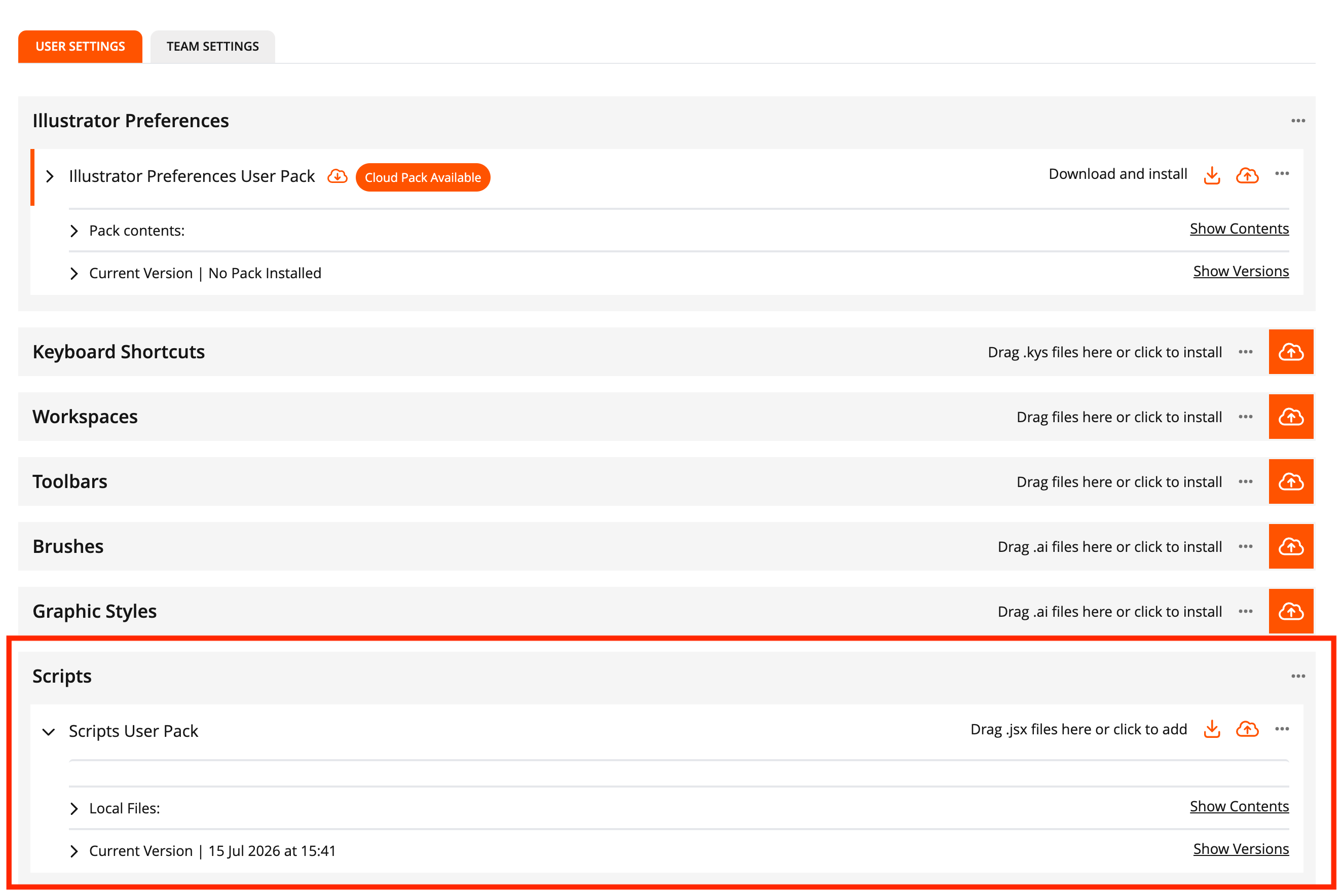
User Scripts can be saved in Astute Manager Pro
Important Notes
Scripts can make changes to the active Illustrator document. Before running a script, check the description so you understand what it is designed to do.
For important production files, we recommend saving your work before running any script. In many cases, changes made by a script can be reverted using Illustrator’s Undo command, but this may depend on the script, the document, and the operation performed.
Scripts are provided to support and improve Illustrator workflows, but results may vary depending on your Illustrator version, operating system, document structure, installed plugins, and artwork complexity.