
Group
![]() QuickOps Panel
QuickOps Panel

Illustrator Location:
The Group By Proximity operation takes the selected art objects and makes separate groups of those that are close to each other. Grouping is previewed, and the tolerance value adjusts how close objects must be to each other to be grouped.
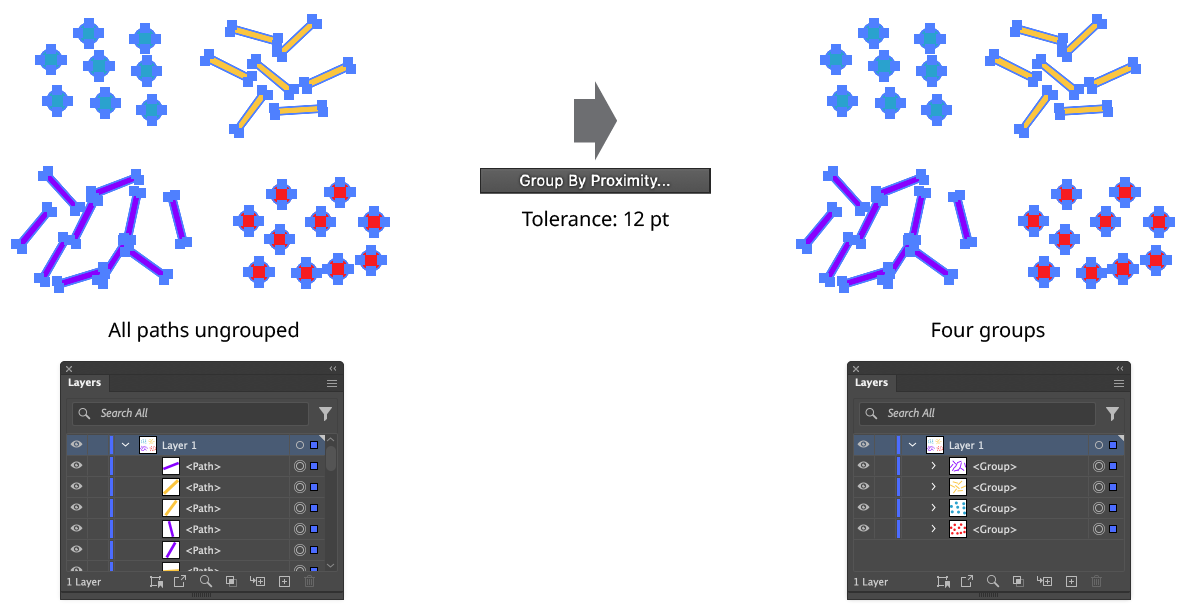
QuickOps Group by Proximity Example
Clicking the button when there are at least two art objects selected brings up the settings dialog:
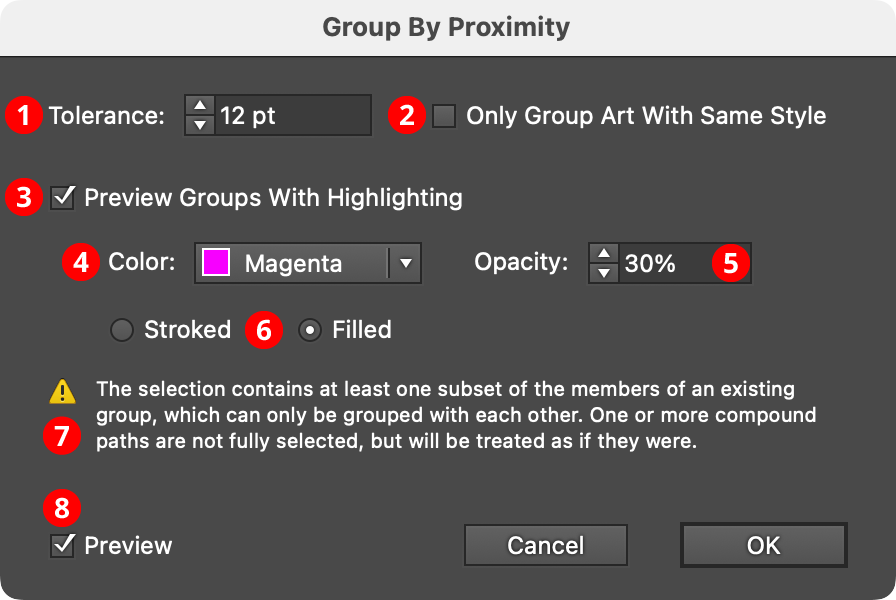
QuickOps Group by Proximity Settings
1. Tolerance
Specifies the approximate distance between two pieces of art below which they will be grouped, from –1000 pt to 1000 pt. Negative values indicate that the objects must overlap by at least that much. For performance reasons, Group By Proximity uses the Tightest Bounds for each art object when determining the distances between them. The Tightest Bounds is the smallest rectangle that fits around the object, when allowed to rotate freely (i.e., unlike a standard bounding box, it does not have to be orthogonally-aligned to the X- and Y-axes). This may cause objects which don’t visually touch to be considered as touching, even with a tolerance of zero.
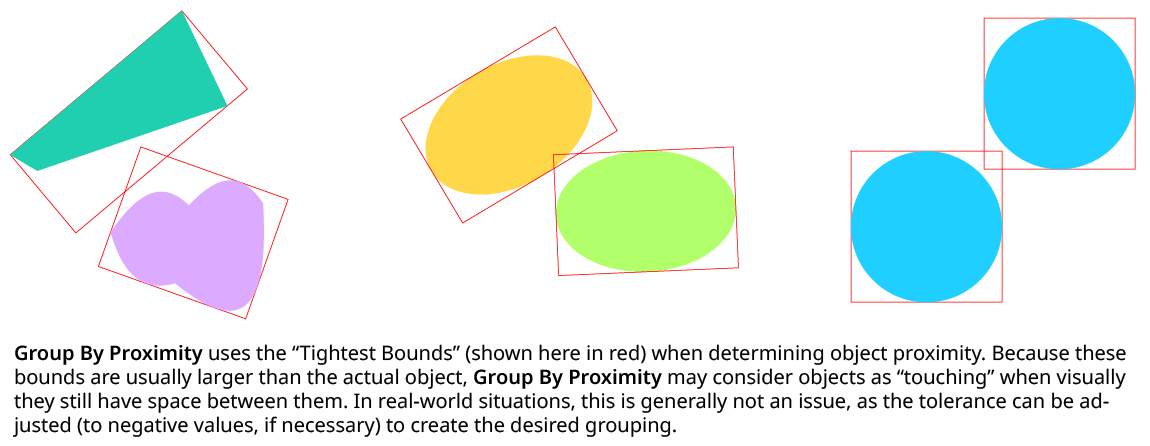
QuickOps Group by Proximity Tightest Bounds
2. Only Group Art With Same Style
When enabled, art objects with different styles will never be grouped, regardless of tolerance value. The style of a group which has no stroke, fill, or group-level effects is taken to be the style of its members, as long as they are all identical.
3. Preview Groups With Highlighting
Because there is usually no visual difference between ungrouped and grouped artwork, by default Group By Proximity draws highlighting polygons over each new group that will be created while the settings dialog is open. The style of the highlighting is controlled by the additional controls underneath.
4. Preview Color
Specifies the color of the preview highlighting, from among Red, Blue, Magenta, Green, Yellow, and Cyan.
5. Preview Opacity
Specifies the opacity of the preview highlighting (by default, 30%).
6. Stroked/Filled
Specifies whether the preview highlighting consists of filled polygons or stroked polygons.
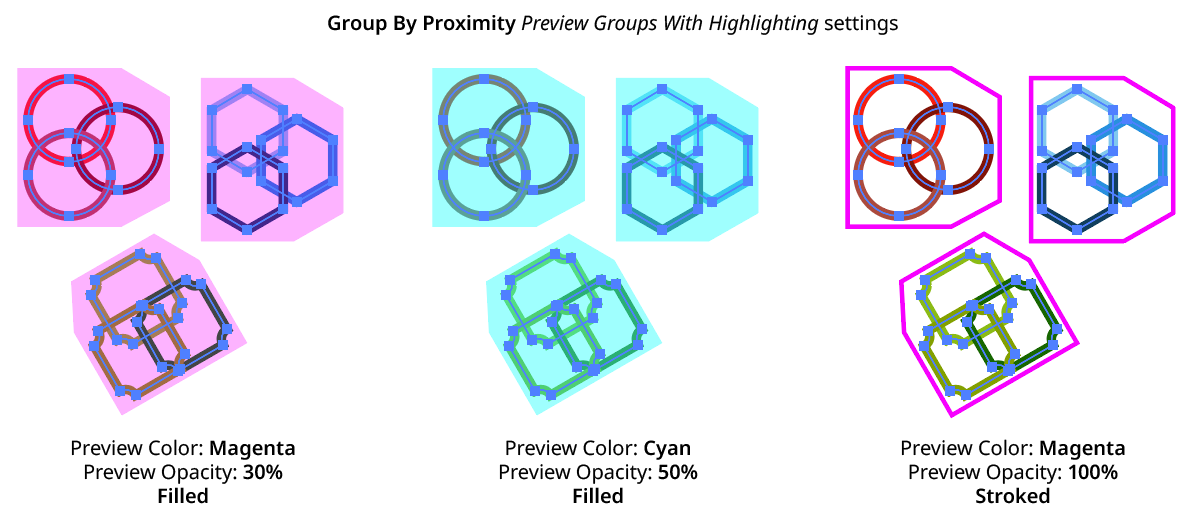
QuickOps Group by Proximity Previewing
7. Warnings
The warning icon and text appear if one or both of the following situations occur:
1. The selected art consists of some of the members of an existing group, but not the whole group. In this case, those members could only form new groups with each other (making nested groups), but not externally.
2. The selected art consists of some of the subpaths of a compound path, but not the whole compound path. In this case, the compound path will be treated as if it were fully selected.
8. Preview
When Preview is enabled, the artwork’s new grouping is shown on the artboard (unless Preview Groups With Highlighting is turned off), and will update whenever the settings are changed. Turning Preview off will show the artwork in its original state, allowing you to toggle to quickly see “before and after.”