
 Reduce Colors
The Reduce Colors operation reduces the number of colors used in strokes, fills, and (optionally) gradient stops by averaging and combining similar colors together. The resulting colors may be saved as regular swatches or as global swatches.
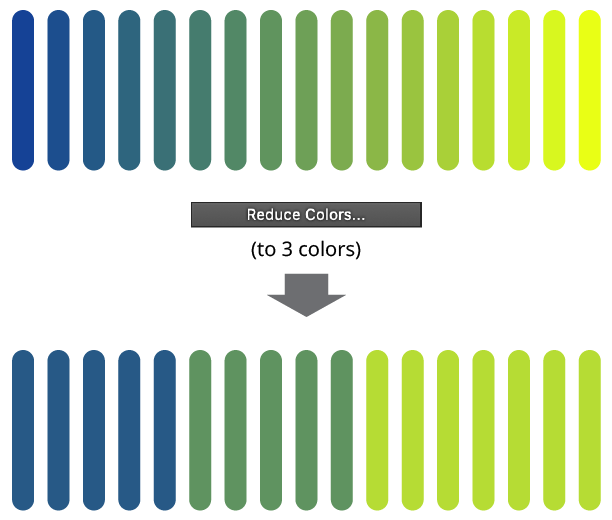
QuickOps Reduce Colors Overview
Clicking the button brings up the settings dialog:
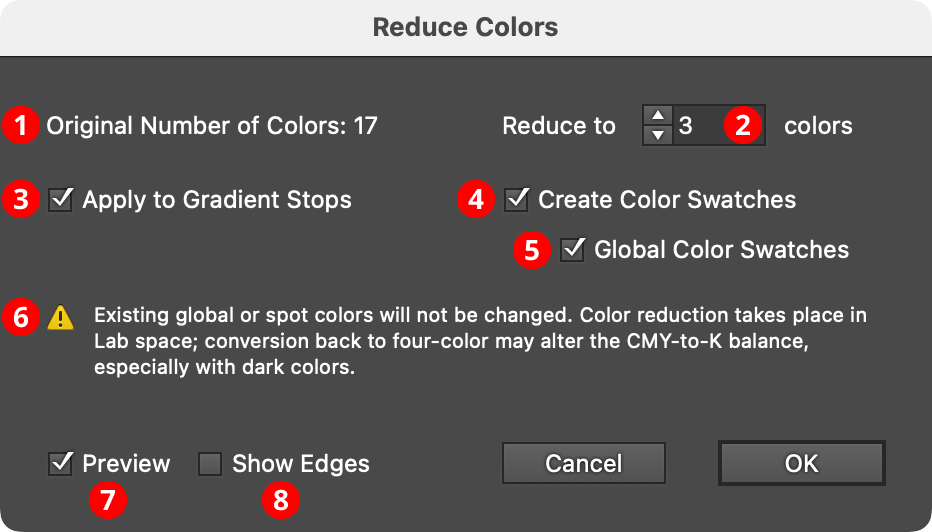
QuickOps Reduce Colors Settings
1. Original Number of Colors
Shows the original number of colors in the selected artwork which can be reduced. Reducible colors are the non-global, non-spot colors in strokes, fills, and (when Apply to Gradient Stops is enabled) gradient stops.
2. Color Count
The desired number of colors in the final artwork, from 1 to 1000. The value must be lower than the original number of colors.
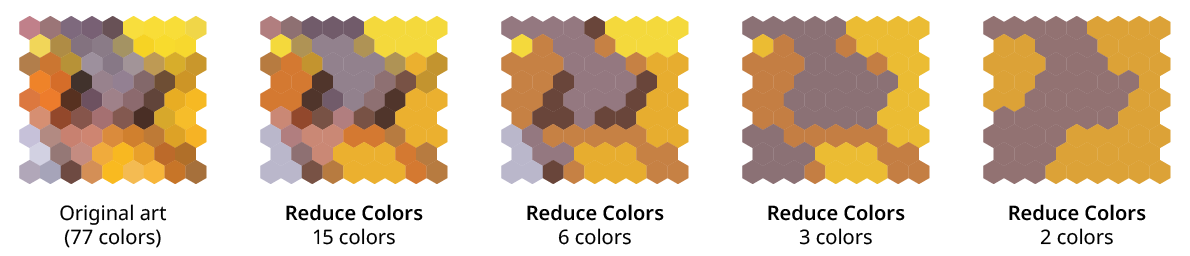
QuickOps Reduce Colors Examples
3. Apply to Gradient Stops
Available when there are linear or radial gradients in the selected artwork. When enabled, the reducible colors in the stops of each gradient are also affected. (Note that as with all gradients, there will still be additional intermediate colors created between the stops, if the stop colors are different).
4. Create Color Swatches
When enabled, new swatches are created for each of the reduced colors.
5. Global Color Swatches
Available when the Create Color Swatches setting is enabled. The Global Color Swatches setting makes each new swatch a global color, so that the artwork can be recolored more easily afterwards.
6. Warnings
Possible warning include:
Existing global or spot colors will not be changed. To affect these colors, use one of the native Edit > Edit Colors > Convert to... menu items to change them to CMYK or RGB first.
The selection contains colors in patterns, artwork types, or live effects which will not be changed. The Reduce Colors operation is meant only for flat colors and linear/radial gradients in strokes and fills. The colors used in gradient meshes, raster images, symbols, and so on will not be affected.
Color reduction takes place in Lab space; conversion back to four-color may alter the CMY-to-K balance, especially with dark colors. This warning is shown when reducing colors in a CMYK document.
7. Preview
When Preview is enabled, the artwork’s new appearance with the colors reduced is shown on the artboard, and will update whenever the settings are changed. Turning Preview off will show the artwork in its original state, allowing you to toggle to quickly see “before and after.”
8. Show Edges
By default, artwork selection edges are automatically hidden when the Reduce Colors settings dialog is up, to make it easier to see the color changes. However, by toggling the checkbox on, they may be shown again.


