
- Getting Started
- Industry Workflows
- Training
- Features
- Effects
-
Plugins
- AG Core
- AstuteBuddy
- Autosaviour
- ColliderScribe
- DirectPrefs
- DynamicSketch
- FindReplace
- InkFlow
- InkQuest
- InkScribe
- MirrorMe
- Phantasm
- Randomino
- Rasterino
- Reform
- Stipplism
- Stylism
-
SubScribe
- Getting Started
- Circle by Points Tool
- Tangent Circle Tool
- Curvature Circle Tool
- Arc by Points Tool
- Tangent Line Tool
- Perpendicular Line Tool
- Connect Tool
- Straighten Tool
- Lock Unlock Tool
- Orient Tool
- Quick Orient Tool
- Orient Transform Tool
- AG Layer Comps Panel
- Art Switcher Panel
- Gradiator Panel
- Gradient Forge Panel
- AG Color Select Tool
- Color Stamp
- Gradient From Art
- Pixels to Vector
- QuickOps
- Texturino
- VectorFirstAid
- VectorScribe
- WidthScribe
- Scripts
- FAQs
- Updates
- Team Licensing
- Reseller Licensing
- Astute Manager
 Reprofile Panel Flyout Menu
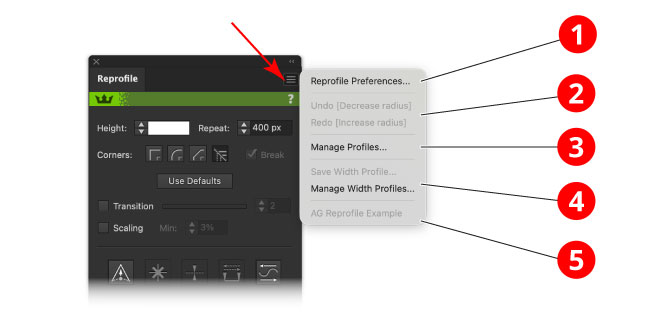
Reprofile Panel Flyout Menu
1. Reprofile Preferences
See: Reprofile Preferences.
2. Undo & Redo
When working with Reprofile’s markers, changes such as moving a marker are handled by the tool’s internal Undo/Redo system rather than Illustrator’s normal Undo/Redo commands. Therefore, the normal Undo/Redo menu items or keyboard shortcuts (Command/Ctrl + Z and Shift + Command/Ctrl + Z) do not apply to these changes.
Instead, Reprofile has its own internal Undo/Redo system, allowing you to cycle backwards and forwards through changes made while refining the profile. These commands are available from the panel flyout menu or by using the [ and ] keys by default.
3. Manage Profiles
Opens the Profile Manager, where profiles in the Profile Library can be managed. Profiles can be renamed, categorized, marked as favorites, imported, exported or deleted.
4. Save & Manage Width Profiles
Save Width Profile saves the current width profile settings so they can be recalled and applied to other paths.
Manage Width Profiles allows saved width profiles to be renamed or deleted.
Reprofile shares these settings with Reform. Profiles created in Reform can be used as width profiles in Reprofile, and width profiles saved in Reprofile can be used in Reform.
5. Stored Width Profiles
Lists the available saved width profiles. Selecting one applies its stored marker arrangement to the path currently being edited with the Reprofile tool.
These width profiles are shared with Reform, allowing the same marker settings to be recalled across both tools.