
- Getting Started
- Industry Workflows
- Training
- Features
- Effects
-
Plugins
- AG Core
- AstuteBuddy
- Autosaviour
- ColliderScribe
- DirectPrefs
- DynamicSketch
- FindReplace
- InkFlow
- InkQuest
- InkScribe
- MirrorMe
- Phantasm
- Randomino
- Rasterino
- Reform
- Stipplism
- Stylism
-
SubScribe
- Getting Started
- Circle by Points Tool
- Tangent Circle Tool
- Curvature Circle Tool
- Arc by Points Tool
- Tangent Line Tool
- Perpendicular Line Tool
- Connect Tool
- Straighten Tool
- Lock Unlock Tool
- Orient Tool
- Quick Orient Tool
- Orient Transform Tool
- AG Layer Comps Panel
- Art Switcher Panel
- Gradiator Panel
- Gradient Forge Panel
- AG Color Select Tool
- Color Stamp
- Gradient From Art
- Pixels to Vector
- QuickOps
- Texturino
- VectorFirstAid
- VectorScribe
- WidthScribe
- Scripts
- FAQs
- Updates
- Team Licensing
- Reseller Licensing
- Astute Manager

Because paths which you might want to zip together do not always conveniently contain coincident points at each end of the zipper, Path Zipper provides additional functions for creating such points.
First, if the paths have anchor points that are close to each other but not coincident, Path Zipper can make them coincident. When the points are within the cursor circle, they will be highlighted with semi-transparent blue dots. The new, common position of the points is shown with a red dot. After clicking, the points will be shown with a green dot, which indicates that they have been made coincident.
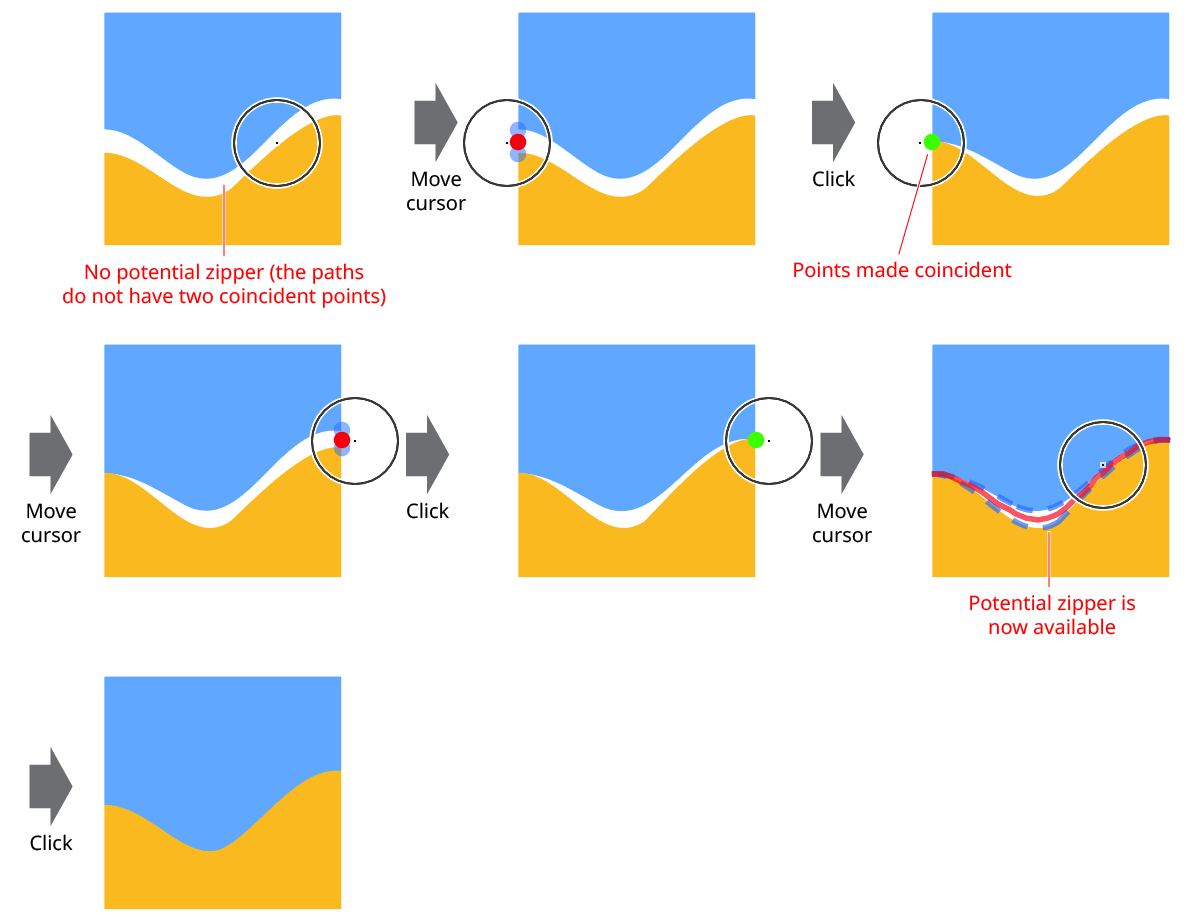
Path Zipper Making Points Coincident
As with the zipping operation, a click without modifier keys simply averages the positions of the points together, while holding down Shift or Option/Alt moves the new position to one or the other of the points. If more than two points are being made coincident, another method of specifying the new point position is available: with the mouse button held down, press the A key to cycle through the different points.
Second, if only one of the paths has an existing anchor point at the desired zipper end position, then, as long as that point and at least part of the other path are within the cursor circle, a new point can be simultaneously created on the other path and made coincident. In this case, the existing point is indicated with a solid purple dot, the (virtual) new point on the other path by a hollow purple dot, and the new, common position of the points with a red dot.
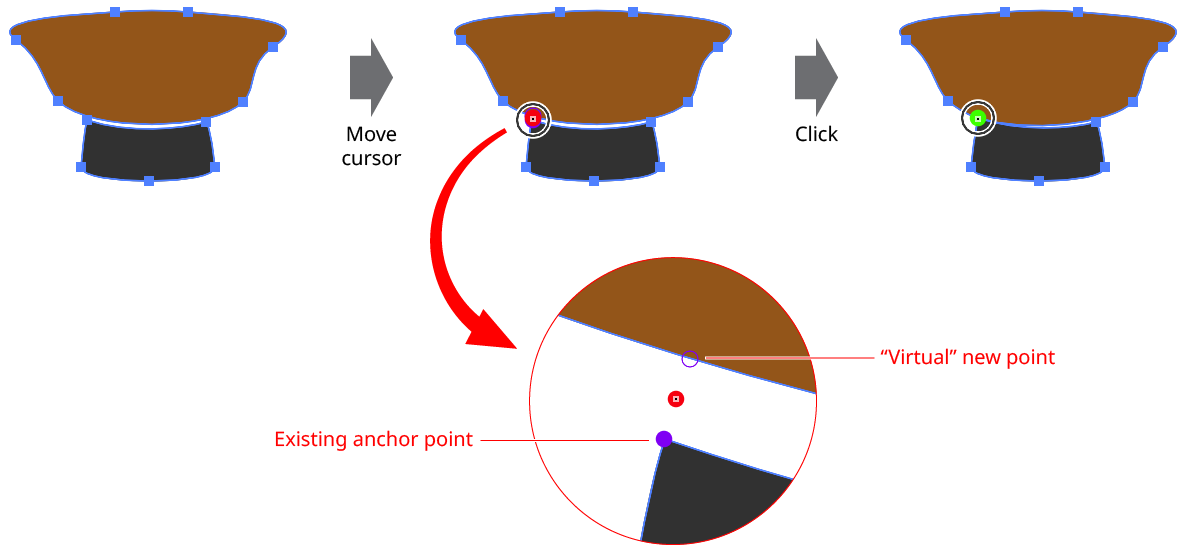
Path Zipper Adding and Making Points Coincident
Again, as with the zipping operation, a click without modifier keys simply averages the positions of the points together, while holding down Shift or Option/Alt moves the new position to one or the other of the points.
Finally, the paths may intersect each other at one end of a desired zipper segment, but without an anchor point there on either path. In this case, with only the spot of intersection inside the cursor circle (indicated by a solid magenta dot), clicking will create a coincident point on each path at that spot.
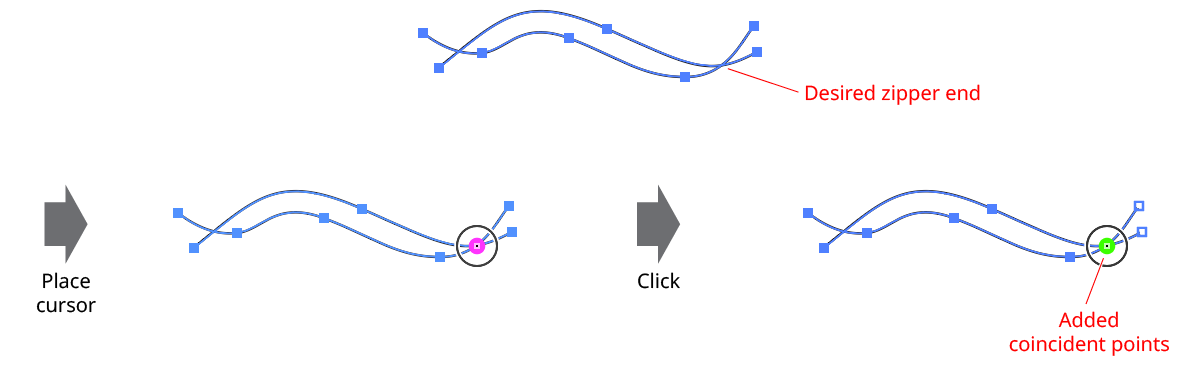
Path Zipper Adding Intersection Points
There may be occasions when the points you want to make coincident (or add and make coincident, or add at an intersection) are within a potential zipper, which takes precedence. In this situation, to override zipper mode and allow for these additional functions, hold down Shift+Option/Alt. Note that with these modifier keys down, the new coincident point position will always be at the averaged position of the points. If this would result in undesired geometry, then the point(s) can always be added and/or moved manually using a different tool, such as the PathScribe tool.