
- Getting Started
- Industry Workflows
- Training
- Features
- Effects
-
Plugins
- AG Core
- AstuteBuddy
- Autosaviour
- ColliderScribe
- DirectPrefs
- DynamicSketch
- FindReplace
- InkFlow
- InkQuest
- InkScribe
- MirrorMe
- Phantasm
- Randomino
- Rasterino
- Reform
- Stipplism
- Stylism
-
SubScribe
- Getting Started
- Circle by Points Tool
- Tangent Circle Tool
- Curvature Circle Tool
- Arc by Points Tool
- Tangent Line Tool
- Perpendicular Line Tool
- Connect Tool
- Straighten Tool
- Lock Unlock Tool
- Orient Tool
- Quick Orient Tool
- Orient Transform Tool
- AG Layer Comps Panel
- Art Switcher Panel
- Gradiator Panel
- Gradient Forge Panel
- AG Color Select Tool
- Color Stamp
- Gradient From Art
- Pixels to Vector
- QuickOps
- Texturino
- VectorFirstAid
- VectorScribe
- WidthScribe
- Scripts
- FAQs
- Updates
- Team Licensing
- Reseller Licensing
- Astute Manager

As the Path Zipper tool has several keypresses which can add or change its functionality, we suggest installing the free Astute Graphics plugin Astute Buddy, which creates a panel that dynamically updates to inform you of the various keys which can be pressed in the tool’s current context.
When a path contains two anchor points that are each coincident (at the same coordinates) with two points on a second path, then the section between those points may be zipped with the Path Zipper tool by placing the tool over both edges of the potential zipper and clicking. The paths do not need to be selected, but must be unlocked.
The tool previews a potential zipper using blue and red lines. The blue lines (which are dashed) indicate the original edges of the zipper, and the solid red line shows the position that the zipped paths will assume after clicking. A section of path that is already zipped will be indicated with a green line.
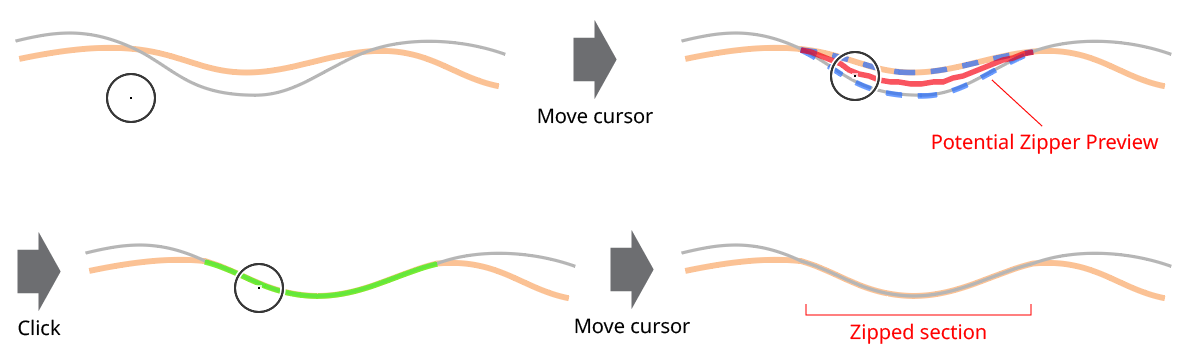
Path Zipper Tool Basic Operation
By default, the new zipper is created by averaging the positions of the original edges along the length of the zipper. To make the zipper lie along one or the other of the paths’ original edges, hold down Shift or Option/Alt:
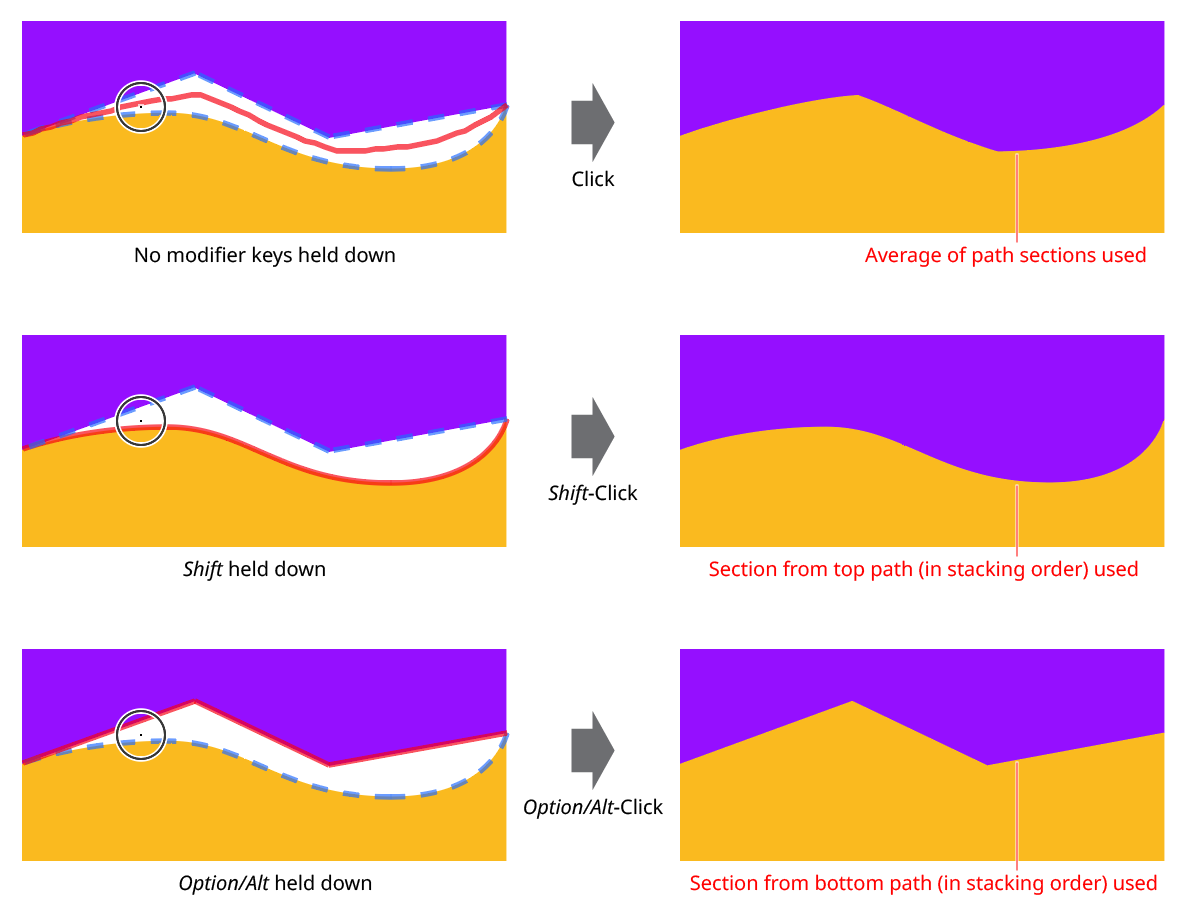
Path Zipper Tool Modifier Keys
Shift causes the zipper to run along the path which is on top in the stacking order, and vice versa.