
 Extend to Intersection
The Extend To Intersection operation extends one or more open paths in a straight line until they intersect with another path. The extension can be limited to a certain distance or angle, and can be specified to affect both ends or only one end of the path(s).
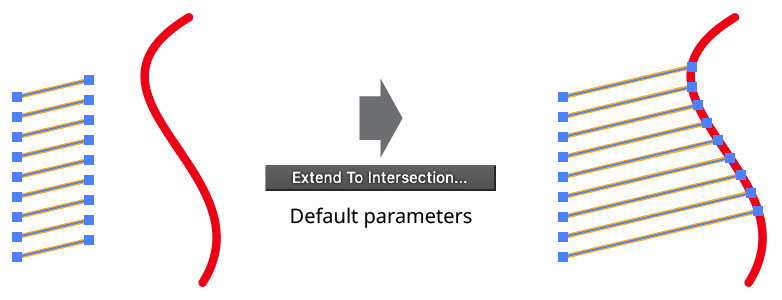
QuickOps Extend to Intersection Example
Clicking the button when there is at least one open path selected brings up the settings dialog (holding down Shift when clicking bypasses the dialog and performs the operation with the last-used settings):
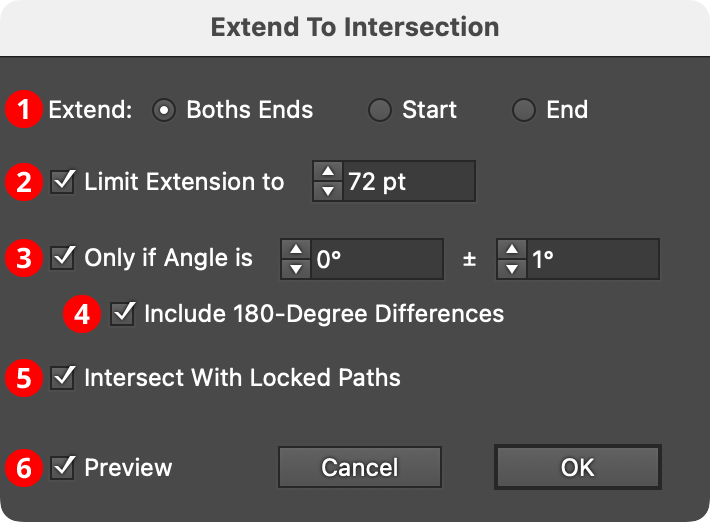
QuickOps Extend to Intersection Settings
1. Extend
Specifies whether to extend both ends of each selected open path, or just the start/end of each path.
2. Limit Extension
When enabled, only checks for intersections within the specified distance (by default, 72 pt). If an intersection is not found within this distance, the path is not extended. (Even with Limit Extension disabled, if no intersection is detected by the time the path is extended completely off the pasteboard, the path is not extended.)
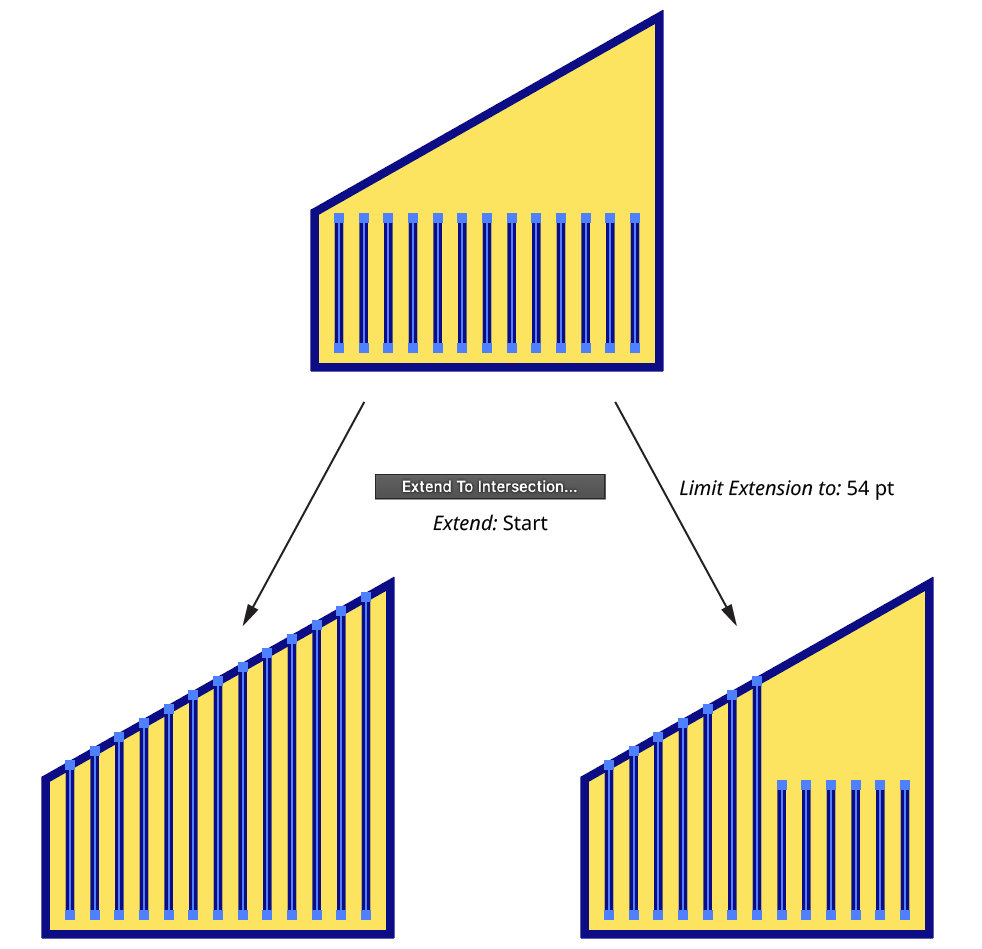
QuickOps Extend to Intersection Limit Extension
3. Only if Angle is...
When enabled, the path will only be extended if the angle of the extension segment is at the specified angle (within the specified tolerance). This could be used, for example, to only extend paths horizontally to the right without having to manually select the paths that matched that angle.
4. Include 180-Degree Differences
Available if Only if Angle is... is enabled. It allows extension at angles that are 180° opposed to the specified angle. For example, with an angle of 90° and Include 180-Degree Differences enabled, extensions that are at an angle of 270° (which can alternately be expressed as –90°), will also be allowed.
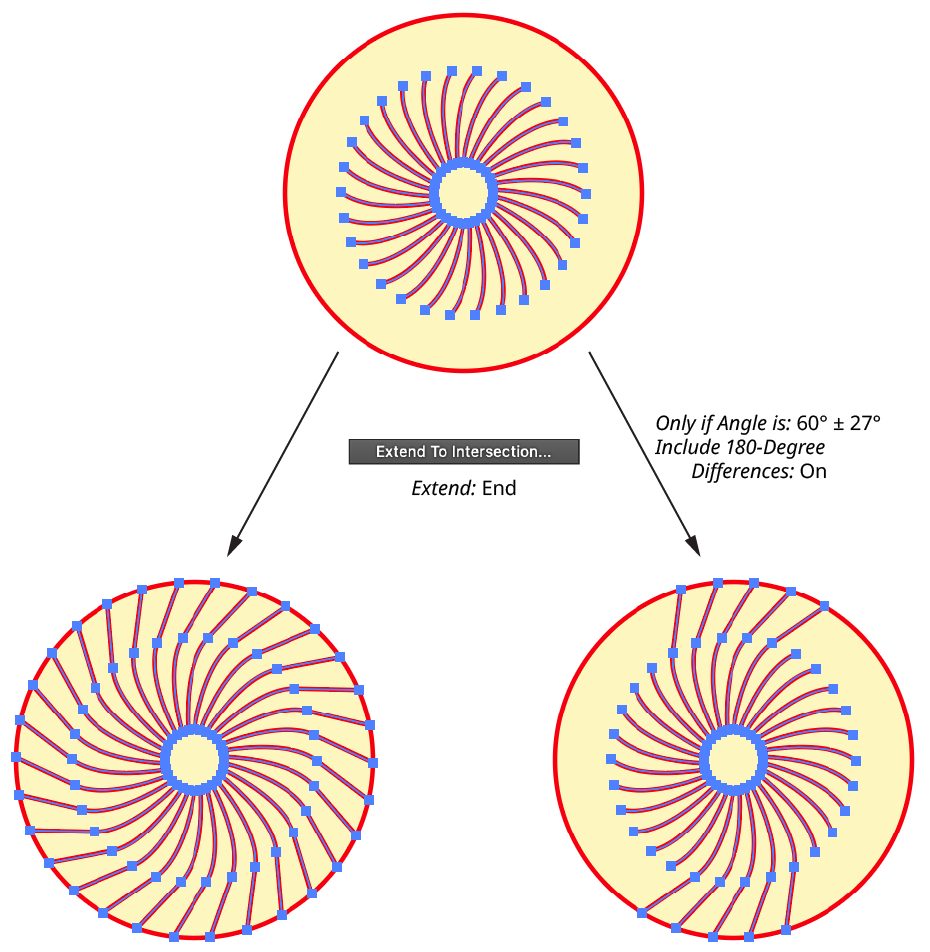
QuickOps Extend to Intersection Only if Angle is...
5. Intersect With Locked Paths
When enabled, intersections will be calculated to locked paths, in addition to unlocked ones.
6. Preview
When Preview is enabled, the extended paths are shown on the artboard and will update whenever the settings are changed. Turning Preview off will show the paths in their original state, allowing you to toggle to quickly see “before and after.”
Special Considerations
Extend To Intersection extends the selected open paths sequentially, from the top of the stacking order to the bottom, and these extended paths are then valid as intersections for the next path. Therefore, a different stacking order can produce different results:
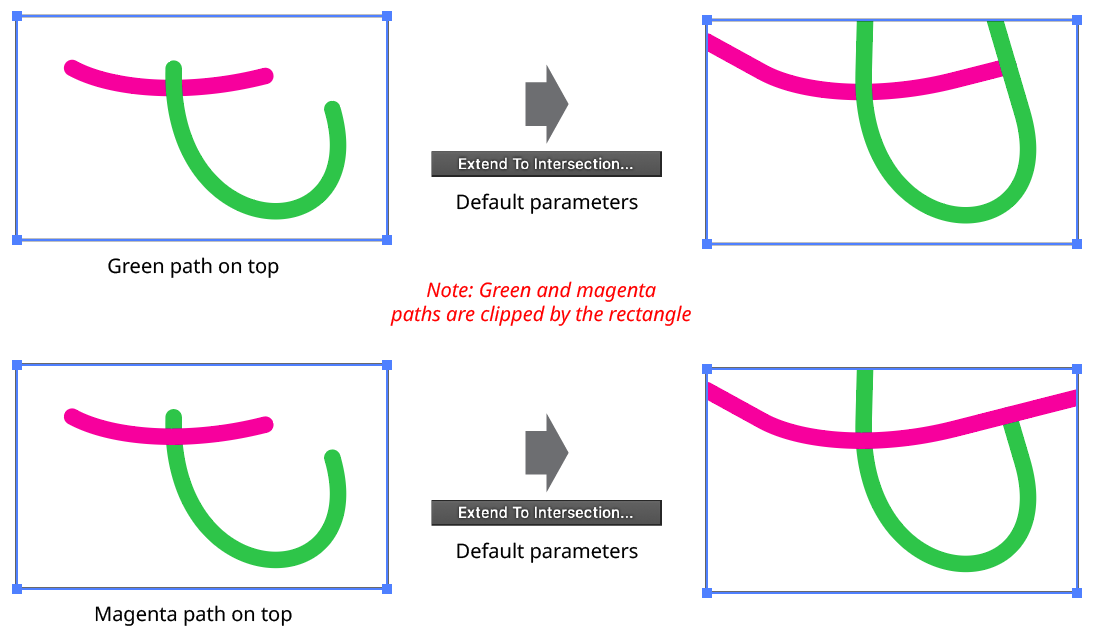
QuickOps Extend to Intersection Stacking Order

