
Updating to Illustrator 2026.3 (v30.3)
Last updated: 2026-04-21
Installation & Licensing TroubleshootingTo accompany Illustrator 2026.3, Astute Graphics has updated all plugins to include the latest SDK. Illustrator SDK is the Adobe instruction set allowing Astute Graphics to build new superpowers inside Illustrator. Normally, major SDK changes occur with Adobe’s annual major version (yearly) updates.
This Illustrator 2026.3 update allows us to utilize the latest features, including the new Perceptual and Dither gradient controls, now also displayed in the Gradiator panel.
The following sequence can be followed to update your plugins for Illustrator 2026.3 (v30.3) and above.
If you are an Astute Manager Pro user only, please skip the below advice and scroll down to Important instructions for Astute Manager Pro users.
Astute Graphics Plugin Users
⚠️ Before proceeding, it is important that you have:
Updated Illustrator 2026 to the latest version using the Adobe Creative Cloud application, which will be v30.3 or above.
Opened this installed version of Illustrator and quit it at least once.
The Astute Manager is fully quit before reopening, including from the Tray (Windows) or Menu Bar (macOS).
Next…
Open Astute Manager
The Astute Manager will show the "Orphaned Plugins" information. If this message is not automatically displayed, navigate to Illustrator Plugins > Plugins.
Click on the green Process orphaned plugins button.
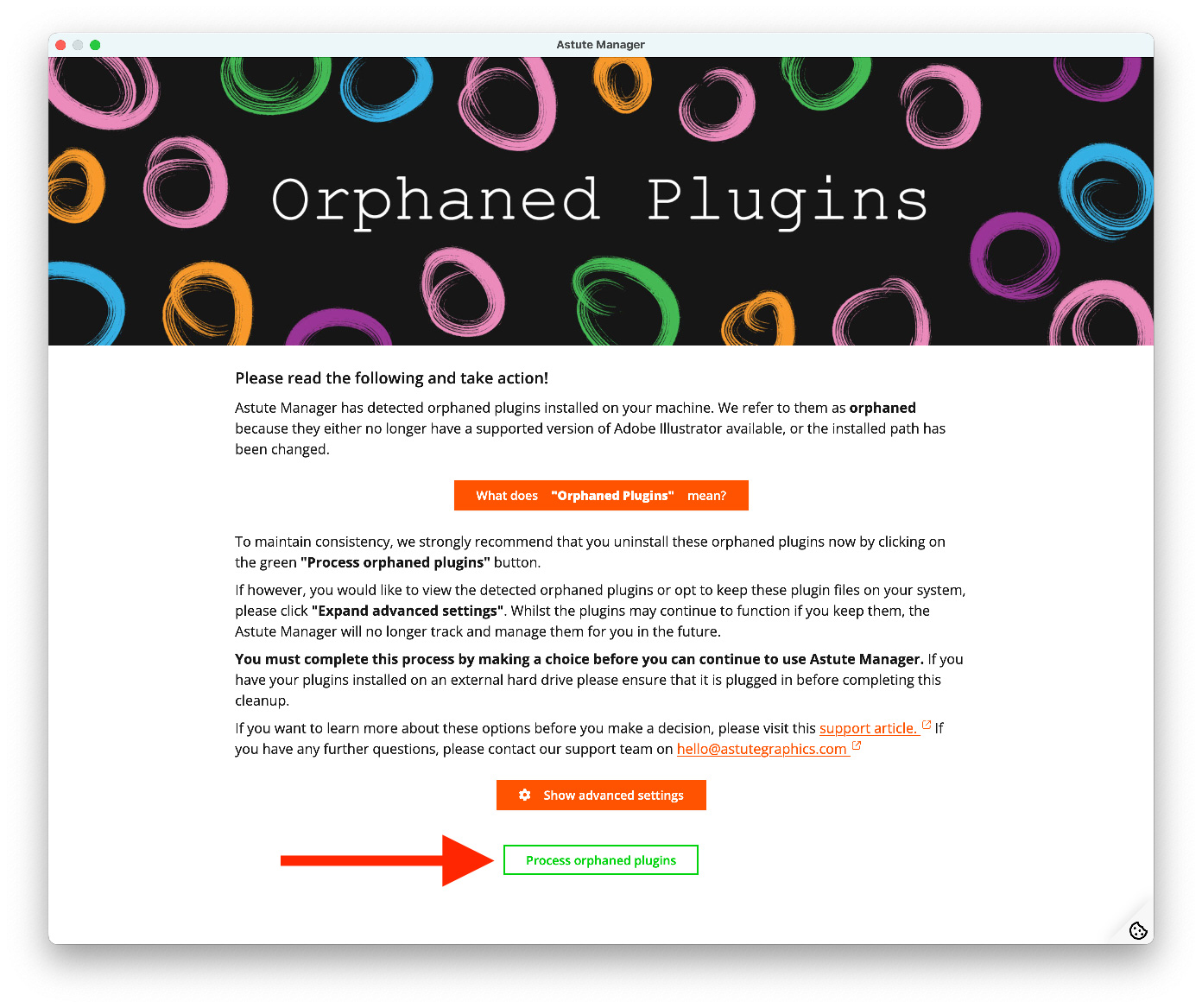
Updating to Illustrator 2026.3 (30.3) - Step 1
Click on the orange I understand and continue button in the confirmation dialog.
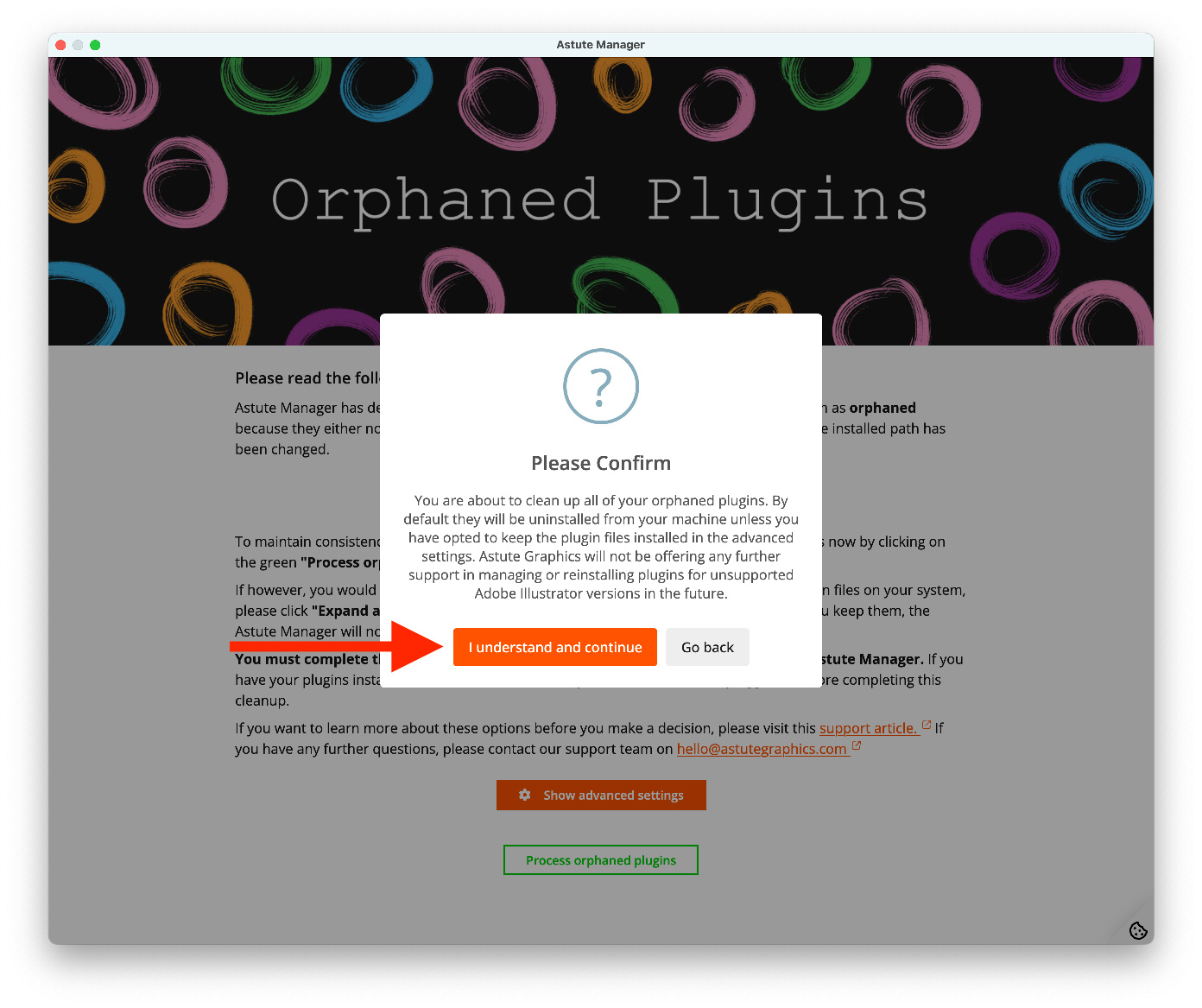
Updating to Illustrator 2026.3 (30.3) - Step 2
You will be automatically returned to the Illustrator Plugins > Plugins page. At the top of this page, you will see the Version of Illustrator drop-down selection menu shows Illustrator "2026 (30.3+)", which can now be managed for plugins.
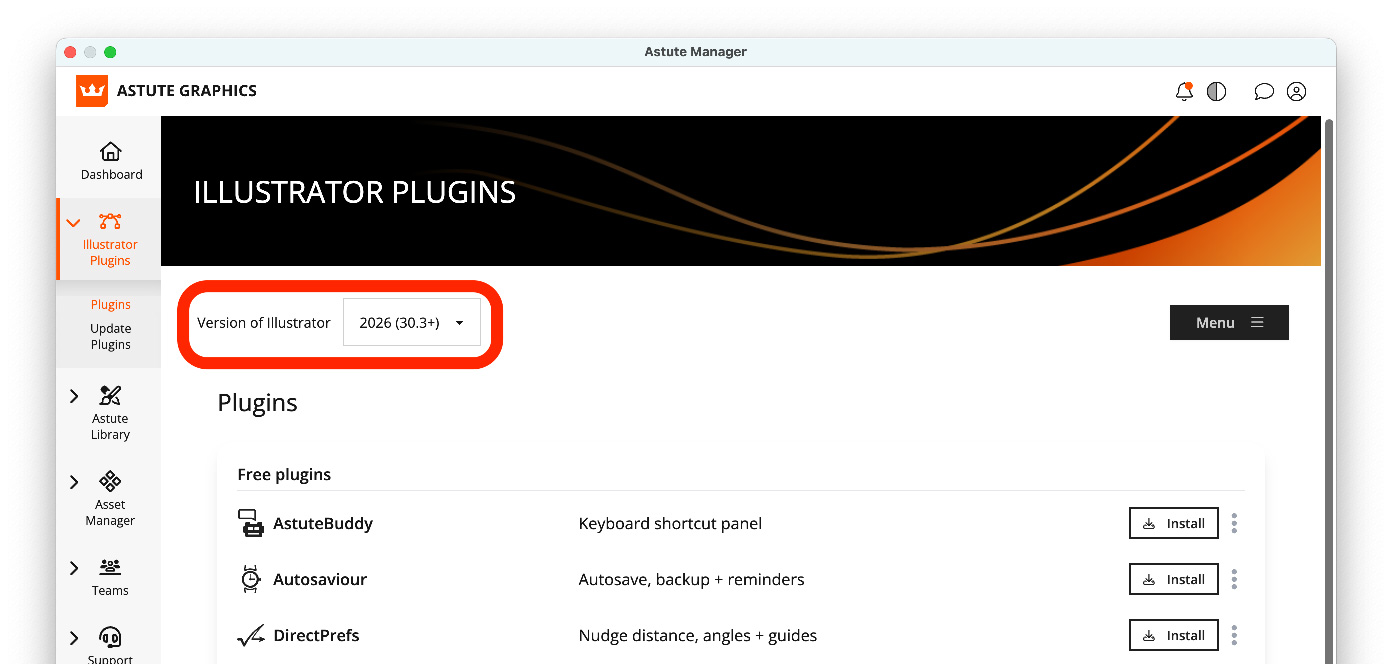
Updating to Illustrator 2026.3 (30.3) - Step 3
Now use the normal Menu button to Install all plugins, or selectively install the plugins you want from the list.
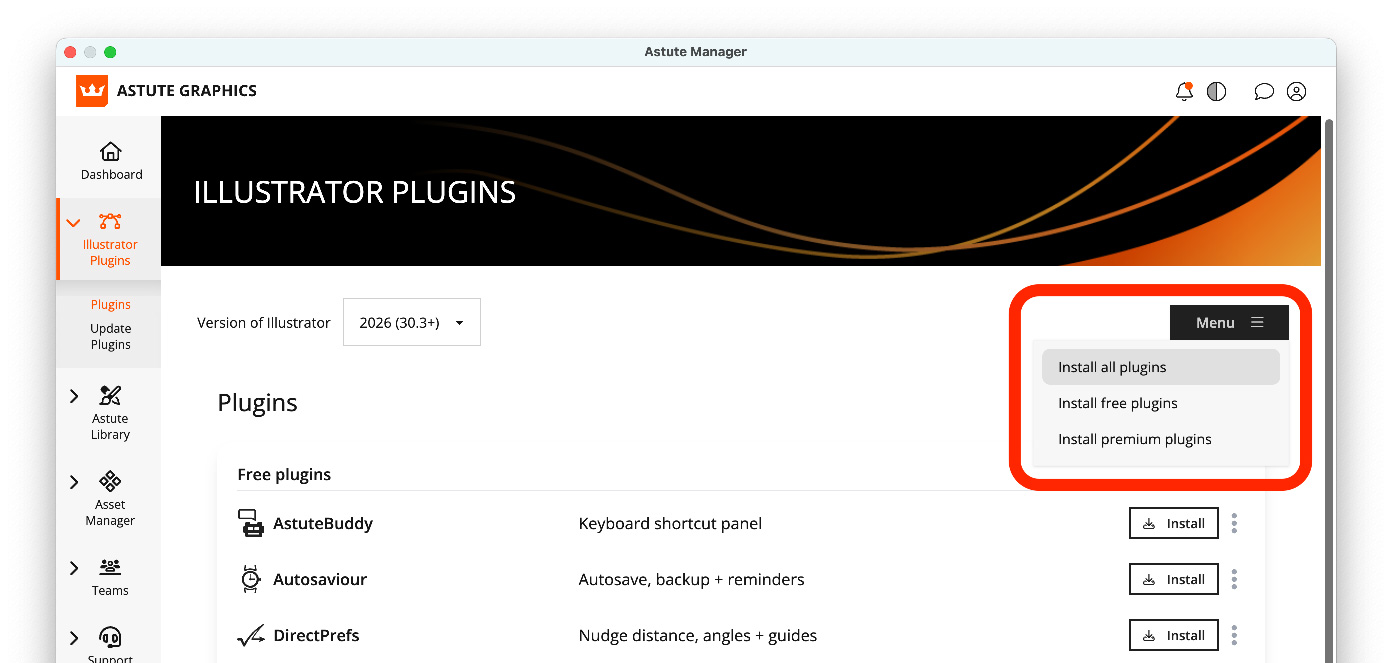
Updating to Illustrator 2026.3 (30.3) - Step 4
Now restart Illustrator.
Related articles:
Detecting and adding plugins to new installations of Illustrator
I updated to Illustrator 2026 and my plugins are not working
Important instructions for Astute Manager Pro users
If you use the Astute Manager to back up your Illustrator Preferences and settings as an individual or in a team, you will need to re-upload these in the Asset Manager.
At present, the Astute Manager cannot deploy Preferences and settings (Keyboard Shortcuts, Workspaces and Tools) into newer versions of Illustrator. Therefore, as Illustrator 2026.3+ (v30.3+) is considered a distinct major new version, take the following steps:
Ensure you have Adobe Illustrator in a state you wish to back up
Quit all instances of Adobe Illustrator
Open the Astute Manager
Navigate to Asset Manager > Illustrator > User Settings
Click on the cloud upload icons for Illustrator Preferences User Pack and any of the three custom settings (Keyboard Shortcuts, Workspaces and Tools) you wish to back up
If you are managing team assets, re-upload any currently managed Illustrator settings packs used by your team(s) via Asset Manager > Illustrator > Team Settings
The backing up of Illustrator user Preferences and settings is completely free. For more information on this and additional Astute Manager Pro services, please visit astutemanager.com/resources.